
If your IntelWireless-AC 9560 is not working, disappears from Device Manager, or shows errors such as Code 10, your PC may lose Wi-Fi access completely or experience unstable wireless connections. The problem can be caused by a damaged or incompatible driver, a disabled network adapter, stopped WLAN services, Windows update issues, or temporary system conflicts. This guide explains several practical ways to fix Intel Wireless-AC 9560 problems.
1. Restart Your Computer
Sometimes, a simple restart can resolve temporary hardware issues. Before proceeding with other steps, try restarting your computer and check if the issue is resolved. If the problem persists, continue with the following solutions.
2. Restart the AC-9560 Adapter
Open Device Manager and find the Intel Wireless-AC 9560 adapter.
Right-click Intel Wireless-AC 9560 and select "Disable device".
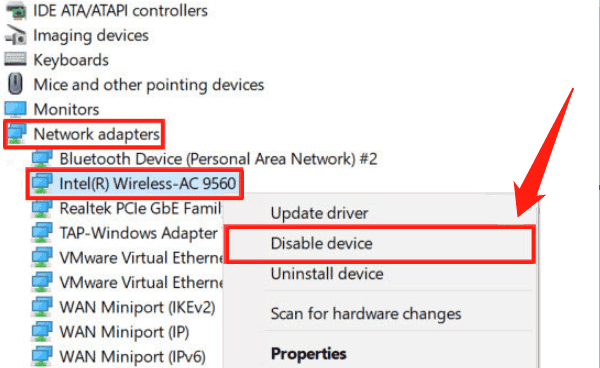
Wait for 1-2 minutes, then right-click the adapter again and select "Enable device".
Check if the adapter starts working properly and try connecting to the network.
3. Restart the WLAN AutoConfig Service
Press Win + R to open the Run dialog.
Type "services.msc" and press Enter to open the Services Manager.
In the list of services, locate "WLAN AutoConfig", right-click it, and select "Restart".
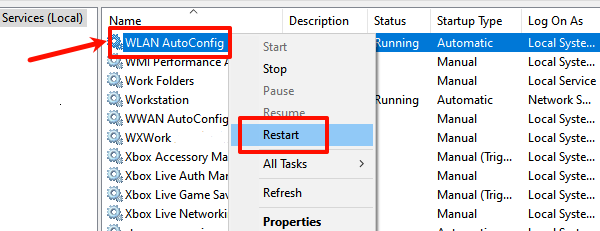
If the service is not running, right-click it and select "Start".
After restarting the service, check if the wireless adapter is functioning properly.
4. Check Driver
Uninstall the Driver
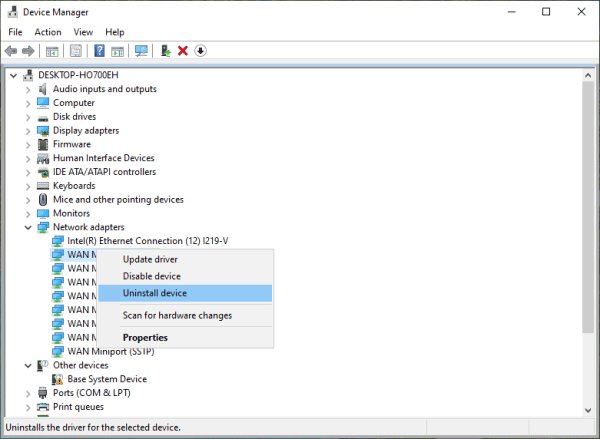
Right-click the Start button and select "Device Manager".
Expand Network Adapters, find Intel Wireless-AC 9560, and select "Uninstall device".
In the pop-up dialog, check "Delete the driver software for this device", then click "Uninstall".
Install the Driver
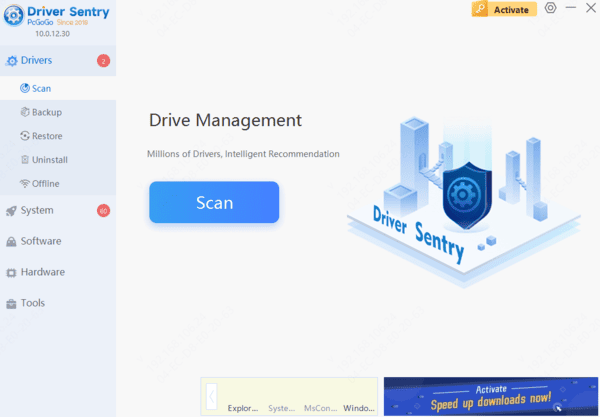
Click the Download button to get the latest version of Driver Sentry. Install and open the software, then click "Scan".
Once the scan is complete, it will display missing or outdated drivers. Locate Intel Wireless-AC 9560 in the list and click "Install".
After the update is complete, restart your computer to ensure the new driver takes effect properly.
5. Run the Hardware and Devices Troubleshooter
Press Win + I to open Settings and go to "Update & Security".
Click "Troubleshoot" > "Other troubleshooters".
Select "Hardware and Devices", then click "Run the troubleshooter".
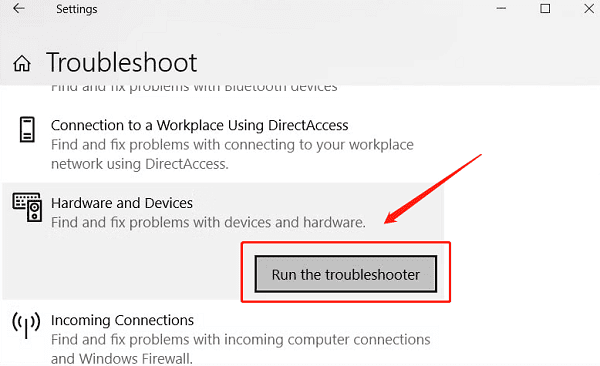
Follow the on-screen instructions. Windows will automatically detect and fix issues related to the wireless adapter.
Once the troubleshooting process is complete, check if the problem is resolved.
6. Check for Windows Updates
Press Win + I to open "Settings".
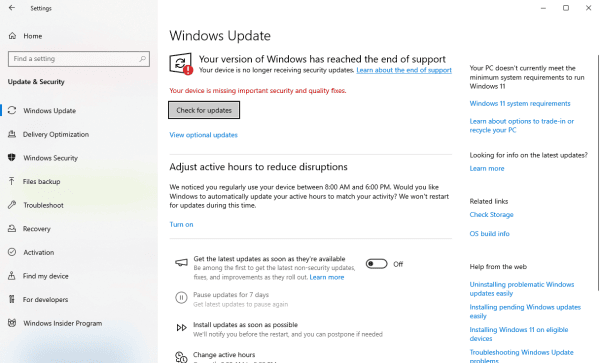
Go to "Update & Security", then click "Windows Update".
Click "Check for updates". Windows will automatically search for and download any available updates.
If updates are available, click "Download and install", then wait for the installation to complete.
After installing updates, restart your computer and check if the wireless adapter is working properly.
Frequently Asked Questions
What does Code 10 mean for Intel Wireless-AC 9560?
Code 10 means Windows cannot start the wireless adapter. Common causes include a corrupted driver, incompatible update, power-management problem, disabled BIOS setting, or hardware failure.
Why is Intel Wireless-AC 9560 missing from Device Manager?
Select View → Show hidden devices, then check Network adapters and Other devices. If it remains missing, perform a full shutdown, check BIOS wireless settings, and install the correct chipset and Wi-Fi drivers.
Why does the Wi-Fi adapter stop working after sleep mode?
Windows may switch off the adapter to conserve power. Open the adapter's properties in Device Manager and disable Allow the computer to turn off this device to save power.