






The keyboard is an essential part of everyday computer use, and problems with indicator lights not working can affect usability and convenience. Issues such as inactive Caps Lock, Num Lock, or other keyboard indicators may be caused by driver problems, incorrect settings, or hardware-related errors. In this guide, we’ll provide effective solutions to troubleshoot keyboard indicator light issues, restore proper functionality, and improve your overall typing experience.
Check Keyboard Connection
Check the connection between the keyboard and the computer, ensuring that the USB or PS/2 port is secure.
If it's a wireless keyboard, confirm that the receiver is correctly plugged into the USB port.
If the connection is fine but the indicator lights still do not work, try connecting the keyboard to another USB port on the computer to rule out port failure.
You can also connect the keyboard to another computer to determine if the problem lies with the keyboard itself.
Update Keyboard Drivers
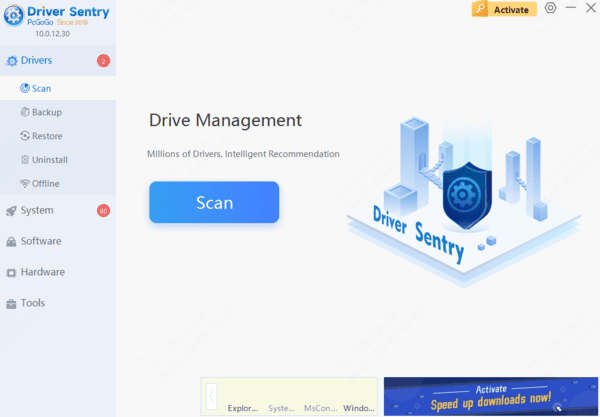
Driver issues can cause the indicator lights to malfunction, and updating the keyboard driver can effectively resolve this problem, restoring normal functionality. It is recommended to use Driver Sentry to automatically detect driver updates, saving time and avoiding the risk of downloading or installing incorrect drivers.
Check Keyboard Settings
In Windows, right-click the "Start" button and select "Settings".
In the Settings window, choose "Devices", then click "Typing".
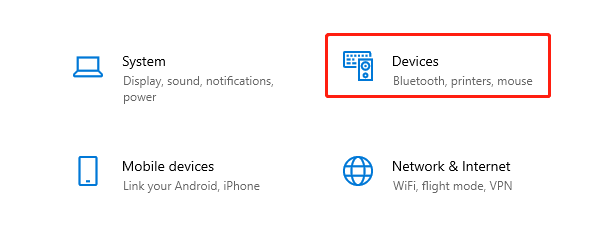
Locate the relevant keyboard settings to confirm whether the indicator light function has been disabled or incorrectly configured. If there are related options, ensure they are enabled.
Reset Keyboard Settings
Right-click the "Start" button and select "Device Manager" to open it.
In Device Manager, expand the "Keyboards" category and locate your keyboard device.
Right-click the keyboard device and select "Uninstall device". Confirm the uninstallation and then restart your computer.
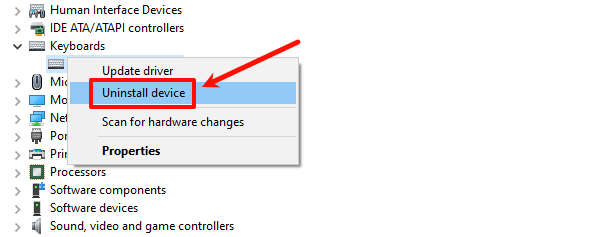
Upon restarting, Windows will automatically reinstall the keyboard driver, restoring default settings.
Conduct Hardware Troubleshooting
Open Device Manager again and check if the keyboard device has any warning signs (such as a yellow exclamation mark), which may indicate driver or hardware issues.
Confirm that other peripherals (like the mouse) are functioning normally to rule out USB port or system problems.
You can download and run third-party keyboard diagnostic tools to detect hardware faults and provide solutions.
If the above steps do not resolve the issue, it is advisable to contact the keyboard manufacturer's customer support for further assistance.




