






Keyboard typing problems are common in Windows 10 and can interrupt everyday tasks, work, and communication. Issues such as delayed input, incorrect responses, or a completely unresponsive keyboard may result from driver errors, system settings, or hardware problems. In this guide, we'll provide effective troubleshooting methods to fix keyboard issues and quickly restore normal typing functionality.
Inspect Keyboard Connection
For Wired Keyboards:
Ensure the keyboard is properly connected to the USB port.
Try plugging the keyboard into another USB port to rule out port issues.
For Wireless Keyboards:
Check the battery level and replace the batteries if necessary.
Ensure the wireless receiver is correctly inserted into a USB port, and re-pair the keyboard and receiver.
Reconnecting the Keyboard:
Disconnect the keyboard, wait a few seconds, reconnect it, and test functionality.
Disable Sticky Keys
Press Win + I, go to "Ease of Access" > "Keyboard".
Locate the "Use sticky keys" option and turn it off.
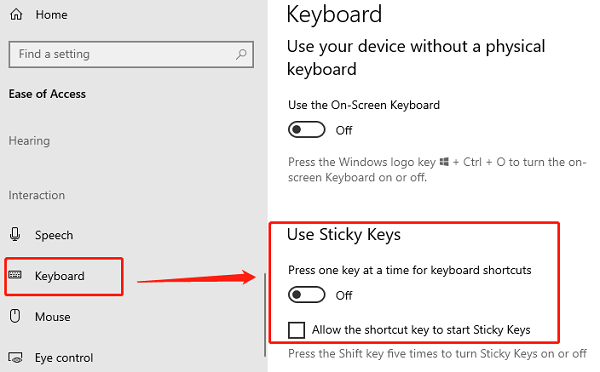
Test if the keyboard works properly.
If you can't access settings, press the Right Shift key five times to disable the Sticky Keys feature.
Verify Input Method Settings
Press "Win + Space" to switch to the correct input method (e.g., English or Chinese).
Ensure the input method matches the keyboard layout.
Open Settings with Win + I, then go to "Time & Language" > "Language".
Next to the current language, click "Options", and reinstall the input method if necessary.
In "Advanced Keyboard Settings", reset the input method to default.
Check for Driver Updates
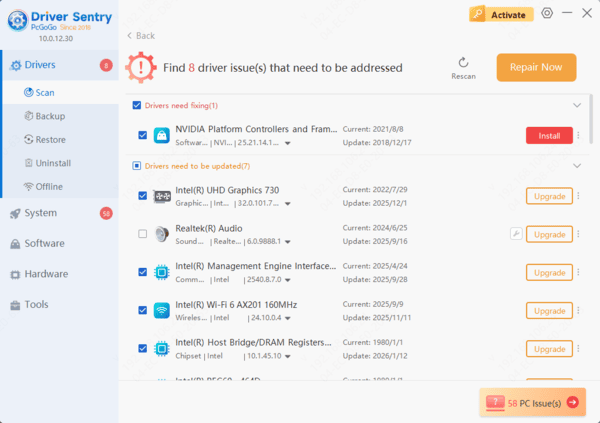
A damaged or outdated keyboard driver can cause input issues. Updating the keyboard driver may resolve the problem. Using Driver Sentry is recommended for automatic driver detection and updates, saving time and minimizing the risk of errors.

Run Windows Troubleshooter
Press Win + I, go to "Update & Security" > "Troubleshoot".
Locate the "Keyboard" option and click "Run the Troubleshooter".
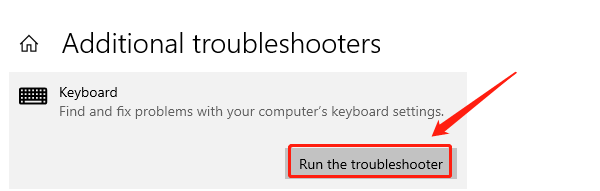
Allow the system to detect and resolve issues automatically.
Follow the on-screen instructions, restart your computer, and test the keyboard.
Check for Hardware Issues
Test the Keyboard:
Connect the keyboard to another computer to check if it works.
If the keyboard doesn't work on other devices, it may be physically damaged.
Clean the Keyboard:
Use a soft brush to remove dust and debris between keys.
For mechanical keyboards, consider removing keycaps for thorough cleaning.
Replace the Keyboard:
If the keyboard is confirmed to be damaged or worn out, consider replacing it with a new one.




