






While using a computer, many users may experience keyboard problems where the wrong characters appear when typing. This issue can be caused by incorrect keyboard settings, language configuration errors, outdated drivers, or hardware-related problems. In this guide, we'll explain the common causes of incorrect keyboard input and provide simple, practical solutions to help you fix the issue and restore normal typing functionality.
1. Update Keyboard Drivers
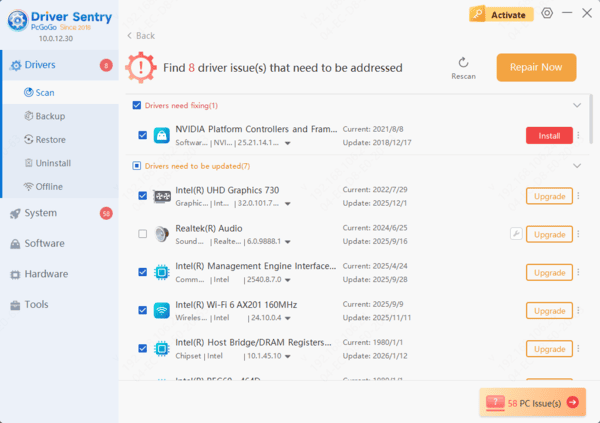
Outdated or corrupted drivers can cause keyboard malfunctions. Updating the keyboard driver can resolve such issues. Using Driver Sentry is recommended for automatically detecting and updating drivers, saving time and avoiding downloading or installing incorrect drivers.
2. Disable Sticky Keys
Quickly disable Sticky Keys
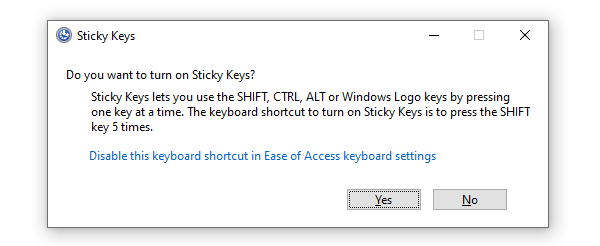
Press the Shift key five times, and the Sticky Keys settings window will appear.
In the pop-up window, click "Disable this keyboard shortcut in Ease of Access keyboard settings", ensure the "Use Sticky Keys" option is off.
Disable Sticky Keys through Control Panel
Press the "Win + I" keys to open the Windows Settings menu.
Select "Ease of Access".
In the left-hand menu, find and click "Keyboard".
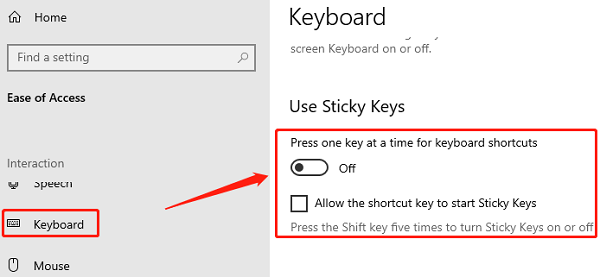
Turn off the "Use Sticky Keys" option, and make sure the "Press the Shift key five times to turn Sticky Keys on or off" option is also unchecked.
3. Check Input Method Settings
Press the "Ctrl + Shift" or "Alt + Shift" key combinations to cycle through the input methods in your system, ensuring the correct input method is in use.
In the taskbar at the bottom right, find the language icon (usually labeled with "CH", "EN", or other abbreviations representing the current input language).
Click the icon to open the input method list and select the one you need (e.g., Chinese Pinyin or English keyboard).
If the issue persists, you can reset the input method to its default state or reinstall the commonly used input method.
4. Check Keyboard Language Settings
Press "Win + I" to open the settings, and select "Time & Language".
Choose the "Language" tab from the left menu and check if the current keyboard language is correct. It is recommended to set the language to the one you commonly use (e.g., Chinese or English).
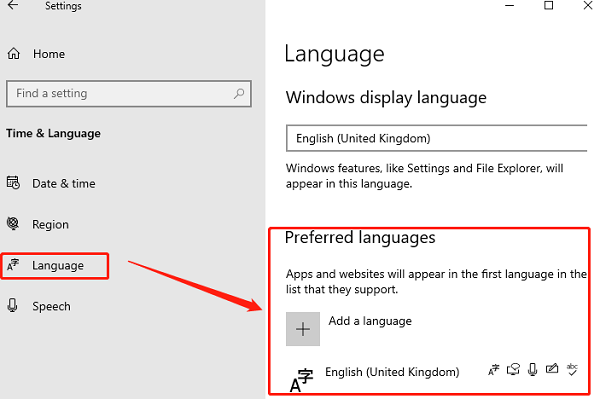
If you find the language setting is incorrect, click "Add a language", select the correct one, and set it as the default keyboard language.
If needed, click "Options" and reselect the correct keyboard layout in the "Keyboard" section.
For unnecessary keyboard languages, click "Remove" to reduce input method interference.
5. Check if Num Lock is Enabled
Locate the "Num Lock" key (usually on the top left of the numeric keypad).
Press "Num Lock" to ensure the number lock function is on. A light on the keyboard typically indicates if it's activated.
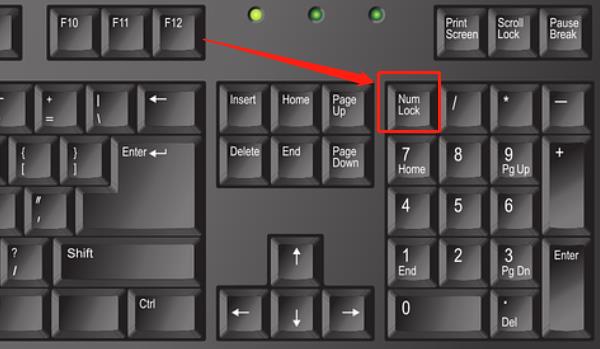
Try pressing the numeric keys to see if they work. If they don't, try pressing "Fn + Num Lock", which may enable/disable number lock on some laptops.
6. Check for Keyboard Hardware Issues
For external keyboards
Ensure the USB or wireless receiver is properly connected.
Try connecting the keyboard to a different USB port.
If it's wireless, check the battery level or replace the batteries.
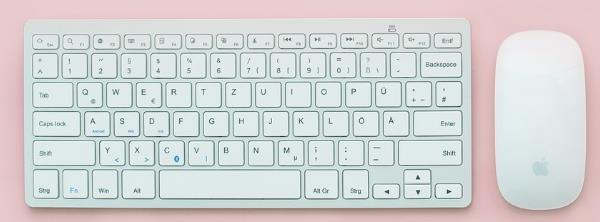
Clean the keyboard
Use compressed air to remove dust or debris from under the keys.
Gently brush the keyboard surface with a soft brush to prevent keys from getting stuck.
Test with another keyboard
If possible, use another keyboard to determine if the current one is faulty.
If the replacement works, the original keyboard may need repair or replacement.




