
Laptop users may face WiFi connectivity issues like connection failures, unstable signals, or frequent disconnections. This article offers solutions to help fix these problems and restore a stable network.
1. Check Hardware Connections
Ensure the hardware connection between the WiFi router and your PC is functioning properly.
Check that both the router and your computer's WiFi switch are turned on.
If you are using an external wireless adapter, ensure it is securely inserted and working correctly.
2. Update Drivers
Outdated or corrupted network adapter drivers may be one of the main reasons for unstable or failed WiFi connections. Ensure you update to the latest version of your network adapter drivers. It is recommended to use Driver Sentry to automatically detect and update drivers, saving time and avoiding the risk of downloading or installing incorrect drivers.
Click the download button to get the latest version of Driver Sentry. Once installed, open the software and click "Scan".

After the scan is complete, it will display which drivers are missing or need updating. Find the network adapter driver in the list and click the "Upgrade" button.
Once the update is complete, restart your computer to ensure the updated drivers take effect.
3. Restart Your PC
Save your work and close all programs.
Click the Start menu, select the power icon, then click "Restart".
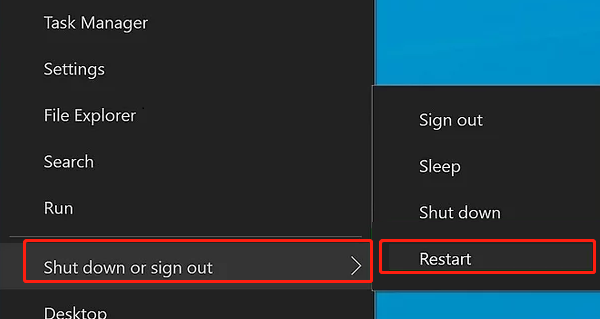
Wait for your PC to restart and check if the WiFi connection has been restored.
4. Check WiFi Settings
Click the WiFi icon in the taskbar to ensure the wireless network feature is enabled.
Go to Settings > Network & Internet > WiFi, and make sure the WiFi switch is turned on.
Check if you are connected to the correct WiFi network.
5. Forget and Reconnect to the WiFi Network
Go to Settings > Network & Internet > WiFi.
Click Saved Networks, find the currently connected network, and click "Forget".
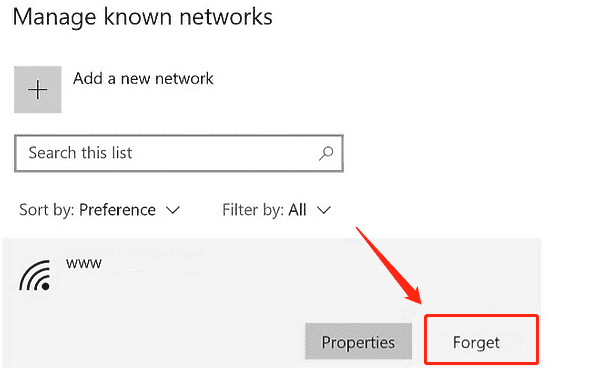
Re-select the WiFi network and re-enter the password to reconnect.
6. Adjust TCP/IP Settings
Run the following commands in Command Prompt as Administrator:
netsh int ip reset
ipconfig /release
ipconfig /renew
Restart your computer.
7. Reset Network Settings
Go to Settings > Network & Internet > Advanced Network Settings.
Click "Network Reset".
Confirm and wait for the PC to complete the reset. Your computer will automatically restart.
8. Run Network Troubleshooter
Go to Settings > Update & Security > Troubleshoot.
Click "Additional Troubleshooters" and select "Network Adapter".
Click "Run the Troubleshooter" to let the system automatically detect and fix network issues.
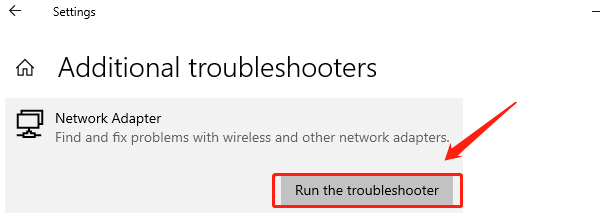
Follow the prompts to complete the repair process and check if the WiFi connection is restored.
By following these methods, you can fix WiFi connection issues on your laptop and restore stable network connectivity. If the problem persists, contact a professional technician for further assistance.
See also:
How to Fix Black Screen with Cursor Issue in Windows 11
How to Fix Scanner Not Working Issues