






Some computer users may encounter issues where their Logitech wireless mouse suddenly stops working. This article provides effective solutions to help you quickly restore your Logitech wireless mouse to normal operation.
1. Change the USB Port
Reinsert the USB receiver into a different USB port on your computer to ensure a proper connection.
If you are using a portable USB hub, try plugging the receiver directly into the main USB port of your computer to avoid signal interference.
2. Update the Mouse Driver
Outdated or corrupted drivers are common causes of mouse malfunctions. Checking for driver updates can effectively resolve issues caused by faulty drivers. Using Driver Sentry to automatically detect and update drivers saves time and prevents incorrect downloads or installations.
Click the download button to get the latest version of Driver Sentry. Install and open the software, then click "Scan".
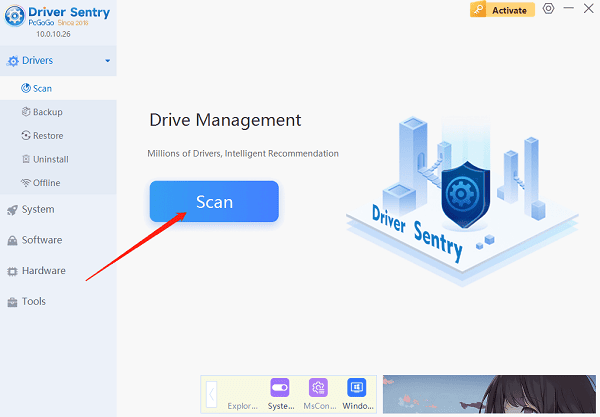
Once the scan is complete, it will display any missing or outdated drivers. Locate the mouse driver in the list and click the "Upgrade" button.
After updating, restart your computer to ensure the new driver functions properly.
3. Check the Mouse Battery
Remove the battery from the mouse and check if it is worn out or has low power.
Replace it with a fresh battery, ensuring the correct installation direction.
If your mouse is rechargeable, make sure it has sufficient battery charge.

4. Reconnect the Wireless Receiver
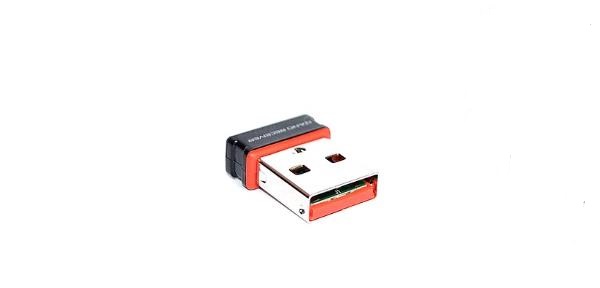
Unplug the wireless receiver and wait a few minutes before plugging it back in.
Press the connect button on the bottom of the mouse until the indicator light flashes, indicating pairing mode.
Press the connect button on the receiver to re-establish the connection with the mouse.
5. Test on Another Device
Insert the Logitech wireless receiver into the USB port of another computer.
Check if the mouse works properly on the other device.
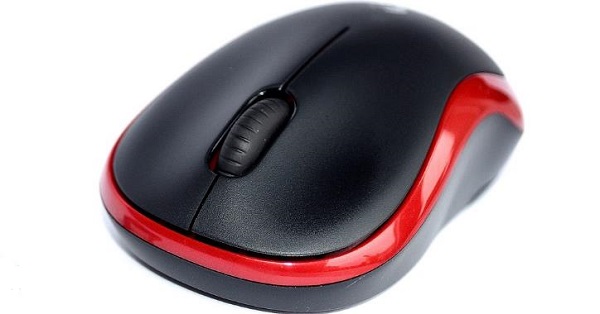
If the mouse does not work on another device, the issue may be with the mouse itself, and you may need to contact Logitech support for repair or replacement.
6. Eliminate Interference Sources
Keep the wireless receiver away from metal objects or other wireless devices, such as Wi-Fi routers and Bluetooth devices.
If your receiver and mouse operate on the 2.4GHz frequency, try switching to a 5GHz network to reduce interference.
If possible, place the receiver closer to the mouse to maintain a strong and stable connection.
By following these methods, you can quickly troubleshoot and fix issues with your Logitech wireless mouse. If the problem persists, consider reaching out to Logitech customer support or professional technical assistance for further help.
See also:
Solution for Laptop Black Screen Issue
Resolve the fltmgr.sys Blue Screen of Death Error on Windows 10




