






A missing mouse cursor can make it difficult to navigate Windows and complete everyday tasks. This issue may occur due to driver problems, incorrect settings, system glitches, or temporary software conflicts. In this guide, we'll provide common solutions to quickly restore your mouse cursor and bring back normal functionality on your Windows PC.
1. Check for Driver Updates
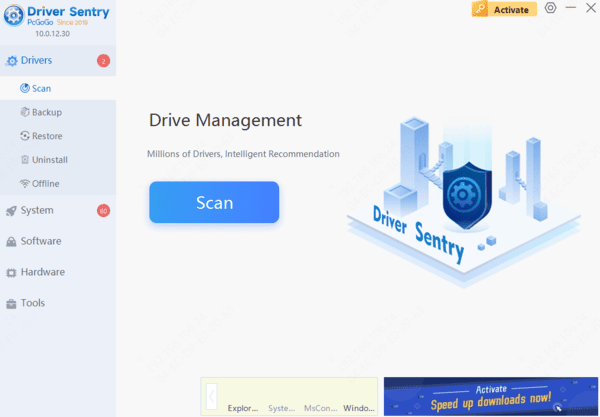
Outdated or corrupted drivers can cause the mouse cursor to disappear. Updating the mouse driver can effectively resolve driver conflicts or compatibility issues. We recommend using Driver Sentry to automatically detect and update drivers, saving you time and effort while also avoiding the risk of downloading or installing incorrect drivers.
2. Restart the Computer
Click the "Start" button in the bottom-left corner of the screen.
Select the "Power" icon and click "Restart".
Wait for the computer to restart automatically and check if the mouse is working again.
3. Check Mouse Connection
Check if the USB receiver for a wireless mouse is properly plugged into the computer's USB port.
Try inserting the USB receiver into another USB port on the computer to rule out port issues.
If other USB devices are connected, try disconnecting them to see if the mouse functions properly.
4. Re-enable the Mouse
Press Win + X and select "Device Manager".
In Device Manager, find "Mice and other pointing devices" and expand it.
Right-click the mouse device and select "Enable device" (if it says "Disable device").
Restart your computer and check if the mouse works correctly.
5. Unhide the Mouse Pointer
Open Settings (press Win + I), select "Devices", and click "Mouse".
In the "Mouse settings", find and click "Additional mouse options".
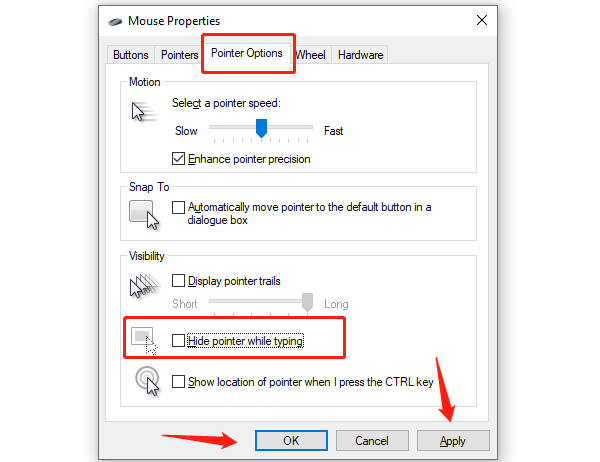
In the pop-up window, switch to the "Pointer" tab.
Ensure that "Hide pointer while typing" is not checked. If it is checked, uncheck it and click "Apply".
6. Run Hardware Troubleshooter
Press Win + S, type "cmd", and press Enter.
Right-click on "Command Prompt" in the search results and select "Run as administrator".
Type the following command and press Enter: msdt.exe -id DeviceDiagnostic
After executing the command, the "Hardware and Devices Troubleshooter" window will open.
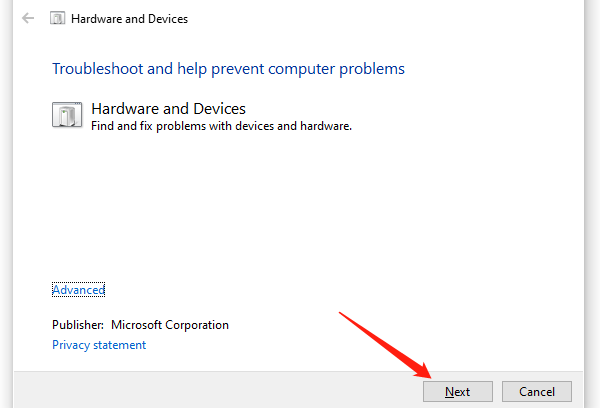
Click "Next" to start the detection process. The system will automatically scan and detect device issues.
Follow the on-screen instructions to complete the troubleshooting process.
If the system detects any issues, it will display repair options. Choose "Apply this fix" to resolve the problem.




