






A disappearing mouse cursor can make Windows difficult to navigate, whether the pointer vanishes while typing, after startup, or following a system update. Common causes include faulty mouse drivers, hidden pointer settings, disabled touchpads, corrupted system files, or temporary Windows Explorer problems. This guide provides practical solutions to restore the missing mouse arrow and regain normal control of your computer.
Unhide the Mouse Pointer
Press Win + I to open the Settings window.
Select "Devices" from the menu.
In the left panel, click "Mouse".
Select "Additional mouse options", then go to the "Pointer Options" tab in the Mouse Properties window.
Uncheck the "Hide pointer while typing" option.
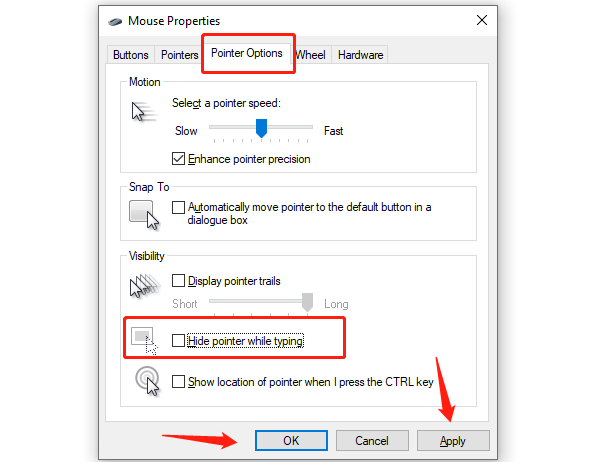
Click "Apply" and then "OK" to save the changes.
Restart Windows Explorer
Press Ctrl + Shift + Esc or right-click the taskbar and select "Task Manager".
Locate "Windows Explorer" in the list of processes.
Right-click Windows Explorer and select "Restart".
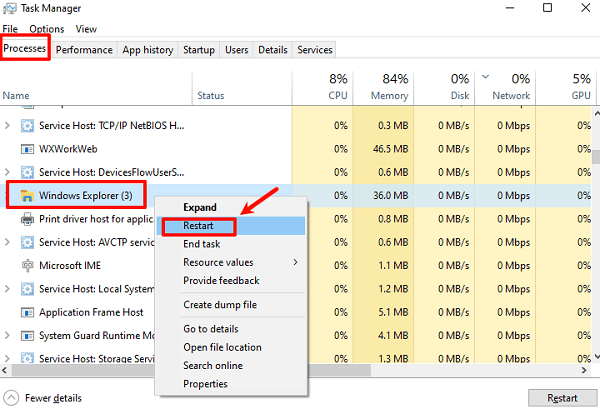
After restarting, check if the mouse cursor reappears.
Check for Driver Updates
Outdated or corrupt drivers are one of the main reasons for a missing mouse cursor. Updating your drivers can resolve the issue. Using Driver Sentry for automatic driver detection and updates can save time and prevent the risks of downloading or installing incorrect drivers.

Run the System File Checker (SFC) Tool
Press Win + S, type "Command Prompt", and select "Run as Administrator".
In the Command Prompt, type the following command and press Enter: sfc /scannow
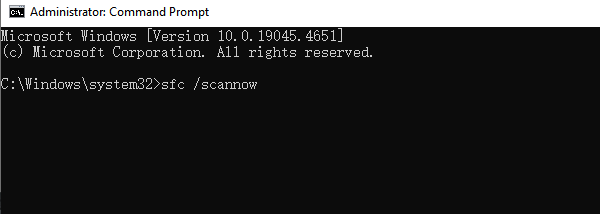
Wait for the scan to complete. Do not close the window during the process.
Once done, restart your computer and check if the cursor is restored.
Enable the Touchpad (for laptops)
Press Win + R to open the Run dialog box.
Type "control mouse" and press Enter to open the Mouse Properties window.
Use the Tab key to navigate to the "Buttons" tab.
Use the arrow keys to move to the "Touchpad" tab (often labeled ELAN or Device Settings).
Navigate to "Enable Device" using the Tab key and press the Spacebar to enable it.
Use the Tab key to select "Apply", press the Spacebar, and then navigate to "OK" to confirm.
Run Windows Troubleshooter
Press Win + I to open Settings and go to "Update & Security".
Click "Troubleshoot" in the left menu.
Select "Hardware and Devices", then click "Run the troubleshooter".
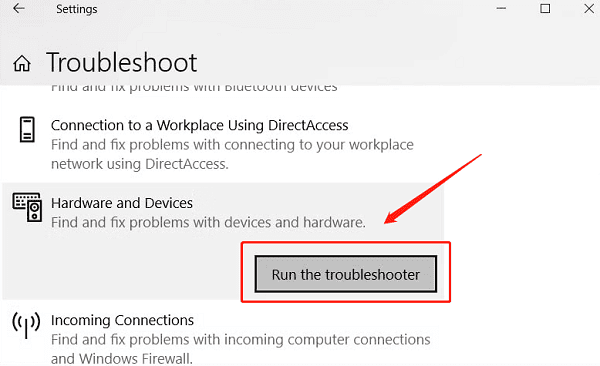
Follow the on-screen instructions. The system will attempt to identify and resolve the issue.
Following these methods should help resolve the disappearing mouse cursor issue. If the problem persists, contact technical support for further help.




