
The NVIDIA Control Panel "Access Denied" error can prevent users from adjusting graphics settings and managing GPU features. This issue is usually related to permission restrictions, NVIDIA service failures, corrupted drivers, or Windows configuration problems. This guide explains effective solutions, including changing permissions, restarting NVIDIA services, and updating or reinstalling graphics drivers to restore access.
Method 1: Run NVIDIA Control Panel as Administrator
Sometimes, the issue occurs due to a lack of administrator privileges. Here's how to fix it:
1. Locate the NVIDIA Control Panel on your desktop or in the Start menu.
2. Right-click it and select Run as administrator.
3. If a User Account Control (UAC) prompt appears, click Yes and check if the control panel opens properly.
If this resolves the issue, you can set it to always run as an administrator:
Right-click the NVIDIA Control Panel shortcut, go to Properties > Compatibility, and check the box for Run this program as an administrator. This ensures you have the necessary permissions every time you open it.
Method 2: Restart NVIDIA Services
The NVIDIA Control Panel relies on background services to function. If these services are not running or encounter errors, you may see the "Access Denied" message. Follow these steps to restart them:
1. Press Win + R, type services.msc, and press Enter.
2. Find the following services in the list:
NVIDIA Display Container LS
NVIDIA LocalSystem Container
3. Right-click each service and select Restart.
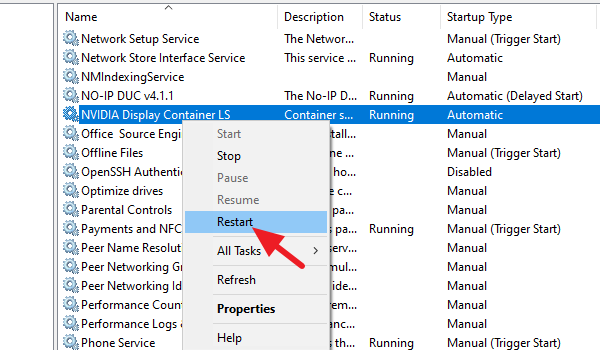
4. Try opening the NVIDIA Control Panel again.
If these services are not running, right-click them, select Start, and then check if the control panel works properly.
Method 3: Update Drivers
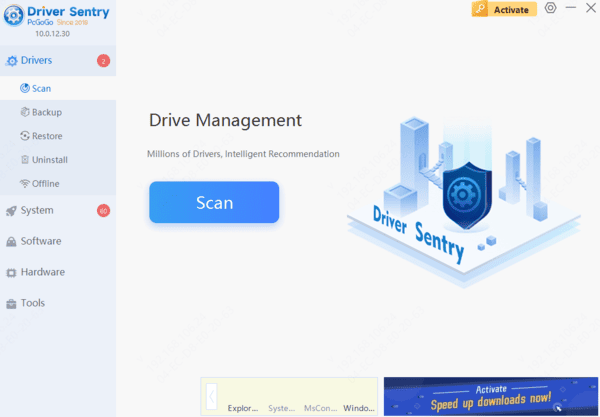
Outdated or corrupted graphics drivers can also cause the NVIDIA Control Panel to become inaccessible. You can try updating or reinstalling the driver:
Using Driver Sentry, you can automatically detect your graphics driver status and update it to the latest stable version. This helps prevent driver-related issues that may block access to the control panel.
Method 4: Adjust Windows Group Policies or Permissions
If the "Access Denied" error persists, it may be caused by Windows permission settings or group policies. Try the following solutions:
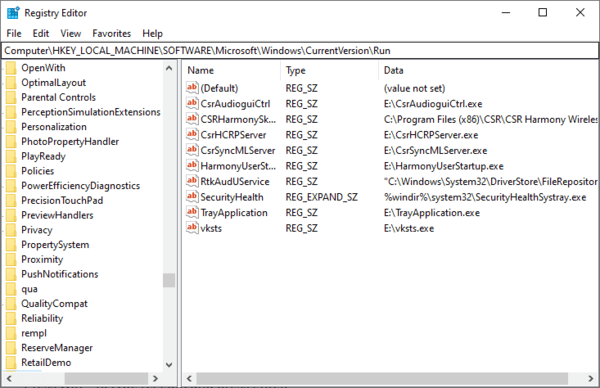
Modify Registry Permissions
1. Press Win + R, type regedit, and press Enter to open the Registry Editor.
2. Navigate to:
HKEY_LOCAL_MACHINE\SYSTEM\CurrentControlSet\Services\nvlddmkm
3. Right-click the nvlddmkm folder, select Permissions, and grant Full Control to your user account.
4. Close the Registry Editor, restart your PC, and try opening the NVIDIA Control Panel.
Check Windows Group Policy
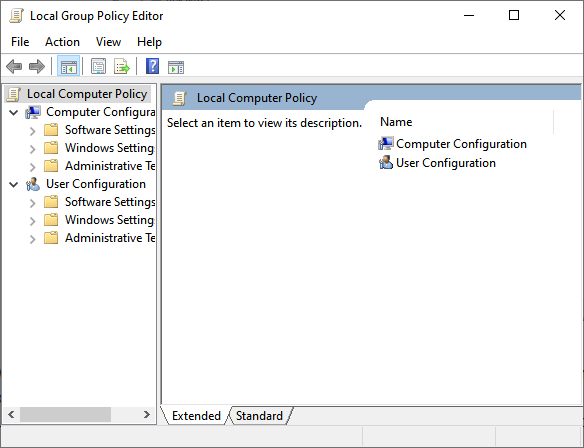
1. Press Win + R, type gpedit.msc, and press Enter to open the Local Group Policy Editor.
2. Navigate to:
Computer Configuration > Windows Settings > Security Settings > Local Policies > User Rights Assignment
3. Find Create Global Objects and ensure your user account is added to this permission.
4. Restart your computer and try opening the NVIDIA Control Panel again.
By following these methods, you should be able to resolve the "Access Denied" issue with the NVIDIA Control Panel. In many cases, driver issues are the root cause. If you want a smoother and more stable graphics experience, consider using Driver Sentry to keep your system up to date and running optimally!