Fix onlinefix64.dll Error Code 126 when a game cannot load required files or dependencies. Learn how to check antivirus quarantine, verify game data, reinstall Visual C++ and DirectX components, repair Windows files, update graphics drivers, and resolve persistent DLL loading failures.
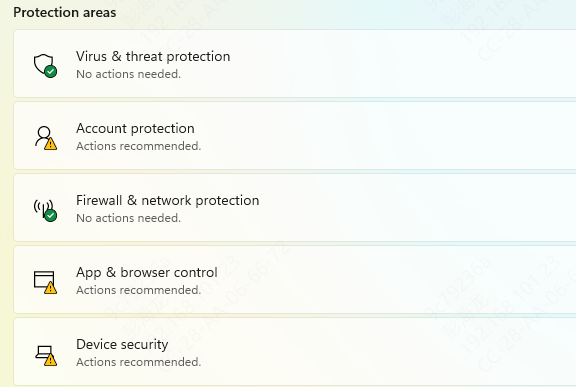
Check Whether Antivirus Blocked the File
Open Windows Security and look at Protection History or Quarantine. If the file was removed, review the source carefully. If the game or software came from an untrusted source, reinstalling from a legitimate source is the safer option
If the file was blocked by mistake and the software is trustworthy, restore it and add the game folder to the exclusion list if needed. Then restart the PC and test the game again
Verify or Reinstall the Game Files
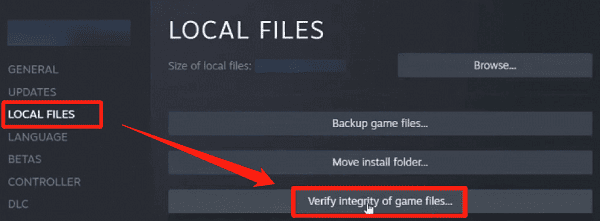
Corrupted or incomplete game files are another very common cause of this error. If your game platform supports file verification, run that first. This will compare the installed files against the official version and redownload anything missing or damaged
If there is no verification option, uninstall the game completely and reinstall it from a clean source. It is important to remove leftover files in the installation folder before reinstalling, because broken DLL files or damaged configuration data can remain behind and trigger the same error again
Install Microsoft Visual C++ Redistributables
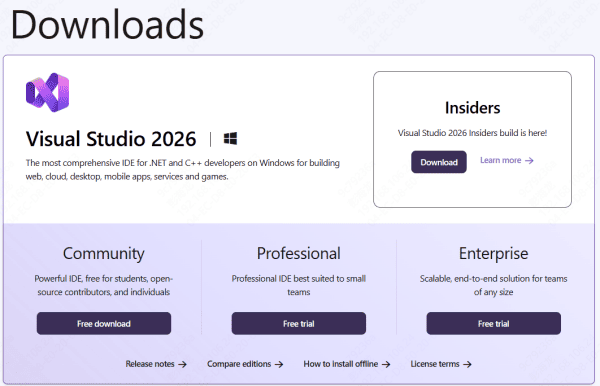
Many games rely on Microsoft Visual C++ runtime packages. If those packages are missing or damaged, DLL load errors can appear even though the game files themselves are present. This is especially common after a fresh Windows installation or after aggressive system cleanup
Install the latest Microsoft Visual C++ Redistributables, including both x64 and x86 versions if the game does not clearly state which one it needs. After installation, restart the computer and try launching the game again. This step fixes a large number of game startup issues that appear as DLL errors
Update DirectX Components
Some games also depend on DirectX runtime files and related libraries. If those components are missing, outdated, or broken, Windows may fail to load a module and return Error Code 126
Check whether the game folder contains a redistributables or directx setup folder. If it does, run the included DirectX installer. You can also install the official DirectX runtime components from Microsoft. Once that is finished, restart your PC and test the game again
Run the Game as Administrator
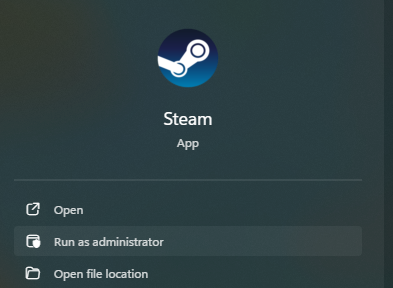
Permission problems can sometimes stop a game from loading required DLL files from its own folder or from writing to temporary directories. Right-click the game launcher or executable and choose Run as administrator. This gives the process the access it may need to load dependencies correctly
If this solves the problem, you can later adjust the compatibility settings to always launch the game with administrator rights. This is a simple step, but it can matter on systems with strict folder permissions or security settings
Repair Windows System Files
If more than one game or application shows DLL-related problems, the issue may not be limited to a single game. In that case, repairing Windows system files is a smart next step.
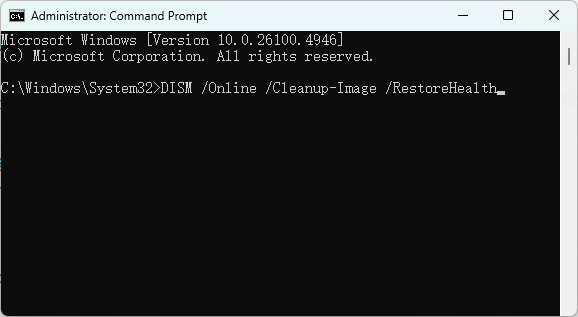
Open Command Prompt as administrator and run:
sfc /scannow
After that finishes, run:
DISM /Online /Cleanup-Image /RestoreHealth
Update Windows and Graphics Drivers
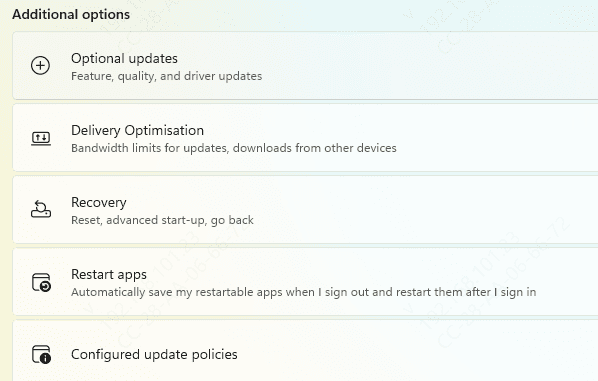
Outdated Windows builds and graphics drivers can sometimes break compatibility with newer game components. Install the latest Windows updates and update your graphics driver to the latest stable version from your hardware vendor. After updating, restart the system and try again
If the error started immediately after a driver update, however, you may need to reinstall the driver cleanly or go back to a previous stable version. Not every driver release is equally stable for every game
UsePcGoGo DLL Fixer
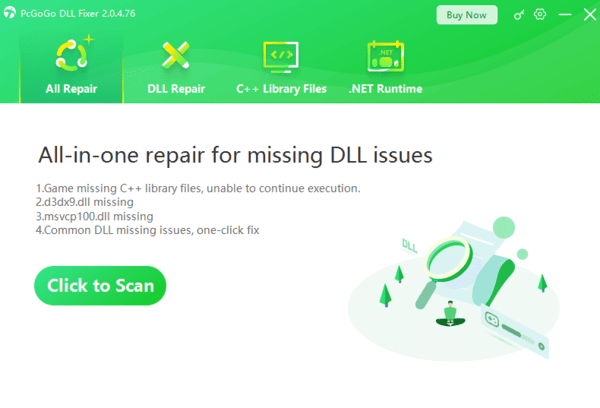
If none of these ways above do not fix the dll issues, try PcGoGo DLL Fixer. Just one click, the PcGoGo DLL Fixer will fix all dll issues.
Final Thoughts
onlinefix64.dll Error Code 126 usually points to a load failure caused by blocked files, broken game data, missing Microsoft runtimes, damaged DirectX components, outdated drivers, or corrupted Windows files. The most effective fixes are to check antivirus quarantine, verify or reinstall the game, install Visual C++ and DirectX components, run the game as administrator, and repair Windows with SFC and DISM. If all methods fail, just try PcGoGo DLL Fixer.