





The Start game fail load mhypbase.dll error is commonly encountered when launching certain games or applications that depend on the mhypbase.dll file. This issue typically occurs due to missing or corrupted files, software conflicts, or incorrect system configurations. Fortunately, this problem can usually be resolved with a few straightforward troubleshooting steps. Below are several effective methods to help you fix the mhypbase.dll load error and get your game or application running normally again.
Method 1: Verify Game Files
If you're using a game launcher like Steam or Epic Games, verifying the game files is an easy and effective way to repair missing or corrupted DLL files.
For Steam:
Open the Steam client.
Go to Library and right-click the game that's causing the error
Select Properties
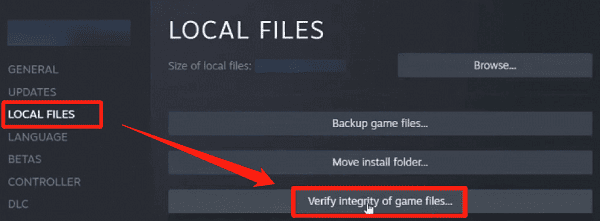
Go to the Local Files tab
Click Verify Integrity of Game Files
For Epic Games:
Open the Epic Games Launcher
Go to your Library
Find the game and click the three dots next to it
Click Verify
This process will check the game files and replace any missing or corrupted DLLs, including mhypbase.dll.
Method 2: Restore dll Automatically Using a DLL Repair Tool
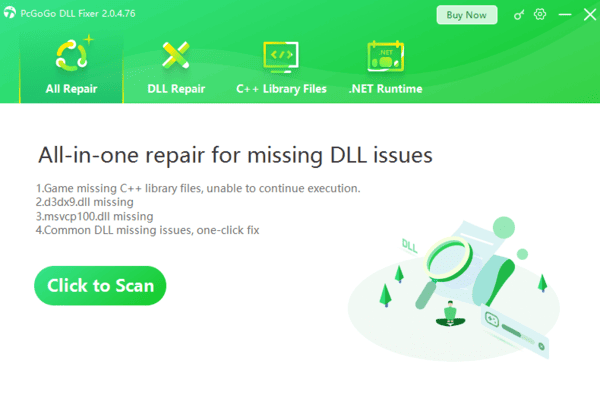
If the issue persists, you can use an automated repair tool like PcGoGo DLL Fixer to quickly detect and restore missing DLL files, including mhypbase.dll.
Download and install PcGoGo DLL Fixer
Open the tool and click Scan to detect missing or corrupted DLL files
After scanning, locate mhypbase.dll and click Repair Now
The tool will restore the correct version of mhypbase.dll
Restart your PC and check if the game launches successfully
This method is especially useful if the manual fixes don't resolve the issue.
Method 3: Reinstall or Repair Microsoft Visual C++ Redistributables
Many games rely on Microsoft Visual C++ Redistributables to function properly. Missing or outdated versions of these libraries can lead to the mhypbase.dll error.
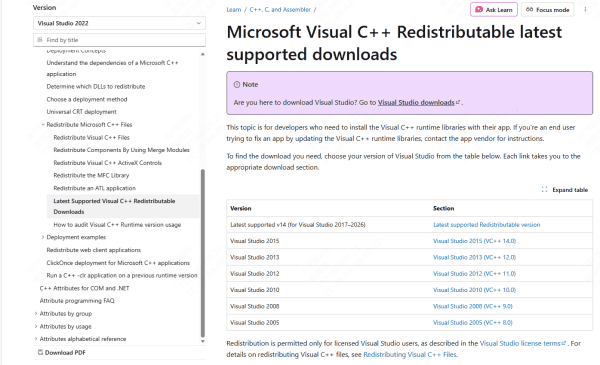
Go to the official Microsoft Visual C++ Redistributable download page
Download and install the latest version of the Visual C++ Redistributable packages
Restart your computer and check if the issue is resolved
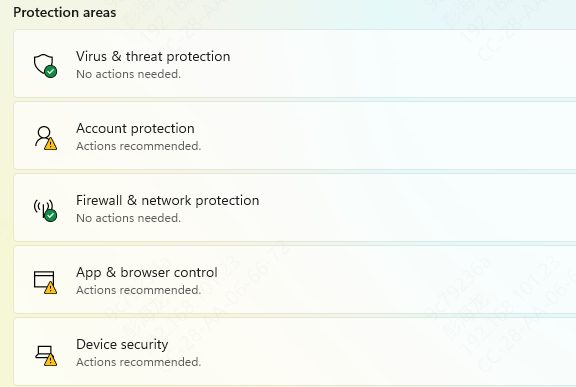
Method 4: Check Antivirus and Security Software
Sometimes, security software like antivirus or Windows Defender can mistakenly block or delete mhypbase.dll, thinking it is a threat. If your antivirus is blocking this DLL file, the error will persist.
Open your Antivirus or Windows Defender
Check the quarantine or logs to see if mhypbase.dll is listed
If found, restore the file and add an exception for the game directory
Restart your PC and try launching the game again
Method 5: Repair System Files (SFC & DISM)
Corrupted system files can also interfere with the loading of DLL files. Windows has built-in tools such as SFC (System File Checker) and DISM (Deployment Imaging Service and Management) to repair system files and restore the integrity of your system.
Run SFC
Press Windows + S, type cmd, and select Run as administrator
In the command prompt, type:
sfc /scannow
Run DISM
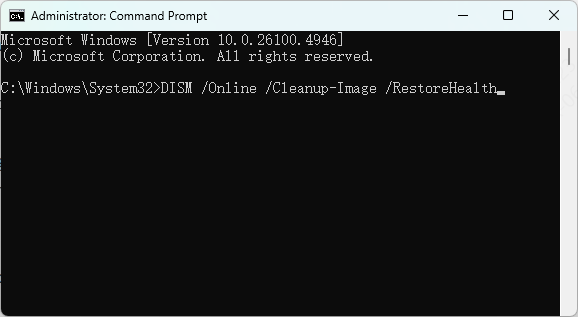
Open Command Prompt as Administrator again
Enter the following commands one by one:
DISM /Online /Cleanup-Image /CheckHealth
DISM /Online /Cleanup-Image /ScanHealth
DISM /Online /Cleanup-Image /RestoreHealth
Method 6: Reinstall the Game
If none of the above methods work, you may need to reinstall the game. This will ensure that all necessary files, including mhypbase.dll, are properly installed.
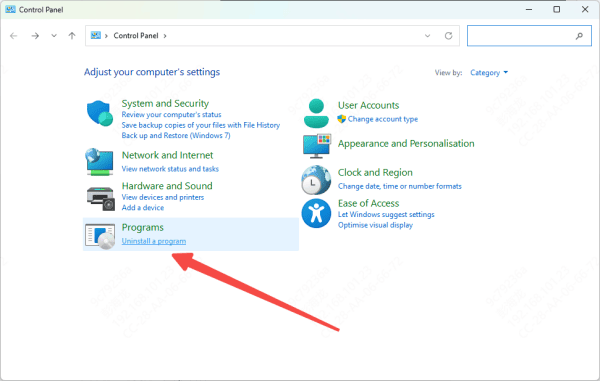
Open Control Panel → Programs → Programs and Features
Uninstall the affected game
Restart your PC
Reinstall the game from an official source
Method 7: Update Windows
Outdated Windows versions can also contribute to DLL errors. Updating Windows will ensure your system is fully compatible with the game and eliminate any underlying issues.
Go to Settings → Update & Security → Windows Update
Click Check for Updates and install any available updates
Restart your PC and check if the error is resolved

Common Causes of mhypbase.dll Error
Missing or deleted mhypbase.dll file: The file might have been accidentally removed or corrupted
Corrupted game installation files: Sometimes, a partial or corrupted game installation can cause missing files
Antivirus or Windows Defender blocking the DLL: Security software might incorrectly flag mhypbase.dll as a threat
Incomplete game update or patch: If the game didn't update properly, missing DLL files can lead to the error
Missing Visual C++ Redistributable dependencies: Many games and applications rely on Visual C++ libraries that might not be installed or updated
Conflicts with overlays or third-party tools: Programs like Discord, MSI Afterburner, or other overlay tools can interfere with game files
System file corruption: Corrupted system files or registry issues may also affect DLL loading
Conclusion
The "start game fail load mhypbase.dll" error is often caused by missing or corrupted DLL files, software conflicts, or outdated components. By following the methods outlined above, you can easily fix the issue and get your game or application running again. If the error persists after trying all the solutions, it may be helpful to contact the game's support team for further assistance.




