If you see messages like "custom.dll load failure," "LoadLibrary failed with error 126," or "The specified module could not be found," it means Windows cannot load a required DLL when launching a program or game. Error Code 126 is common because many apps rely on shared DLLs to load drivers, features, or background modules. When something in that chain is missing or incompatible, the program fails to start. In most cases, the issue can be resolved by repairing the application or restoring the required system components instead of downloading DLL files from unofficial sources.
Restart the Computer First
Before trying deeper fixes, restart your PC once. A restart can clear temporary file locks, finish pending updates, and reset services that may be interfering with DLL loading. If the error appeared right after an update, software installation, or forced shutdown, a restart is especially important
After the reboot, open the affected program again. If the same error returns, continue with the next steps
Check Whether Antivirus Blocked the DLL
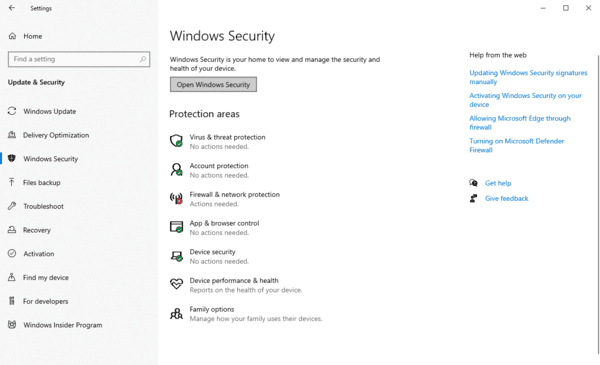
Open Windows Security and review Protection History. If you use a third-party antivirus tool, check its quarantine section as well. If a file related to the program was removed, review whether the software came from a trusted source
If it is legitimate, restore the file and try opening the program again
Repair or Reinstall the Affected Program
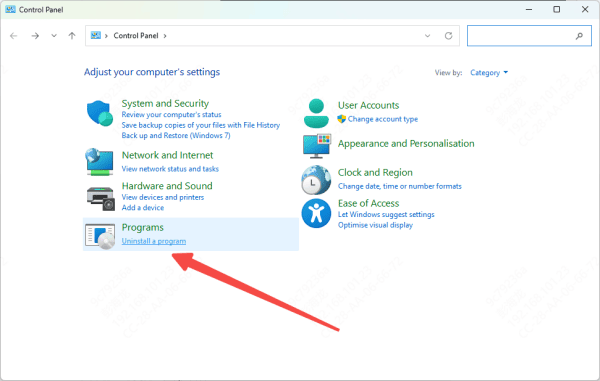
Uninstall the program, restart the computer, and reinstall it from an official source. If possible, remove leftover files in the installation folder before reinstalling so damaged files are not reused
This is especially helpful if the error started after a crash, interrupted update, or manual file changes inside the program directory
Install Microsoft Visual C++ Redistributables
Many apps and games rely on Microsoft Visual C++ runtime packages. If those runtime files are missing or corrupted, Windows may fail to load custom.dll or one of its required dependencies. This can result in Error Code 126 even though the program files themselves appear to be present
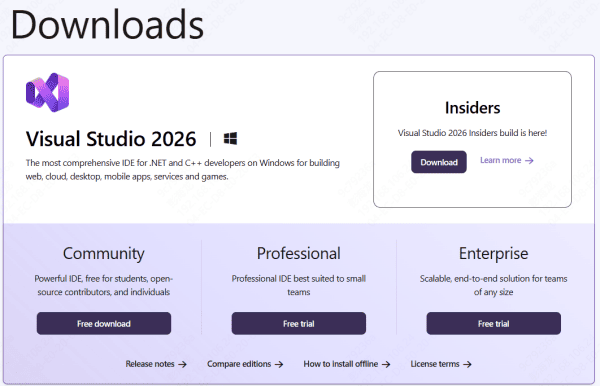
Install or repair the latest Microsoft Visual C++ Redistributables. On many systems, it is a good idea to install both x86 and x64 versions because some 64-bit systems still run 32-bit programs that need the x86 runtime. After installation, restart the PC and test the program again
Repair DirectX Components
If the problem appears in a game or multimedia app, DirectX components may also be involved. Some DLL load failures happen because older DirectX runtime files are missing or damaged. Even on newer versions of Windows, not every legacy DirectX dependency is included by default
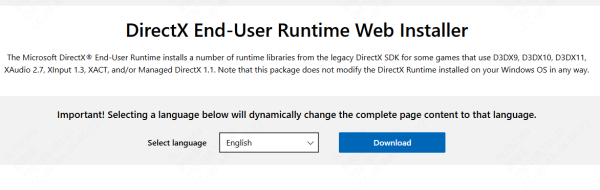
If the program or game folder includes a redistributables folder, run the DirectX installer included there. You can also install the official DirectX runtime package from Microsoft. Once complete, restart the PC and try again
Run the Program as Administrator
Some applications fail to load DLLs because they do not have enough permission to access protected folders, write temp files, or register startup components. Right-click the program and choose Run as administrator
If the program opens successfully after this step, you can later change its compatibility settings so it always runs with administrator privileges
Use a Short and Simple Install Path
Long or unusual install paths can sometimes cause DLL load issues, especially with older software. If the program is installed in a deeply nested folder, a path with special characters, or a heavily protected system directory, the app may fail to locate or load required modules
Reinstalling the program to a simple path such as C:\ProgramName or C:\Games\AppName can help. A short and clean directory reduces path-related and permission-related problems
Run SFC to Repair Windows Files
If multiple programs are showing DLL errors, or if the system has become unstable more generally, Windows system files may be damaged. In that case, use System File Checker to scan and repair core files.
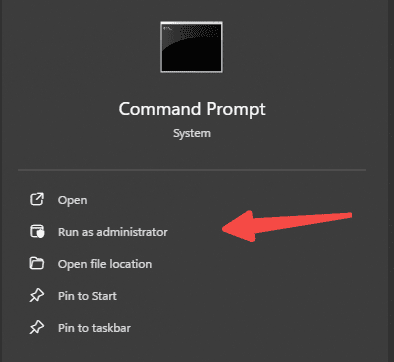
Open Command Prompt as administrator and run:
sfc /scannow
Wait for the scan to finish, restart the computer, and test the program again. SFC is especially useful after failed updates, crashes, malware removal, or other system-level issues
Use DISM for Deeper Repair
If SFC cannot fully repair the system, the next step is DISM.
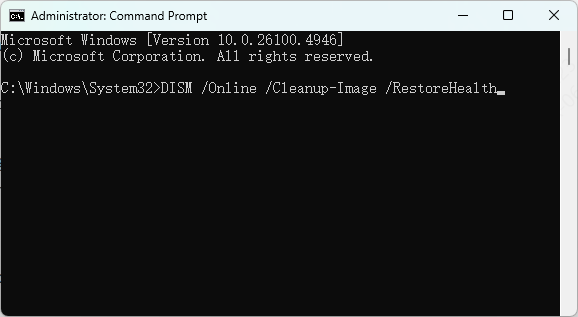
Open Command Prompt as administrator and run:
DISM /Online /Cleanup-Image /RestoreHealth
DISM repairs the Windows component store that SFC depends on. After it completes, restart the computer and run sfc /scannow one more time
Update Windows and Drivers
Outdated Windows files and device drivers can also cause module load failures. This is especially true for graphics-related apps, games, hardware tools, and software that connects to device drivers or system services
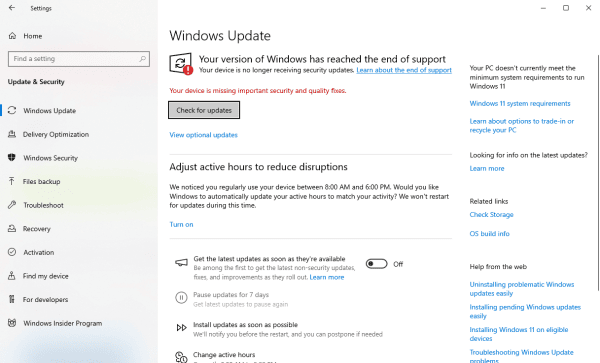
Install all important Windows updates and update the relevant device drivers, especially graphics, audio, and chipset drivers if the affected app relies on them. After updating, restart the computer and test the program again
Check for Broader DLL Problems
If your PC shows several DLL errors across different applications, the problem may be broader than one missing file. In that case, broken runtime registrations, damaged shared libraries, or deeper system inconsistencies may be involved. PcGoGo DLL Fixer can help scan the system for missing or corrupted DLL components and repair them automatically.
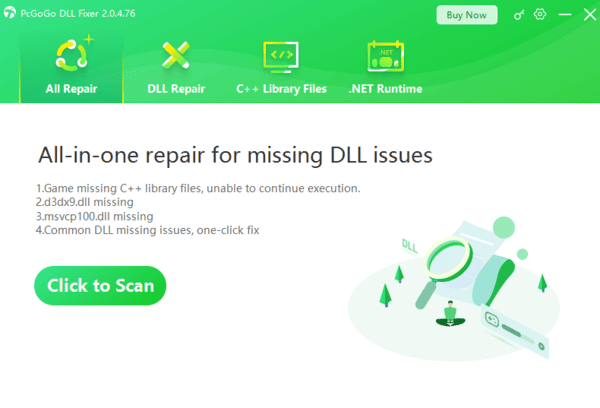
This step makes the most sense when the computer has multiple startup errors rather than one isolated application issue. After any repair, restart the PC before testing again.
Do Not Download custom.dll from Random Websites
A common mistake is downloading custom.dll from a random DLL website and placing it into the program folder or system directory. That approach is risky and often ineffective
The file may be the wrong version, modified, outdated, or unsafe. Even if it seems to help at first, it can lead to new crashes, compatibility issues, or security problems later
Conclusion
custom.dll Load Failure Error Code 126 usually means Windows cannot load a required module because of missing dependencies, corrupted program files, blocked DLLs, damaged runtimes, or system file problems. The most effective fixes are to check antivirus quarantine, reinstall the affected program, repair Visual C++ and DirectX components, run the app as administrator, and repair Windows with SFC and DISM.