





When the error "unarc.dll returned an error code: 11" appears during installation, it means the decompression process has failed because Windows could not reliably allocate memory or write data during extraction. Unlike error code -1 or -7, which typically point to corrupted archives or missing files, error code 11 is specifically associated with memory access failures mid-extraction. Unarc.dll works alongside ISDone.dll to handle decompression of large installation archives. When the system cannot provide the memory resources needed, or when other system-level problems interfere, this error appears.
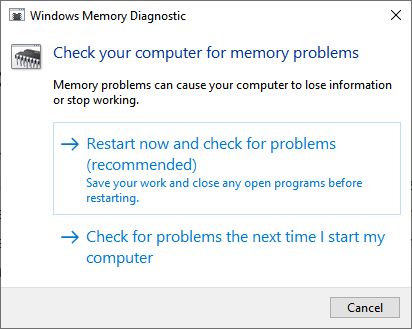
Method 1: Run Windows Memory Diagnostic
Error code 11 is one of the strongest indicators of a RAM problem among all unarc.dll error codes. Unstable or failing RAM corrupts data during extraction and causes exactly this failure.
Press Windows + R, type mdsched.exe, and press Enter. Select Restart now and check for problems. Windows will restart, run the diagnostic, and display results after rebooting
If errors are found, reseat or replace the failing RAM module. If you have two sticks, test each individually to isolate which one is causing instability
Method 2: Increase Virtual Memory
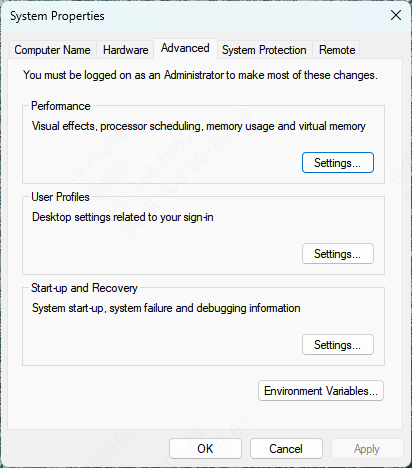
Even if RAM passes testing, insufficient virtual memory can cause extraction to fail under peak load. Press Windows + R, type sysdm.cpl, and press Enter.
Go to Advanced, click Settings under Performance, then select the Advanced tab and click Change under Virtual memory. Uncheck Automatically manage paging file size. Select your C drive and choose Custom size
Set the initial size to your RAM amount in MB and the maximum to double that. For 8 GB of RAM, use 8192 and 16384. Click Set, click OK, then restart before trying the installation again
Method 3: Re-download and Verify the Archive
A partially downloaded or corrupted archive will consistently produce this error.
Download the installer again over a stable connection. If you are using WinRAR or 7-Zip, right-click the archive and run Test Archive to check for damage. If errors appear during the test, the archive is the problem and no system-level fix will help
You need a clean copy of the files. If the source provides an MD5 or SHA256 hash, verify your download against it using CertUtil in Command Prompt
Method 4: Disable Antivirus During Installation
Real-time protection can intercept and block file write operations during extraction, causing unarc.dll to fail.
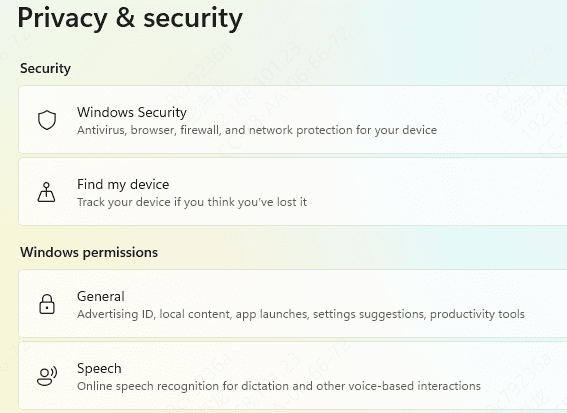
Open Windows Security, go to Virus and threat protection, click Manage settings, and toggle Real-time protection off. Run the installation immediately and re-enable protection as soon as it completes
If you use a third-party antivirus such as Kaspersky or Norton, pause protection from the system tray icon before starting the installer
Method 5: Use an Automated DLL Repair Tool
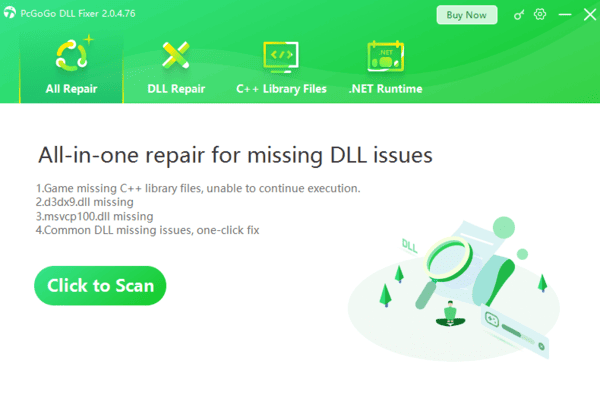
When manual steps are not resolving the issue or when multiple DLL errors are present, an automated tool is more efficient. PcGoGo DLL Fixer scans your system for corrupted DLL files, missing dependencies, and broken registry entries, then repairs them automatically.
Download and install it, click Scan, and let it identify the damaged components. Click Repair Now to restore them, then restart your PC and attempt the installation again
This is especially useful when the error appears across multiple different installers, which points to a system-level problem rather than a single bad archive
Method 6: Free Up Disk Space
A nearly full drive causes write failures during extraction.
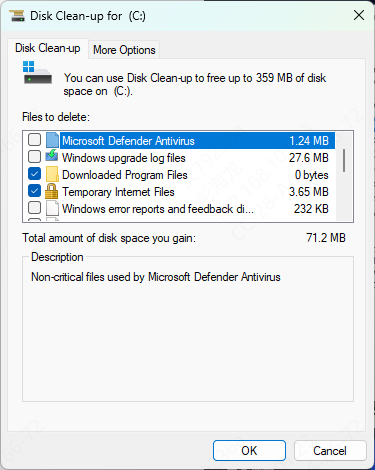
Large game installers often require 20 to 50 GB of temporary space during setup even if the final installed size is smaller. Open File Explorer, right-click your C drive, select Properties, and run Disk Cleanup
Remove temporary files, thumbnails, and Recycle Bin contents. Confirm you have at least 20 to 30 GB free before attempting the installation again
Method 7: Run SFC and DISM
Corrupted Windows system files can cause unarc.dll to malfunction even when the DLL itself is intact
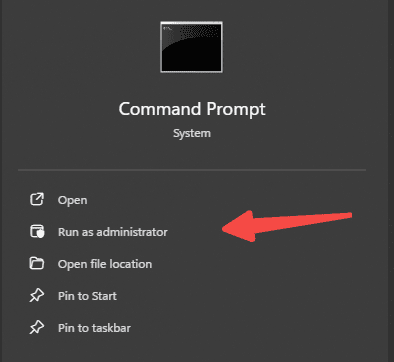
Open Command Prompt as Administrator and run sfc /scannow
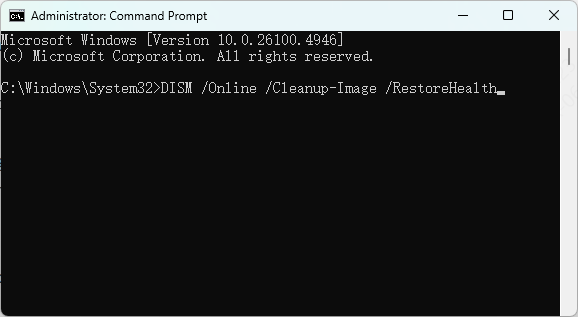
If SFC cannot repair all files, follow up with DISM. Run these three commands in sequence, waiting for each to finish before proceeding:
DISM /Online /Cleanup-Image /CheckHealth
DISM /Online /Cleanup-Image /ScanHealth
DISM /Online /Cleanup-Image /RestoreHealth
Method 8: Reinstall Visual C++ Redistributables
Some installers depend on specific Visual C++ runtime versions. If these are missing or damaged, extraction fails even when the archive and memory are both fine
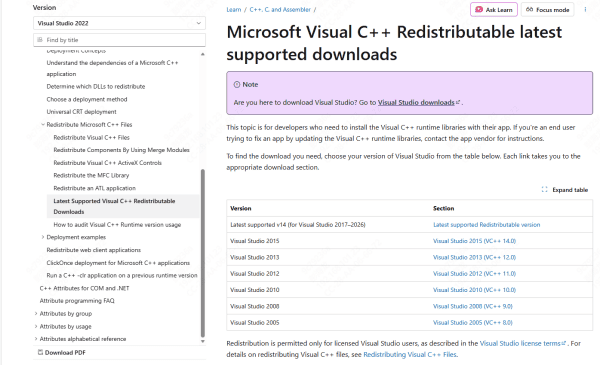
Download all Visual C++ Redistributable versions from the official Microsoft page, including 2005 through 2022, and install both x64 and x86 versions. Restart and try the installation again
Method 9: Clean Boot
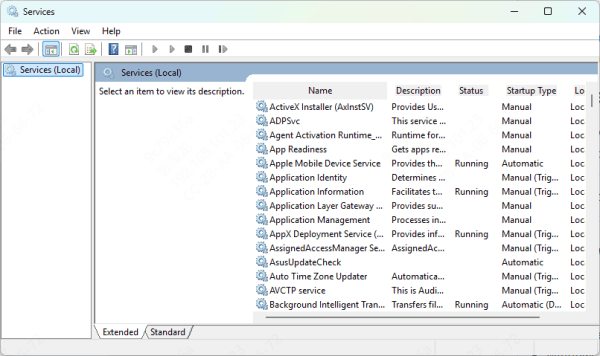
Background services and startup applications can conflict with installation, particularly file sync tools, backup software, and additional security utilities. Press Windows + R, type msconfig, and press Enter
Under the Services tab, check Hide all Microsoft services and click Disable all. Go to Startup and disable all items through Task Manager. Restart and attempt the installation in the clean boot state
What Causes Unarc.dll Error Code 11
The most common causes are unstable or failing RAM that corrupts data mid-extraction, virtual memory that is too small for the decompression workload, antivirus blocking file write operations, corrupted or partially downloaded archives, missing Visual C++ runtime libraries, corrupted Windows system files, and insufficient disk space
Error code 11 in particular is more consistently tied to memory and write failures than to missing files, which is why RAM and virtual memory are the right starting points before moving to system repair tools or archive re-downloads
The error is fixable in most cases without reinstalling Windows




