






If you've ever tried installing a large game or software and encountered the ISDone.dll / unarc.dll error -11, you know how frustrating it can be. The issue is usually caused by missing or corrupted DLL files, insufficient system memory, corrupted installation files, or system-level restrictions such as antivirus interference. Fortunately, this problem can often be resolved without reinstalling Windows. In this guide, we’ll walk you through all the effective steps to fix ISDone.dll and unarc.dll error -11 and complete your installation successfully.
What are ISDone.dll and unarc.dll?
ISDone.dll is a dynamic link library that helps installers manage the unpacking and installation of large compressed files
unarc.dll works alongside ISDone.dll to handle the extraction process and verify the integrity of archives
When either of these DLLs is missing, corrupted, or blocked, the installer cannot properly extract files, leading to error -11 during installation
Step 1: Verify Game or Software Archive Integrity
Make sure all parts of the archive are in the same folder
Use WinRAR or 7-Zip to test the archive:
Right-click the first archive file → Test archive
If any part is corrupted, re-download it from a trusted source
Only proceed with installation once all files are verified
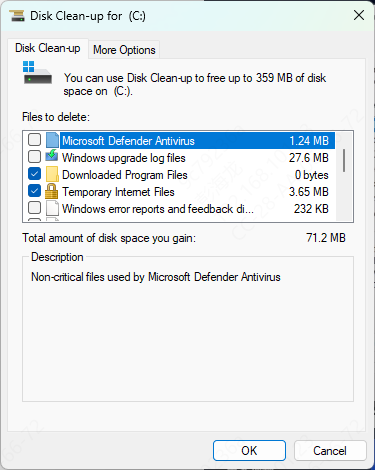
Step 2: Free Up Disk Space and RAM
Insufficient system resources can interrupt installation
Ensure enough free space on the installation drive. FitGirl repacks can be very large
Close unnecessary background applications to free up RAM
Restart your PC to clear temporary memory usage
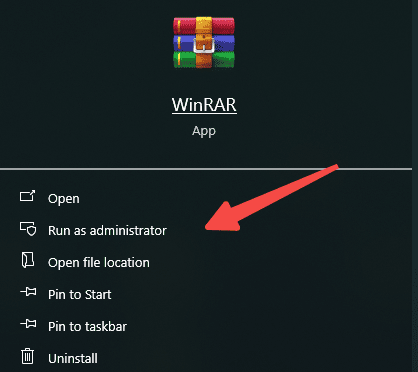
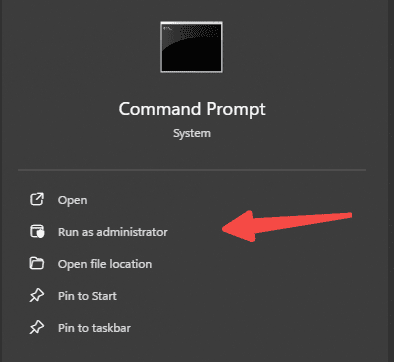
Step 3: Run the Installer as Administrator
Some DLLs require elevated permissions to work correctly
Right-click the installer → Run as Administrator
Follow the installation instructions to see if the error persists
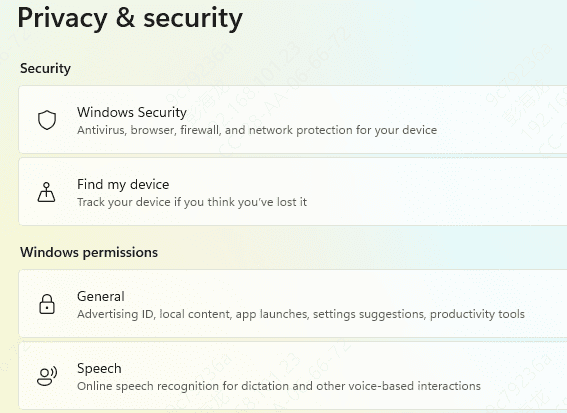
Step 4: Disable Antivirus Temporarily
Antivirus software can block ISDone.dll or unarc.dll during extraction
Temporarily disable your antivirus
Add the installer folder to the antivirus exclusion list
Run the installer again
Re-enable your antivirus once installation is complete
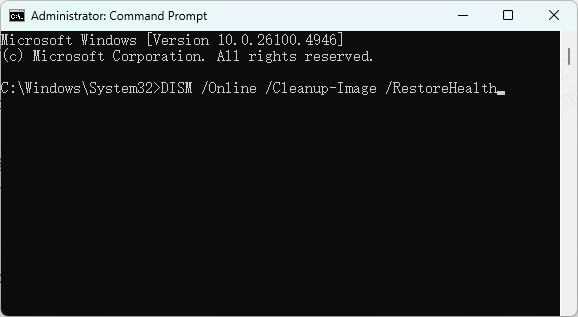
Step 5: Use System File Checker (SFC)
Corrupted system files can prevent DLLs from functioning properly
Open Command Prompt as Administrator
Type:
sfc /scannow
Press Enter and wait for the scan to finish
Restart your PC and retry installation
Step 6: Check Your Storage Device
Faulty drives or bad sectors can cause file extraction errors
Open Command Prompt as Administrator
Run:
chkdsk /f /r
Restart your PC to allow Windows to scan and repair disk errors
Step 7: Re-register ISDone.dll and unarc.dll
If the DLLs exist but are not properly registered, re-registering can fix the issue
Open Command Prompt as Administrator
Type:
regsvr32 ISDone.dll
regsvr32 unarc.dll
Press Enter after each command
Restart your PC
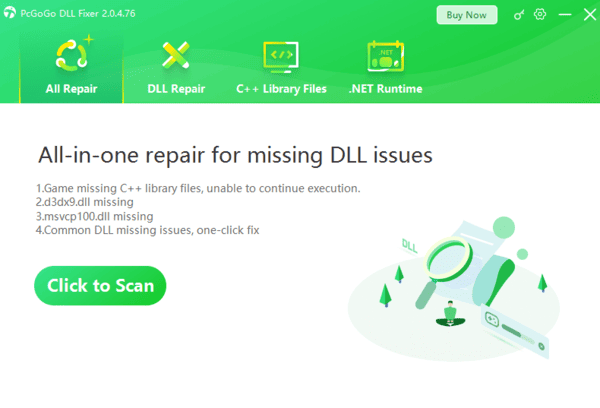
Step 8: Use PcGoGo DLL Fixer
Download and install PcGoGo DLL Fixer
Launch the program and click Scan to detect missing or corrupted DLL files
Click Repair Now to fix all detected issues
Restart your PC after the repair
Step 9: Reinstall the Game or Software
If all else fails, a fresh installation may resolve the error
Delete any partially installed game files
Ensure all archive parts are intact in the same folder
Run the installer as Administrator with antivirus temporarily disabled
Complete the installation
Tips to Prevent ISDone.dll unarc.dll Errors in the Future
Download games or software from trusted sources only
Verify all archives before starting the installation
Ensure sufficient disk space and free RAM before installing
Temporarily disable antivirus software during installation
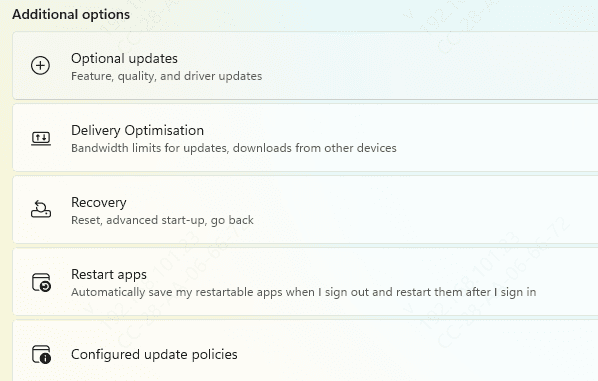
Keep Windows system files and drivers updated
Conclusion
The ISDone.dll unarc.dll error -11 is a common issue during the installation of large games or software, especially FitGirl repacks. By following this guide—verifying archives, freeing up resources, running installers as administrator, repairing DLLs, and checking system integrity—you can resolve the error and complete your installation successfully. These steps ensure smoother installations and prevent the issue from reoccurring in the future.




