
If Windows 10 crashes with a PFN LIST CORRUPT blue screen, the problem is usually related to memory management, faulty or incompatible drivers, corrupted system files, disk errors, or unstable RAM. The error may appear during startup, gaming, software installation, or normal system use and can cause repeated restarts or unexpected crashes. This guide explains several practical ways to fix PFN LIST CORRUPT, including updating drivers with Driver Sentry, testing memory with Windows Memory Diagnostic, repairing system files with SFC and DISM, checking the hard drive for errors, and using System Restore when the problem began after a recent system change.
1. Use Windows Memory Diagnostic Tool
Press Win + R to open the Run dialog, type "mdsched.exe", and press Enter.
Choose "Restart now and check for problems (recommended)".
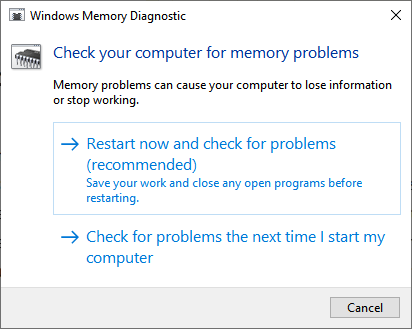
The system will restart and automatically check for memory issues. After the diagnostics, the results will be displayed.
If memory issues are detected, consider replacing the faulty memory modules or contacting professional support.
2. Run the System File Checker (SFC)
Press Win + S, type "Command Prompt", right-click, and select "Run as administrator".
Enter the following command and press Enter: sfc /scannow
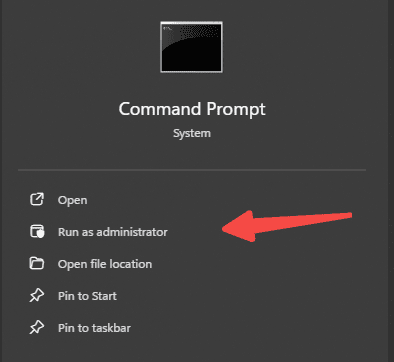
The SFC tool will scan and repair corrupted system files. This process may take some time. Restart your computer after completion.
If SFC doesn't resolve the issue, try running the DISM tool.
3. Run the DISM Tool
Press Win + S, type "Command Prompt", right-click, and select "Run as administrator".
Enter the following command and press Enter: DISM /Online /Cleanup-Image /RestoreHealth
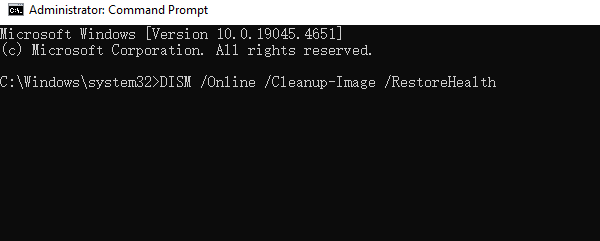
DISM will scan and repair issues in the Windows system image. Restart your computer after the process completes.
4. Update Device Drivers
Outdated or incompatible drivers can cause system instability, leading to blue screen errors. Updating drivers is a crucial step in resolving the issue. Using Driver Sentry is recommended for automatic driver detection and updates, saving time and avoiding the risk of downloading or installing incorrect drivers.
Download the latest version of Driver Sentry, install, and open the software. Click "Scan".
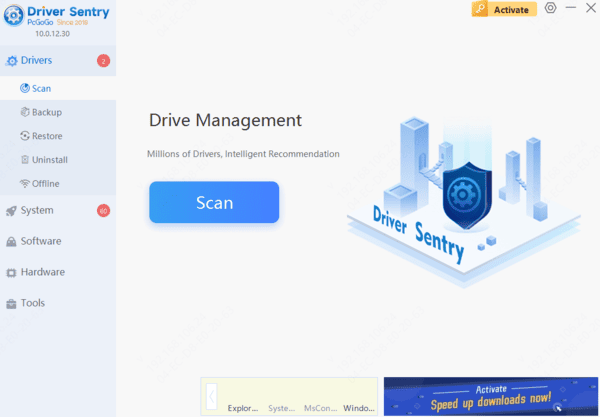
After scanning, identify outdated or missing drivers in the results list. Locate the drivers that need updating and click "Upgrade".
Restart your computer to ensure the updated drivers take effect.
5. Check for Hard Disk Errors
Press Win + S, type "Command Prompt", right-click, and select "Run as administrator".
Enter the following command and press Enter: chkdsk C: /f /r
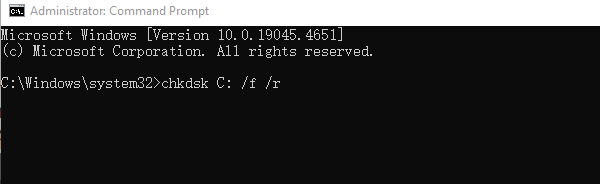
You will be prompted to schedule the disk check on the next restart. Type "Y" and press Enter.
Restart your computer, and the system will automatically scan and repair any hard disk errors.
6. Perform a System Restore
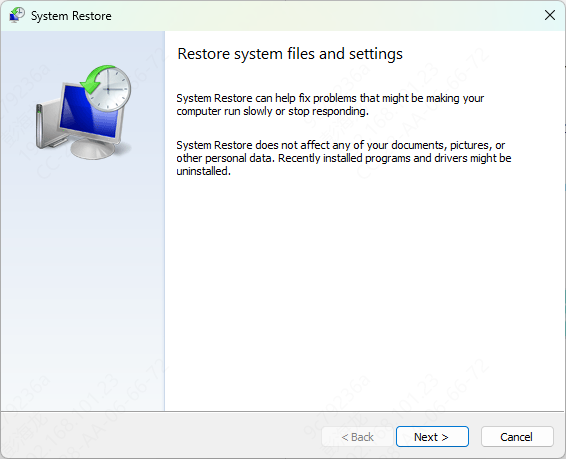
Press Win + R, type "rstrui", and press Enter.
In the System Restore window, select a restore point created before the blue screen error occurred.
Click "Next" and follow the wizard to complete the system restore process.
After the restore, your computer will restart automatically. Check if the PFN LIST CORRUPT error is resolved.
Frequently Asked Questions
What does the PFN LIST CORRUPT stop code mean?
PFN stands for Page Frame Number, which Windows uses to track physical memory. The error occurs when this memory-management list becomes corrupted, commonly because of defective RAM, faulty drivers, disk corruption, or unstable hardware settings.
Can recently installed software cause PFN LIST CORRUPT?
Yes. Antivirus programs, hardware utilities, virtualization software, and applications that install low-level drivers can trigger the error. Uninstall recently added software or perform a clean boot to identify the conflict.
What should I do if Windows cannot remain open long enough for troubleshooting?
Start Windows in Safe Mode or enter the Windows Recovery Environment. From there, remove recent drivers or updates, run System Restore, and repair system files without loading most third-party drivers.
These steps can effectively resolve the PFN LIST CORRUPT blue screen error in Windows 10. If the issue persists, seek professional technical support for further assistance.