
If your Steam games won't start, it can be frustrating. Fortunately, most issues can be fixed with a few simple steps. This guide offers detailed solutions to help you resolve game launch problems quickly.
Method 1: Check System Configuration
1). On the Steam store page, check the game's minimum and recommended system requirements.
2). Press Windows + R, type "dxdiag", and press Enter to open the DirectX Diagnostic Tool. Review your computer's processor, memory, and graphics card information.
3). Compare your system's specs with the game's requirements. If your system falls short, consider upgrading hardware or updating your operating system.
Method 2: Update Graphics Drivers
Outdated or incompatible graphics drivers can prevent games from starting. To ensure compatibility, it's recommended to regularly update your graphics drivers. Using Driver Sentry to automatically detect and update drivers can save time and reduce the risk of installing incorrect drivers.
Click the download button to get the latest version of Driver Sentry, install it, and open the software. Click "Scan".
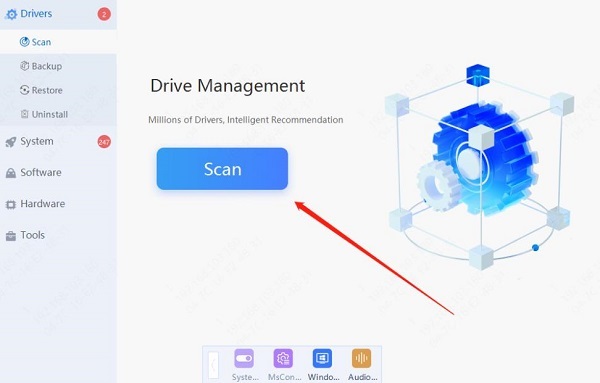
After scanning, it will show which drivers are missing or need updates. Click the "Update" button next to the graphics driver.
Once updated, restart your computer to ensure the new drivers take effect.
Method 3: Manage Background Programs
Press Ctrl + Shift + Esc to open Task Manager and view all running background programs.
In the "Processes" tab, identify programs using significant memory or CPU. Right-click these programs and select "End Task". Focus on closing applications not related to gaming, like browsers or music players.
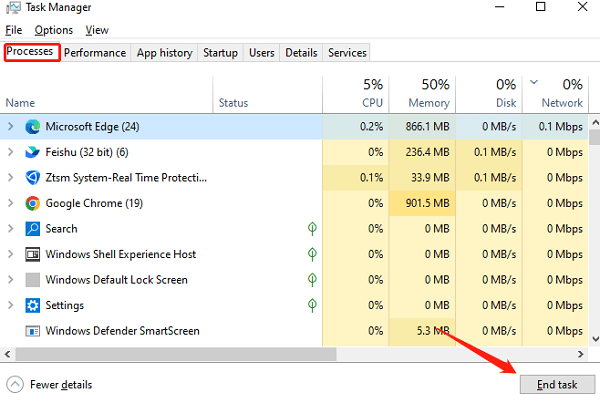
Pay special attention to closing applications that might conflict with games, such as screen recording tools, VPN software, or game boosters, as they may affect game performance.
Method 4: Verify Game File Integrity
Open Steam and go to your library.
Find the game that won't start, right-click the game title, and select "Properties".
In the pop-up window, click the "Installed Files" tab, then click 'Verify Integrity of Game Files". Steam will check the game files and fix any missing or corrupted files.
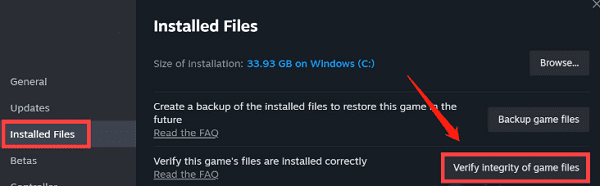
After verification, you will see a notification with the results. If there are damaged files, Steam will automatically re-download and repair them.
Method 5: Disable Antivirus or Firewall
Open your antivirus software and find the option to disable or turn off the protection temporarily.
Go to the Control Panel, select "System and Security" > "Windows Defender Firewall", and click "Turn Windows Defender Firewall on or off". Temporarily disable the firewall.
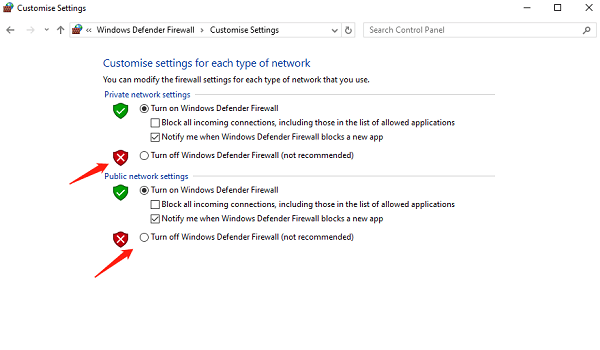
After disabling antivirus or firewall, try restarting Steam and the game to see if the issue is resolved.
If the game starts normally, consider adding Steam and the game to the exceptions list of your firewall and antivirus to prevent future issues.
Method 6: Update the Operating System
Press Windows + I to open Settings and select "Update & Security".
Click "Check for updates" to see if there are available updates for your operating system.
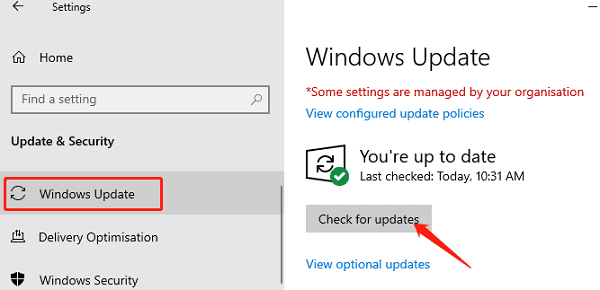
If updates are available, click "Download and install". Wait for the update to complete and restart your computer.
After updating, try restarting Steam and running the game again.
Method 7: Run Steam as Administrator
Find the Steam icon on your desktop or in the Start menu.
Select "Run as administrator".
After running Steam with administrative privileges, try launching the game again to see if it resolves the issue.
Method 8: Uninstall and Reinstall the Game
In your Steam library, locate the game that won't start.
Select "Manage" > "Uninstall".
Click "Uninstall" to delete the local files of the game.
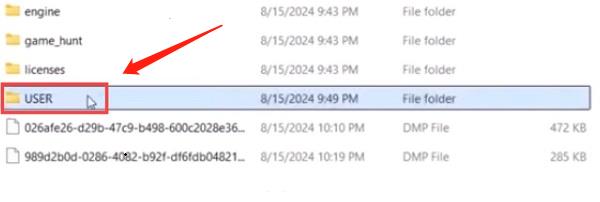
After uninstalling, return to your Steam library, click the game name, and select "Install" to re-download and install the game.
Once installed, try starting the game again to check if the issue is resolved.
By following these steps, you can resolve most Steam game launch issues. Keeping your system, drivers, and games up to date helps prevent such problems. If the issue continues, check the game's support documentation or contact Steam customer service for help.
See also:
Common Causes and Solutions for Windows Blue Screen of Death
Top 10 Ways to Fix Computer Sound Issues
How to Fix Sound Card Driver Installation Failure in Windows