The "Failed to load Steam Overlay DLL from the list, error code 126" error is a common issue when launching Steam games on Windows. It may prevent the game from starting, cause immediate crashes, or disable the Steam Overlay feature (Shift + Tab). This error usually occurs because Windows cannot load a required DLL file or one of its dependencies. Common causes include missing system components, corrupted Steam files, or software conflicts. Fortunately, it can usually be fixed without reinstalling Windows. This guide provides effective solutions, from basic troubleshooting steps to advanced fixes.
Basic Checks Before Trying Advanced Fixes
Before making system-level changes, try these quick checks:
Restart your computer
Fully close Steam and reopen it
Run Steam as Administrator
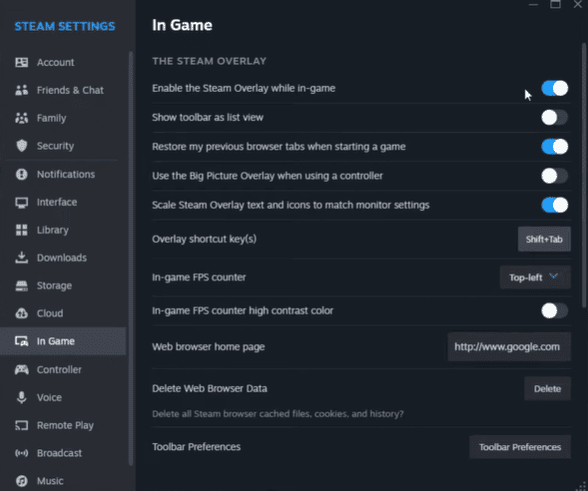
Make sure Steam Overlay is enabled:
Steam → Settings → In-Game → Enable Steam Overlay
Disable compatibility mode for Steam and the game executable
Solution 1: Verify Integrity of Game Files
Corrupted or missing game files are one of the most common causes of DLL errors
Open Steam
Go to Library
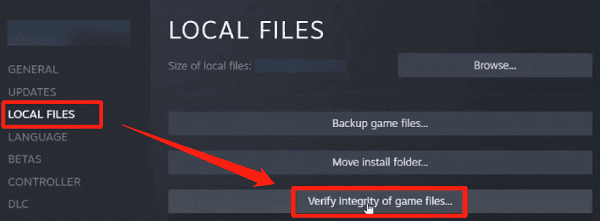
Right-click the affected game → Properties
Open Installed Files
Click Verify integrity of game files
Steam will automatically download and replace damaged files. Once finished, restart Steam and launch the game again
Solution 2: Repair or Reinstall the Steam Client
If Steam's core files are damaged, overlay DLLs may fail to load
Try this first:
Exit Steam completely
Restart Steam and check for updates
If that doesn't help:
Back up the steamapps folder
Uninstall Steam
Download and reinstall the latest Steam version
Restore the steamapps folder
This keeps your games intact while refreshing Steam system files
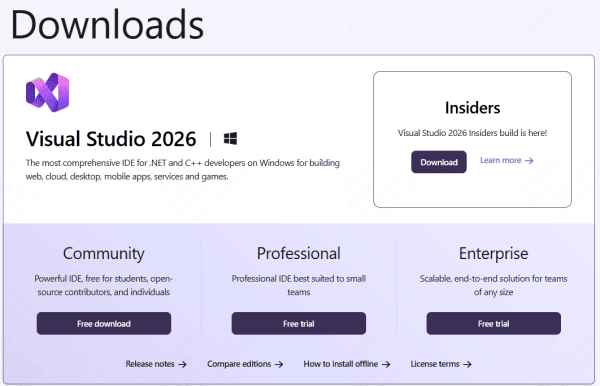
Solution 3: Reinstall Microsoft Visual C++ Redistributables
Steam Overlay depends heavily on Visual C++ runtime libraries
Open Control Panel → Programs and Features
Uninstall all Microsoft Visual C++ Redistributable versions
Restart your PC
Download and install the latest Visual C++ Redistributables (both x86 and x64)
Restart again
This step alone fixes error code 126 for many users
Solution 4: Check Antivirus and Firewall Settings
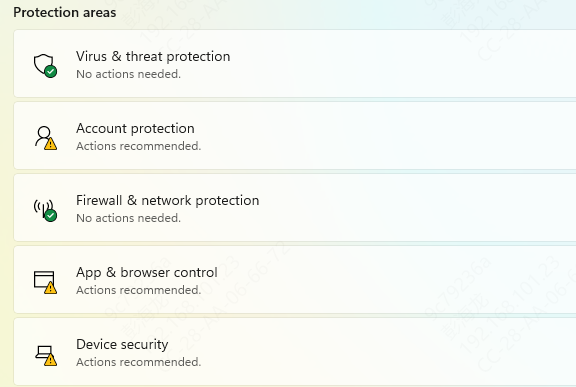
Security software often blocks Steam DLLs by mistake
Open your antivirus or firewall settings
Add Steam installation folder to the whitelist
Temporarily disable antivirus and test the game
If the error disappears, re-enable antivirus and keep Steam excluded
Never permanently disable security software—use exclusions instead
Solution 5: Update Graphics Drivers and Windows
Outdated system components can break DLL dependencies
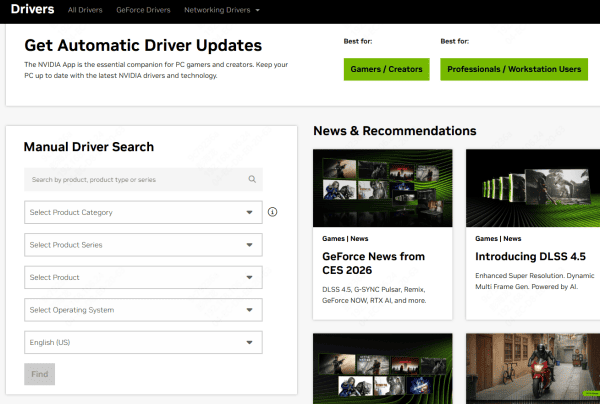
Update your GPU drivers (NVIDIA / AMD / Intel)
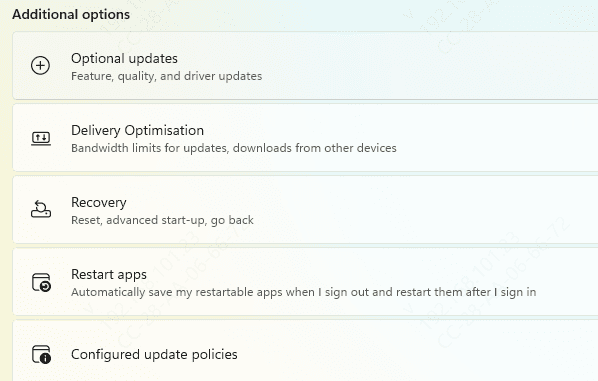
Install all pending Windows updates
Restart your PC
This ensures Steam Overlay can access required system libraries
Solution 6: Use PcGoGo DLL Fixer
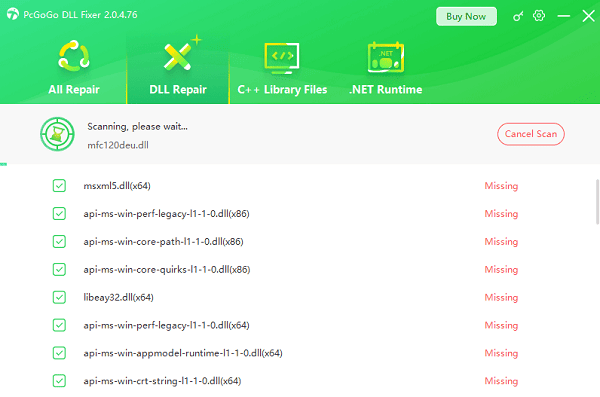
If manual fixes don't fully resolve the issue, the error may be caused by deeper system-level DLL or dependency problems. In this case, an automated repair tool such as PcGoGo DLL Fixer can simplify the process.
Solution 7: Disable Conflicting Third-Party Software
Some programs conflict with Steam Overlay, including:
FPS counters
Recording software
Mod loaders
Custom overlays or injectors
Try:
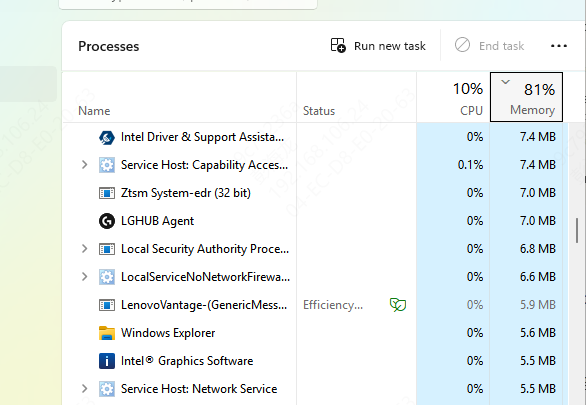
Closing unnecessary background apps
Disabling third-party overlays
Launching the game in a clean boot environment
If the game works, re-enable programs one by one to find the conflict
Advanced Fixes
Running SFC /scannow to repair system files
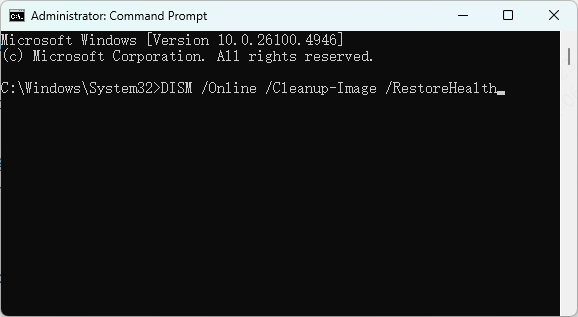
Using DISM to repair Windows image corruption
Reinstalling the affected game in a different drive
These steps address deeper system integrity issues
How to Prevent Steam Overlay DLL Errors in the Future
To avoid seeing error code 126 again:
Keep Steam and games updated
Avoid downloading DLL files from random websites
Install official Visual C++ Redistributables
Limit unnecessary third-party overlays
Regularly update drivers and Windows
Preventive maintenance goes a long way
Common Causes of Steam Overlay DLL Error Code 126
Corrupted or missing Steam files
Incomplete or damaged game installation
Missing Microsoft Visual C++ Redistributables
Antivirus or firewall blocking Steam DLLs
Outdated or faulty graphics drivers
Conflicts with third-party overlays, mods, or injectors
Windows system file corruption
Conclusion
The "Failed to load Steam Overlay DLL error code 126" can be frustrating, but it's usually caused by software issues rather than hardware failure. In most cases, verifying game files, repairing Steam, reinstalling Visual C++ libraries, or adjusting security software settings will resolve the problem. Start with the simplest fixes and work your way up. With the right approach, you can restore Steam Overlay functionality and get back to gaming without reinstalling Windows or losing data.