
Steam is a major digital game distribution platform, but many users experience slow download speeds. This article offers effective methods to help you fix these download issues.
Routine Computer Maintenance
Outdated, damaged, or incompatible drivers can lead to performance issues, hardware malfunctions, or system crashes. It is recommended to use Driver Sentry to automatically detect and update drivers, saving time and avoiding the risk of downloading incorrect drivers.
Click the download button to get the latest version of Driver Sentry, install and open the software, then click "Scan".
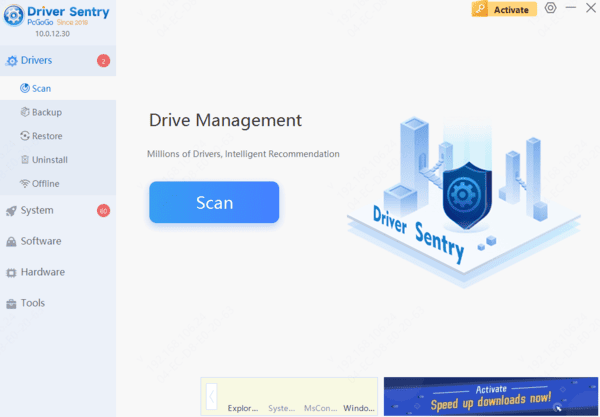
After the scan, it will display which drivers are missing or need updates. Find the necessary drivers in the results list and click the "Update" button.
Once updated, it is advisable to restart your computer to ensure the new drivers take effect.
Method 1: Check Your Network Connection
Use an online speed test tool to check your network speed and ensure it matches your subscription.
Unplug the router, wait a few minutes, and then plug it back in to restart it.
If you're using Wi-Fi, consider switching to a wired connection, which is typically more stable.
Method 2: Change Download Region
Open the Steam client.
Click on the "Steam" menu in the top left corner and select "Settings".
In the "Downloads" tab, find "Download Region".
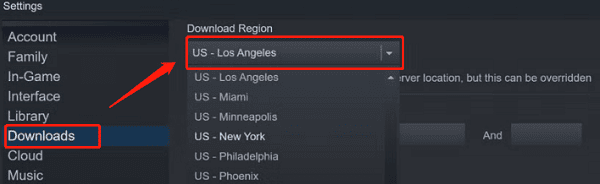
Choose a region that is closer to you and click "OK".
Restart the Steam client to see if download speeds improve.
Method 3: Clear Download Cache
Open the Steam client.
Click on the "Steam" menu in the top left corner and select "Settings".
In the "Downloads" tab, find "Clear Download Cache" and click it.
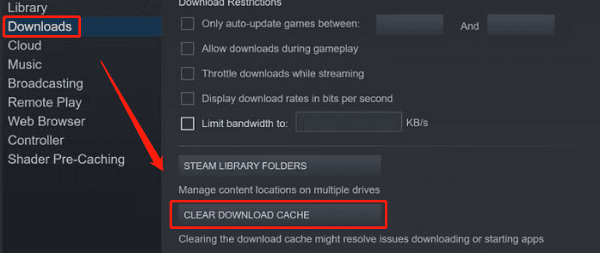
Confirm the action; Steam will prompt you to log in again. Please note your login information.
Method 4: Disable Steam Download Limitation
Open the Steam client.
Click on the "Steam" menu in the top left corner and select "Settings".
In the "Downloads" tab, ensure "Throttle downloads while streaming" is unchecked.
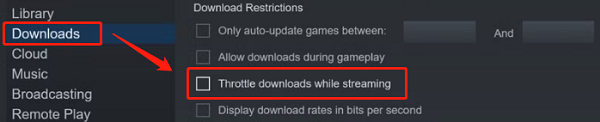
Click "OK" to save the settings.
Method 5: Disable Windows Metered Connection
Click the "Start" menu and select "Settings".
Go to "Network & Internet".
Select "Status" and then click "Network and Sharing Center".
In "Change connection properties", find your network and click on it.
Ensure that the "Set as metered connection" option is turned off.
Method 6: Remove Bandwidth Limitations
Open the Steam client.
Click on the "Steam" menu in the top left corner and select "Settings".
In the "Downloads" tab, find "Limit bandwidth to" and ensure it is unchecked.
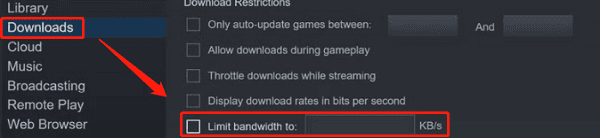
Save changes and restart Steam.
Method 7: Disable Firewall and Antivirus Software
Disable Windows Firewall:
Open the "Control Panel" and select "System and Security".
Click "Windows Defender Firewall" and select "Turn Windows Defender Firewall on or off".
Disable Antivirus Software:
Locate the icon for your antivirus software, right-click, and select "Disable" or "Exit". Note: Be sure to re-enable the firewall and antivirus software after downloading to maintain system security.
By following these steps, you can effectively improve download speeds on Steam and ensure a smooth gaming experience. If the issue persists, consider contacting Steam Support for further assistance.
See also:
How to Fix Wireless Mouse Connection Failure
How to Fix Blue Screen After Windows 11 Update