
This article provides 6 solutions to fix Valheim crashing on PC, including updating graphics drivers with Driver Sentry, running the game as administrator, verifying game file integrity on Steam, adjusting launch options to force DirectX 11, checking for Windows updates, and reinstalling the game.
Run Valheim as Administrator
Find the Valheim game shortcut and right-click to select "Properties".
Go to the "Compatibility" tab and check the box for "Run this program as an administrator".
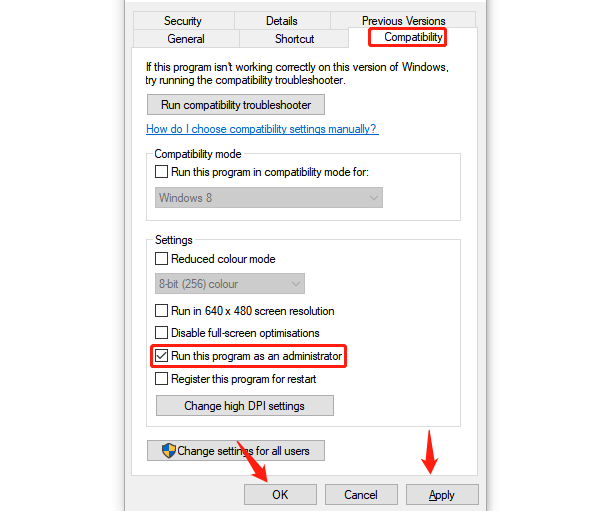
Click "Apply" and "OK" to save the settings, granting the game administrator privileges.
Run the game and check if the crash issue is resolved.
Verify Game File Integrity
Open the Steam client and log in to your account.
Find Valheim in your library.
Right-click on Valheim and select "Properties".
In the pop-up window, select the "Local Files" tab.
Click "Verify Integrity of Game Files", and Steam will check and fix any missing or corrupted files.
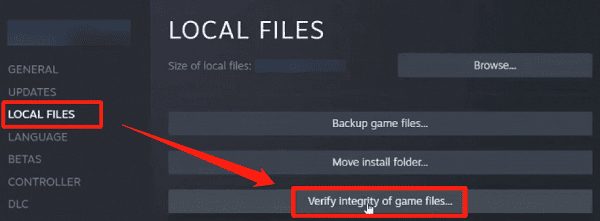
Once completed, restart Steam and try launching Valheim again to see if the game works properly.
Adjust Game Launch Options
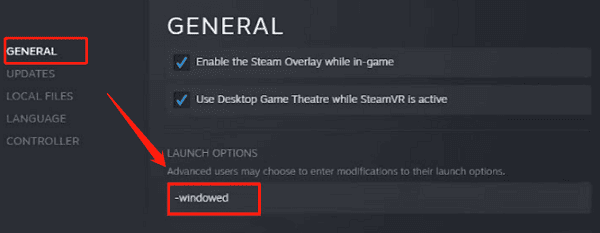
Open the Steam client and go to the Valheim game properties page.
In the "Local Files" tab, click on "Set Launch Options".
In the pop-up text box, enter the following launch parameters:
-windowed
-noborder
-force
-d3d11
These parameters will run the game in windowed mode and force the use of DirectX 11, which is suitable for certain graphics cards and system configurations.
Click "OK" to save the settings and try restarting the game.
Check for Driver
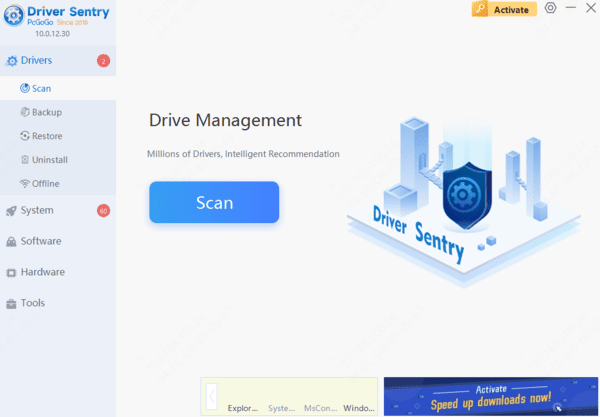
Outdated or corrupted graphics drivers can trigger crashes in Valheim, preventing the game from running properly. Regularly updating your graphics drivers ensures that the game runs smoothly. We recommend using Driver Sentry to automatically detect and update your drivers, saving time and reducing the risk of downloading or installing incorrect drivers.
Check for Operating System Updates
Press Win + I to open the Settings menu and click "Update & Security".
Under the "Windows Update" tab, click "Check for Updates".
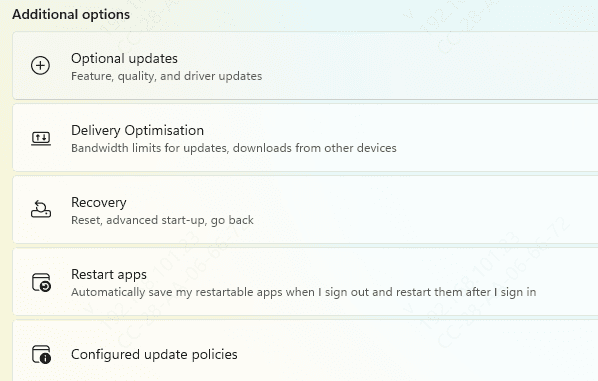
If updates are available, click "Download and Install".
After the updates are complete, restart your computer and check if Valheim is working properly.
Reinstall the Game
Open the Steam client and find Valheim in your library.
Right-click the game and select "Manage" > "Uninstall".
Once the uninstallation is complete, restart your computer.
Go to the Steam store, redownload, and reinstall Valheim.
After installation, launch the game and check if the problem is resolved.