






If Valorant launches to a black screen, freezes before the main menu, or plays sound with no picture, the problem is usually caused by a graphics driver conflict, a Vanguard startup issue, a fullscreen display mismatch, or background software interfering with the game. In most cases, this is not a server issue. The game is starting, but Windows is failing to render it correctly.
Run Valorant and Riot Client as Administrator
Permission problems can stop Vanguard or the game client from loading required components
Right-click Valorant and Riot Client and run both as administrator. If this fixes the issue, set the programs to always run with administrator rights in Compatibility settings
This is a common fix when Valorant opens but never reaches the login or home screen
Restart or Reinstall Riot Vanguard
Vanguard is one of the most common causes of startup issues in Valorant. If the vgc service fails to start correctly, the game may hang on a black screen. Open Services in Windows, find vgc, and restart it. Then reboot the PC and try again
If that does not help, uninstall Riot Vanguard from Apps, launch Valorant again, and let the game reinstall Vanguard automatically. Restart after reinstalling. This can fix damaged anti-cheat files that block the game from loading properly
Disable Fullscreen Problems
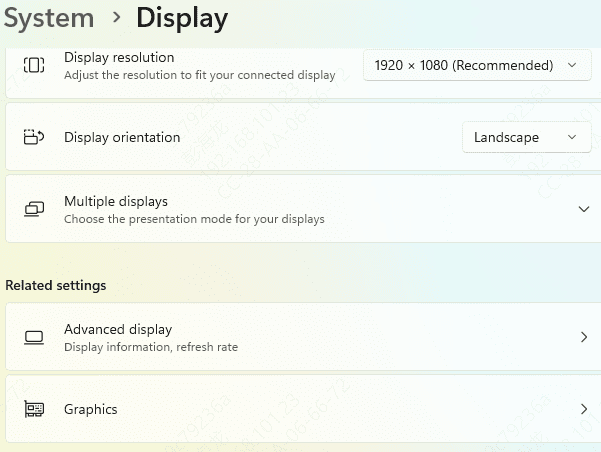
Some black screen cases happen because Valorant starts in a display mode that your monitor, GPU, or Windows settings do not handle well. Try launching the game in windowed mode first. You can also disable fullscreen optimizations in the Valorant executable properties
It is also worth checking whether your refresh rate, resolution, or multiple-monitor setup changed recently. Disconnecting a second monitor during testing can help rule out display switching issues
Turn Off Overlays and Background Apps
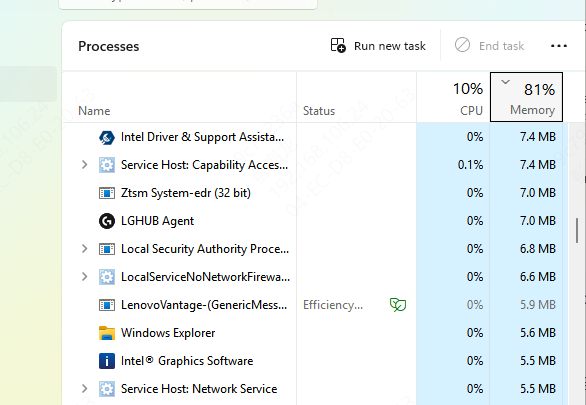
Discord overlay, NVIDIA overlay, Xbox Game Bar, MSI Afterburner, RGB tools, screen recorders, and other gaming utilities can conflict with Valorant or Vanguard. Close unnecessary background apps and disable all overlays before launching the game again
If the black screen disappears, one of those tools was interfering with startup
Repair Windows Files
If the issue started after a crash, update, or forced shutdown, damaged Windows files may be affecting the game.
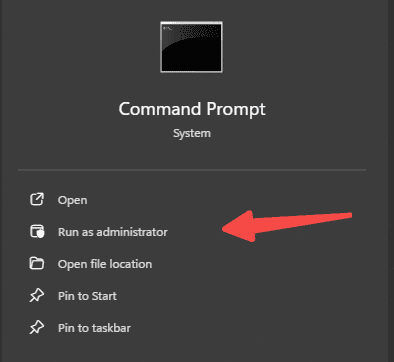
Open Command Prompt as administrator and run sfc /scannow. If Windows repairs corrupted files, restart the system and test Valorant again
Check Hardware Stability
If the black screen appears only after a few minutes, overheating or GPU instability may be involved
Check GPU temperature and make sure the graphics card is not overclocked beyond stable settings. A startup black screen is usually software-related, but intermittent black screens during launch and gameplay can point to hardware stress
Update Graphics Drivers
Valorant depends on stable communication between Windows, the GPU driver, and Riot Vanguard. If the graphics driver is outdated, corrupted, or partially broken after a Windows update, the game may open to a black screen instead of loading normally.
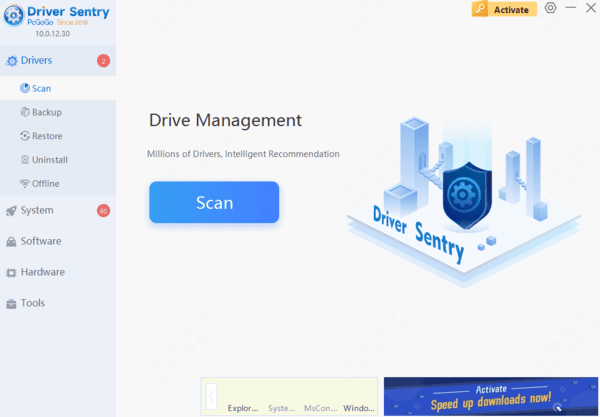
A practical way to handle this is to use Driver Sentry to scan for outdated or damaged graphics, chipset, and related system drivers
After installing the recommended updates, restart the PC and launch Valorant again
This often resolves black screen problems faster than changing random settings one by one
Final Thoughts
Valorant black screen on startup is usually caused by a driver issue, Vanguard failure, display mode conflict, or background software interference. The best place to start is updating graphics and chipset drivers with Driver Sentry, then checking Vanguard, administrator permissions, fullscreen settings, and overlays. In most cases, the problem can be fixed without reinstalling Windows or replacing hardware.




