
The VCRUNTIME140_1.dll Not Found error can prevent Windows applications from launching, especially games, design software, and other programs that rely on Microsoft Visual C++ runtime components. This error usually appears when the required DLL file is missing, corrupted, outdated, or incorrectly installed. Although the message may look serious, it is often caused by software issues rather than hardware problems. By repairing the Visual C++ Redistributable package, fixing corrupted system files, or restoring the missing DLL component, you can usually get the affected application running again. This guide provides several safe and effective methods to fix the VCRUNTIME140_1.dll missing error and restore normal program operation.
System-Level Repair and Verification
If the error persists after installing the official runtime packages, the issue may be due to a corrupted core Windows file or a conflict with the specific application.
Method 1: Run System File Checker (SFC) and DISM
These built-in Windows command-line tools scan and repair corrupted system files and the underlying Windows image, which can fix corrupted DLL entries.
1). pen Command Prompt as Administrator: Press the Windows Key + R, type "cmd", and press Ctrl + Shift + Enter. Click "Yes" to grant administrative privileges.
Run SFC Scan: Type the following command and press Enter: sfc /scannow
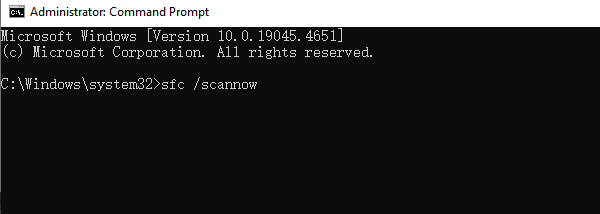
Wait for the verification process to reach 100%. This tool scans and replaces corrupted Windows system files.
Run DISM Check (If needed): If the SFC scan reports that it was unable to fix all errors, run the Deployment Image Servicing and Management (DISM) tool to fix the Windows image itself: DISM /Online /Cleanup-Image /RestoreHealth
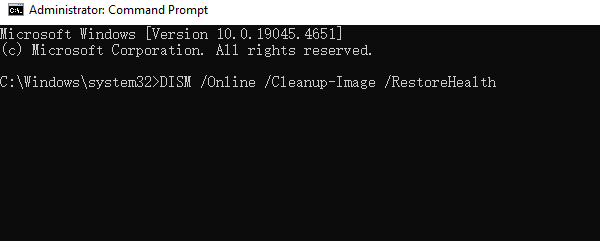
Wait for this process to complete.
2). Final Restart: Restart your PC and re-test the application.
Method 2: Reinstall the Problematic Application
If a specific application recently started showing this error, it's possible its original installation files for the Visual C++ runtime were corrupted or improperly uninstalled by another program.
Uninstall the Application: Open "Settings" > "Apps" (or "Control Panel" > "Programs and Features").
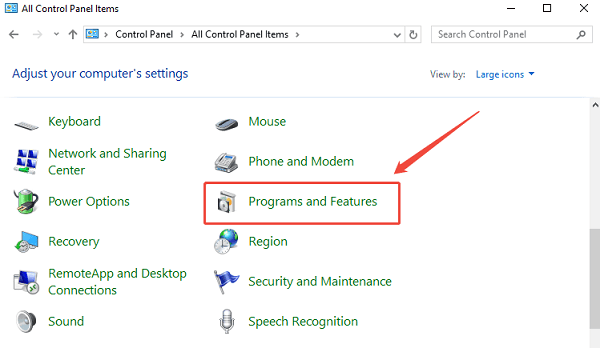
Remove Program: Find the application that is causing the error (e.g., a specific game or design program) and select "Uninstall".
Reinstall: Download the latest installer for the application and run the installation again. Reputable software installers often bundle the required Visual C++ Redistributable, ensuring it is installed correctly and specifically for that program.
Method 3: Download and Install Redistributable
Visit the Official Microsoft Download Center: Navigate to the official Microsoft page for the latest supported Visual C++ Redistributable downloads.
Download Both Versions: This is the most crucial step. You must download and install BOTH the x86 and x64 versions, regardless of whether your Windows system is 64-bit. Many applications are 32-bit and require the x86 runtime files to function.
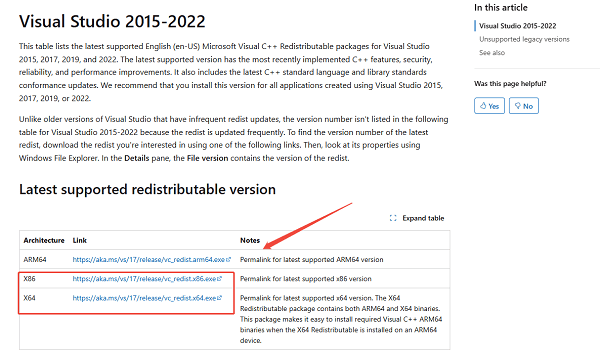
Install or Repair: Run both downloaded files one by one. If you already have a newer version installed, the installer may offer a "Repair" option. Select "Repair" (or "Install" if offered) for both the x64 and x86 versions.
Restart Your PC: After both installations are complete, you must restart your computer. Then, try launching the problematic application.
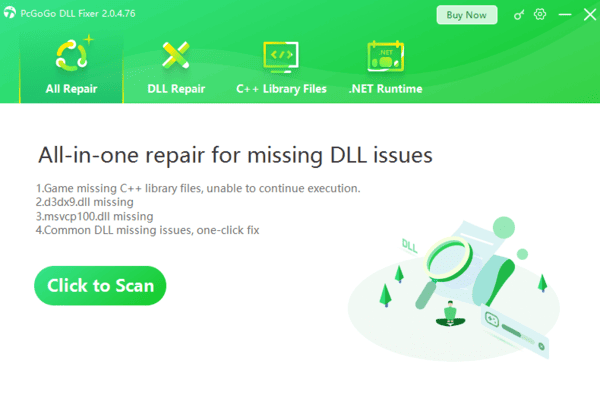
Method 4: Use PcGoGo DLL Fixer
Sometimes the file is missing due to deeper system corruption or interference from other installed software. Using PcGoGo DLL Fixer can efficiently check and correct these low-level file issues.
PcGoGo DLL Fixer is a specialized tool designed to scan your Windows system for missing or corrupted DLL files, including the critical Visual C++ runtime components, and replace them with certified, healthy versions.
Frequently Asked Questions
Is VCRUNTIME140_1.dll included with Windows?
It is supplied through Microsoft Visual C++ runtime components used by applications. Installing or repairing the appropriate Visual C++ Redistributable from Microsoft is the most direct fix.
Do I need both the x86 and x64 redistributables?
The package must match the application: 32-bit apps need x86, while 64-bit apps need x64. On 64-bit Windows, installing both is reasonable if you use apps of both types or do not know which version the affected app needs.
Can SFC or DISM replace a missing VCRUNTIME140_1.dll?
They repair Windows system components, but they are not a substitute for repairing the Visual C++ Redistributable. Start with Microsoft's runtime installer; use SFC and DISM if you also suspect Windows corruption.
Conclusion
The VCRUNTIME140_1.dll Not Found error is a temporary setback, not a terminal flaw. The most effective and safest solution is to fix with PcGoGo DLL Fixer. This step resolves the issue for the vast majority of users.
If the error persists, utilizing the SFC and DISM command-line tools or performing a clean reinstallation of the affected application will ensure your program can execute its code without any missing dependencies.