
The WHEA Uncorrectable Error is a serious Windows blue screen issue that usually indicates a hardware-related problem or system instability. It can occur due to faulty RAM, storage problems, unstable overclocking, outdated drivers, BIOS issues, or power-related failures. Although this error may seem difficult to fix, many cases can be resolved by checking hardware connections, repairing system issues, updating drivers, or restoring stable system settings. In this guide, we'll show you effective ways to troubleshoot and fix the WHEA Uncorrectable Error on Windows 10.
Check Hardware Connections
Inspect RAM and Graphics Card
Shut down your computer and disconnect the power supply.
Open the computer case and check if the RAM and graphics card are properly installed.
If you have multiple RAM sticks, try testing them one at a time to identify potential faults.
Ensure the graphics card is firmly seated in its slot.
Verify Hard Drive Connections
Check if the hard drive cables are securely connected.
If using an SSD, try switching to a different SATA port or replacing the data cable.
Confirm Power Supply Stability:
Ensure your power supply provides adequate voltage, as insufficient power can cause hardware instability and trigger errors.
Run CHKDSK
Press Win + S, type "Command Prompt", and run it as an administrator.
Enter the following command and press Enter: chkdsk C: /f /r
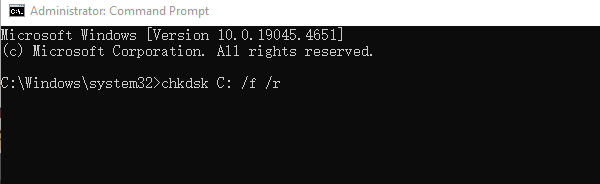
Replace C: with the appropriate system partition if necessary.
If prompted to schedule the check for the next restart, press Y to confirm.
Restart your computer and wait for CHKDSK to scan and repair hard drive errors.
Run Windows Memory Diagnostic
Press Win + R to open the Run dialog, type "mdsched.exe", and press Enter.
Select "Restart now and check for problems". The computer will restart and perform a memory test.
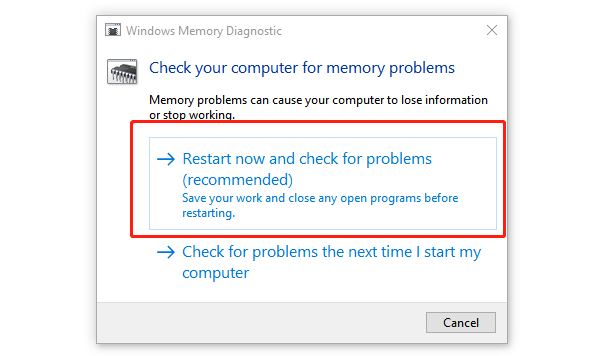
Wait for the diagnostic to complete, and review any reported memory issues.
If errors are detected, consider replacing the faulty RAM.
Update Drivers
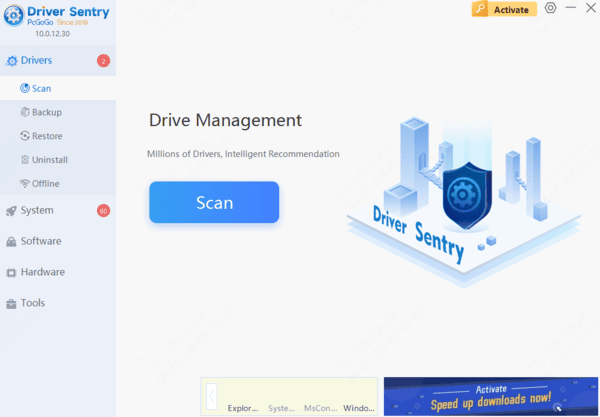
Outdated or corrupted drivers can lead to the WHEA error. Ensure all hardware drivers on your computer are up-to-date. Using a tool like Driver Sentry can save time and prevent errors in downloading or installing incorrect drivers.

Reset System Overclocking
Access your computer's BIOS/UEFI settings by pressing F2, DEL, or the designated key during startup.
Locate the "Overclocking Settings" in the BIOS and reset them to "Default Settings".
Save and exit the BIOS setup, then restart your computer.
Update Your BIOS/UEFI
Visit the official website of your motherboard manufacturer.
Locate the latest BIOS firmware for your motherboard model.
Download the firmware and follow the manufacturer's instructions to update the BIOS carefully.
Note: Exercise caution during the update process to avoid damaging your system. Restart your computer after the update and check if the issue is resolved.
Reset Windows
Press Win + I to open Settings, then go to "Update & Security > Recovery".
Under "Reset this PC", click "Get started".
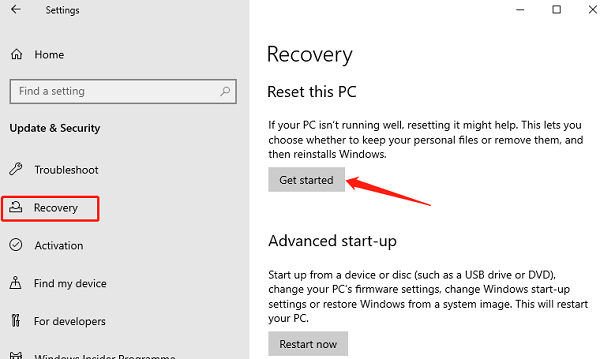
Choose "Keep my files" or "Remove everything", depending on your preference.
Follow the on-screen instructions to complete the reset process. The system will reinstall Windows during this process.