A black screen issue on Windows 11 can interrupt your workflow, prevent access to your files, and in some cases lead to unexpected system problems. This frustrating issue may occur during startup, after an update, or while using the computer. Common causes include graphics driver problems, system errors, display connection issues, or incorrect settings. In this guide, we'll provide effective troubleshooting methods to fix Windows 11 black screen problems, restore normal operation, and help prevent the issue from happening again.
Method 1: Check Power and Restart
Ensure the power cable and monitor are properly connected without loose or damaged connections.
For laptops, check if the power adapter works and the battery is charged.
Hold the power button for 5-10 seconds to turn off the computer, wait, then restart to check if the black screen is resolved.
Method 2: Update Graphics Card Drivers
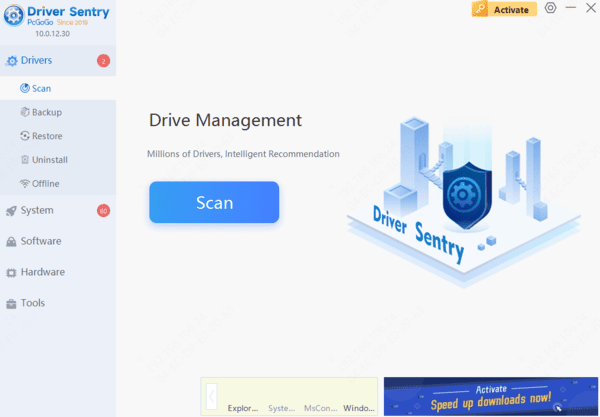
Faulty or incompatible graphics card drivers can often cause black screen issues on Windows 11. It's recommended to use Driver Sentry to automatically detect and update drivers, saving time and avoiding errors.
Method 3: Adjust Power Settings
Press Win + X and select "Power Options", then click on "Additional power settings".
Next to the current power plan, click "Change plan settings".
Click "Change advanced power settings", and in the new window, locate "Processor power management".
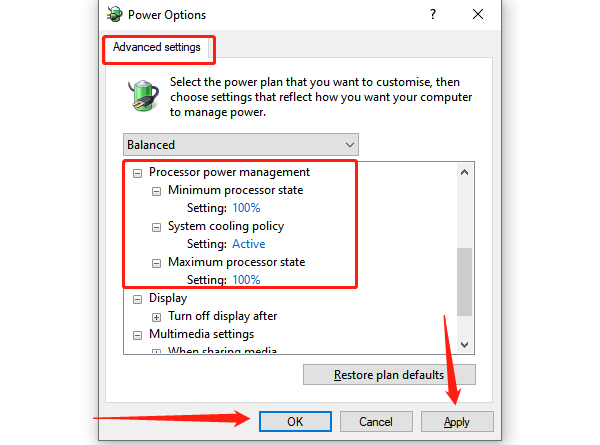
Ensure both the minimum and maximum processor states are set to 100%.
Save the changes, restart the computer, and check if the issue is resolved.
Method 4: Disconnect External Devices
Sometimes external devices may cause a black screen, especially if they conflict with display output.
Disconnect all external devices, including USB drives, external monitors, headphones, keyboards, and mouse.
Restart the computer and observe whether the black screen disappears. If resolved, reconnect the devices one by one to identify if one of them is causing the issue.
Method 5: Enter Safe Mode
Press and hold the power button for 5-10 seconds to turn off the computer.
Press and hold the power button again until the Windows logo appears, and it will automatically enter the Windows Recovery Environment (WinRE).
In the recovery environment, select "Troubleshoot" > "Advanced options" > "Startup settings" > "Enable Safe Mode".
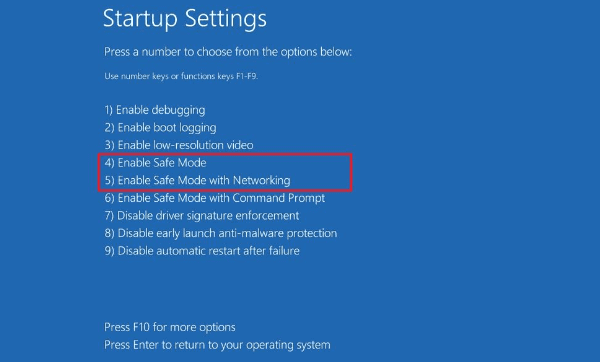
In Safe Mode, update or uninstall problematic drivers, or perform system repairs.
Check whether the black screen persists. If it doesn't, it may indicate a driver or software conflict.
Method 6: Check for System Updates
Press Win + I to open "Settings", and go to "Update & Security".
Click "Windows Update" and then "Check for updates".
If updates are available, click "Download and install".
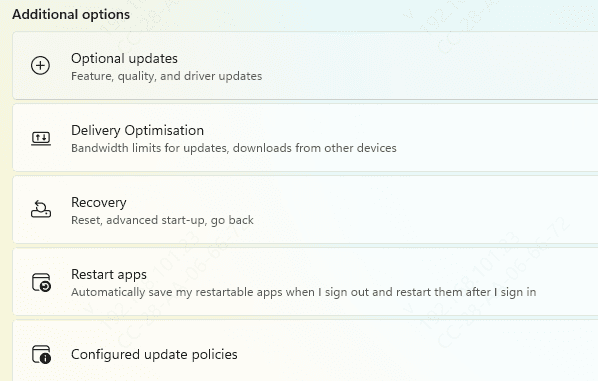
After installation, restart the computer and see if the issue is resolved.
Method 7: Reset the System
Press Win + I to open "Settings", and go to "Update & Security".
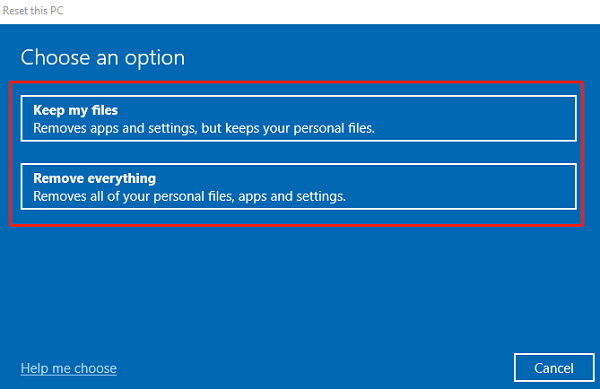
Find the "Recovery" option and click "Get started" under "Reset this PC".
Choose "Keep my files" or "Remove everything", and follow the on-screen instructions.