Some Windows 11 users may encounter the "Unidentified Network" error, which can prevent the computer from accessing the internet or connecting properly to a network. This issue is often caused by incorrect network settings, outdated drivers, IP configuration problems, or router-related issues. In this guide, we'll provide effective troubleshooting methods to fix the Windows 11 "Unidentified Network" problem, restore network connectivity, and help maintain a stable internet connection.
1. Update Network Drivers
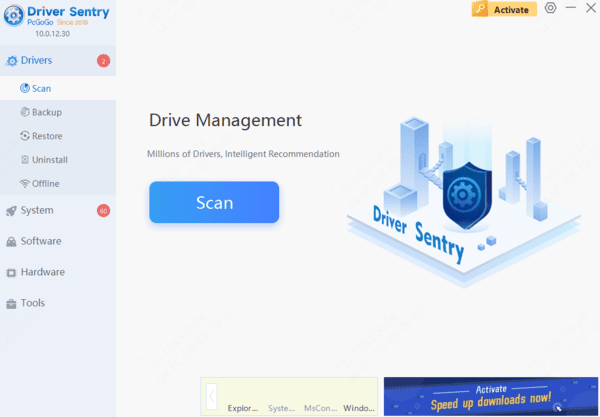
Outdated or corrupted drivers can cause the "Unidentified Network" issue in Windows 11. Updating the network driver promptly can effectively address this problem. We recommend using Driver Sentry for automatic detection and driver updates, saving time and avoiding incorrect installations.
2. Restart Router and Computer
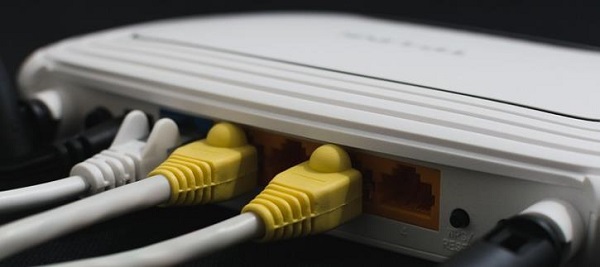
Turn off the router and wait for at least 3 minutes.
Turn the router back on and wait until it fully initializes.
Restart your computer to reinitialize the network connection.
Check if the network connection is restored.
3. Change DNS Server Settings
Press Win + I to open "Settings" and select "Network & Internet".
Click on your active internet connection and locate the "IPv4 DNS servers" settings. Select "Edit".
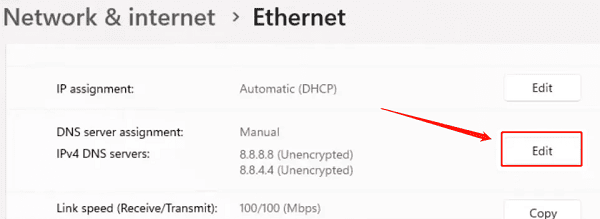
Choose "Manual" in the dropdown menu and enter the following DNS server addresses:
Preferred DNS server: 8.8.8.8
Alternate DNS server: 8.8.4.4
Click "Save", reconnect to the network, and check if the issue is resolved.
4. Run Network Troubleshooter
Press Win + I to open "Settings" and go to "System" > "Troubleshoot".
Select "Other troubleshooters", find "Network and Internet", and click "Run".
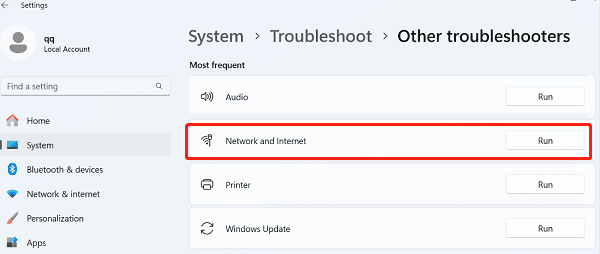
Follow the on-screen instructions to complete the troubleshooting process and see if the issue is fixed.
5. Update IP Address
Press Win + S, type "cmd", and right-click to select "Run as Administrator".
Enter the following commands one by one, pressing Enter after each:
ipconfig /release
ipconfig /renew
Then, enter: ipconfig /flushdns
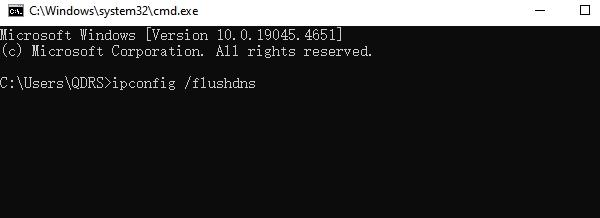
Restart your computer and check the network connection.
6. Check System Firewall and Security Software
Press Win + S, search for "Windows Defender Firewall", and open it.
Ensure the firewall is not blocking network access. If it is, click "Allow an app or feature through Windows Defender Firewall" and add the necessary apps.