Are you experiencing sudden system crashes, unexpected restarts, or a blue screen displaying the STOP 0x0000003B error on your Windows computer? Also known as SYSTEM_SERVICE_EXCEPTION, this Blue Screen of Death (BSOD) error typically occurs when Windows encounters a critical problem while executing a system service. It can be triggered by outdated or incompatible device drivers, corrupted system files, faulty RAM, disk errors, or conflicts with third-party software. If left unresolved, repeated crashes can interrupt your work and potentially lead to data loss. Fortunately, there are several troubleshooting methods that can help identify and resolve the underlying issue. This guide explains six practical ways to fix the STOP 0x0000003B blue screen error on Windows 10 and Windows 11, including updating drivers with Driver Sentry, repairing system files using SFC and DISM, checking memory and disk health, performing a clean boot, and resetting Windows when necessary.
1. Check and Repair System Files
Run the SFC Command:
Press Win + S, type "cmd", right-click Command Prompt, and select "Run as administrator".
In the Command Prompt window, enter the following command and press Enter: sfc /scannow
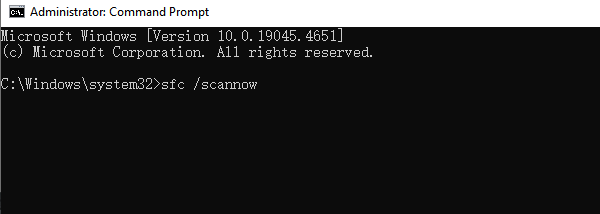
Wait for the system to scan and automatically repair any corrupted files.
Run the DISM Command:
If SFC fails to fix the issue, use DISM for a deeper repair. Open Command Prompt as Administrator and enter the following commands one by one, pressing Enter after each:
DISM /Online /Cleanup-Image /CheckHealth
DISM /Online /Cleanup-Image /ScanHealth
DISM /Online /Cleanup-Image /RestoreHealth
Once the process is complete, restart your computer and check if the issue is resolved.
2. Run Windows Memory Diagnostic
Press Win + R, type "mdsched.exe", and press Enter.
In the pop-up window, select "Restart now and check for problems (recommended)".
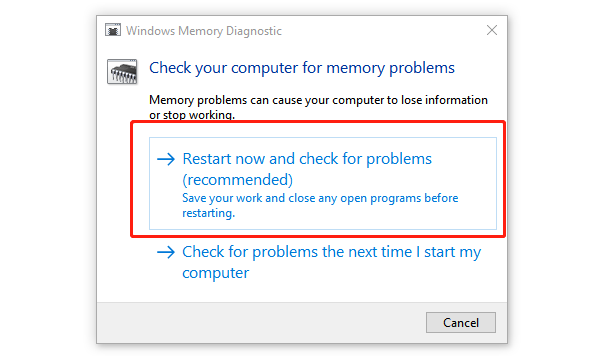
Your computer will restart and run a memory test, which may take a few minutes.
Once the diagnosis is complete, results will be displayed upon the next login.
If memory errors are detected, consider replacing the faulty RAM module.
3. Update Device Drivers
Outdated or corrupted drivers can lead to the 0x0000003B blue screen error in Windows. Checking and updating drivers in time can effectively resolve this issue. It is recommended to use Driver Sentry to automatically detect and update drivers, saving time while avoiding the risk of downloading or installing incorrect drivers.
Click the download button to get the latest version of Driver Sentry. After installation, open the software and click "Scan".
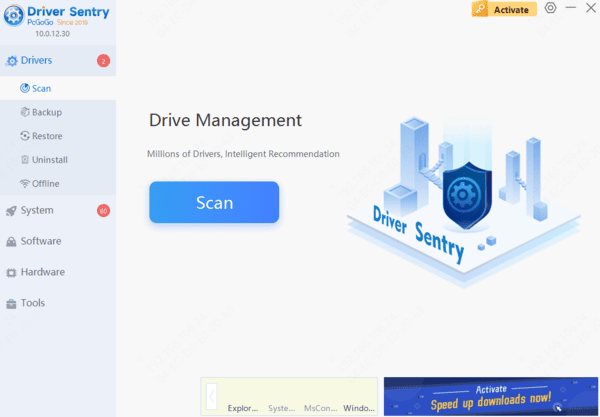
Once the scan is complete, the software will display drivers that need installation or updates. Find the necessary drivers in the list and click the "Upgrade" button.
After updating, restart your computer to ensure the new drivers take effect.
4. Check for Disk Errors
Open Command Prompt as Administrator (refer to previous steps).
Enter the following command and press Enter: chkdsk C: /f /r
Explanation:
"C:" represents the system drive (if Windows is installed on another drive, such as "D:", replace "C:" accordingly).
"/f" fixes disk errors, "/r" locates and recovers data from bad sectors.
If prompted with "Would you like to schedule this volume to be checked the next time the system restarts? (Y/N)", type "Y" and press Enter.
Restart your computer, and the disk check will run before Windows starts.
5. Perform a Clean Boot
Press Win + R, type "msconfig", and press Enter.
In the System Configuration window, switch to the "Services" tab.
Check "Hide all Microsoft services", then click "Disable all".
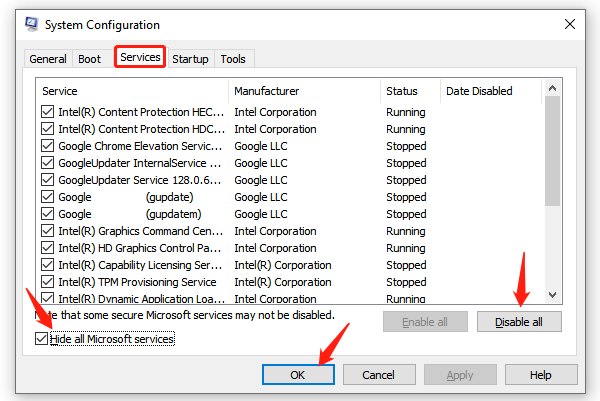
Switch to the "Startup" tab and click "Open Task Manager".
In Task Manager, disable all enabled startup items (right-click each item and select Disable).
Close Task Manager, click "OK", and restart your computer.
Observe if the blue screen issue persists. If the problem is resolved, a disabled program may have been the cause. You can re-enable programs one by one to identify the culprit.
6. Reset Windows
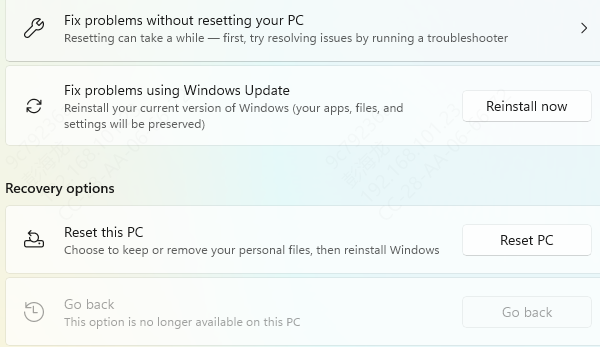
Press Win + I to open Settings, then go to "Update & Security" > "Recovery".
Under "Reset this PC", click "Get started".
Choose "Keep my files" (to retain personal data) or "Remove everything" (recommended for a full reinstall).
Follow the on-screen instructions to complete the reset process.
By following these troubleshooting steps, the 0x0000003B blue screen error should be resolved. If the issue persists, consider seeking professional technical assistance.