Network connection issues are common for Windows users, but most can be easily fixed with a few simple steps. This guide offers clear instructions to help you quickly restore your connection.
1. Check Hardware Connections
For wired connections, ensure the Ethernet cable is securely plugged into both the computer and router or modem.
For wireless connections, make sure your device is within strong Wi-Fi range and the router is working properly.
Try restarting the router and modem by unplugging them for a few seconds and then reconnecting the power.
2. Update Network Drivers
Outdated or corrupted network drivers can cause connection issues. It is recommended to use Driver Sentry to automatically detect and update drivers, saving time and avoiding the risk of downloading or installing incorrect drivers.
Click the download button to get the latest version of Driver Sentry. After installation, open the software and click "Scan".
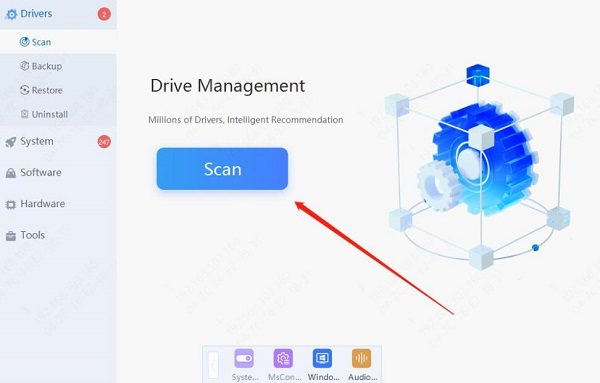
Once the scan is complete, it will show any drivers that need installation or updating. Find the network driver in the results list and click the "Update" button.
After updating, it's advisable to restart your computer to ensure that the updated drivers take effect.
3. Check DNS Settings
Open "Control Panel" and go to "Network and Sharing Center".
Click "Change adapter settings", right-click your network connection, and select "Properties".
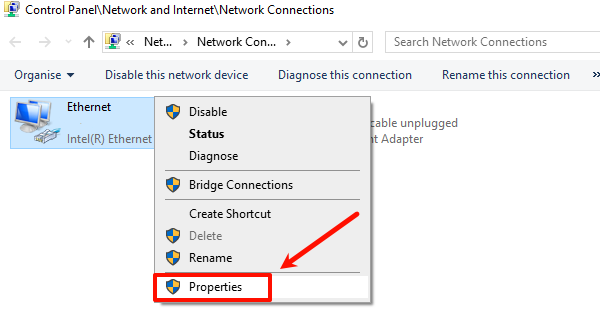
Double-click "Internet Protocol Version 4 (TCP/IPv4)" and choose "Use the following DNS server addresses".
Enter a common public DNS server, such as 8.8.8.8 (Google DNS) or 1.1.1.1 (Cloudflare DNS).
4. Reset Network Settings
Open "Settings" and go to "Network & Internet".
On the "Status" page, scroll down and select "Network reset".
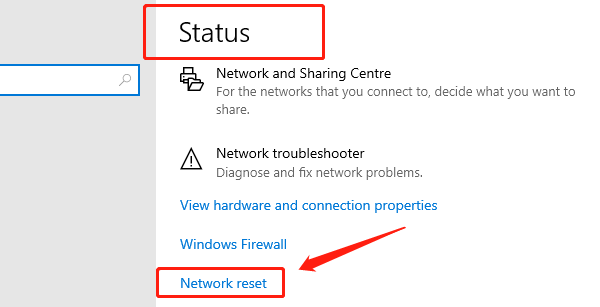
Click the "Reset" button and confirm; the system will reset all network settings and restart your computer.
5. Change Adapter Options
Open "Control Panel" and go to "Network and Sharing Center".
Click "Change adapter settings", right-click your current network connection, and select "Disable".
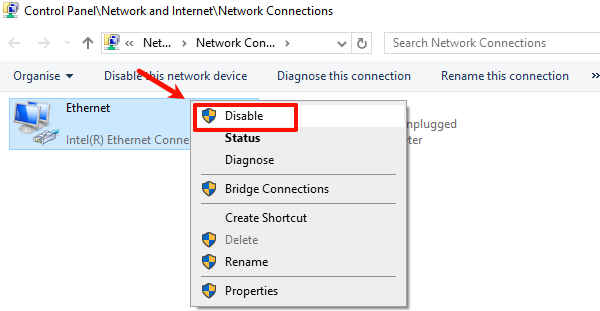
Wait a few seconds, then right-click the network connection again and select "Enable".
This refreshes the network adapter and can resolve some connection issues.
6. Use Windows Network Troubleshooter
Press the Windows key and I key simultaneously to open "Settings", then click "Network & Internet".
Select the "Status" option, scroll down on the right side, and click "Network troubleshooter".
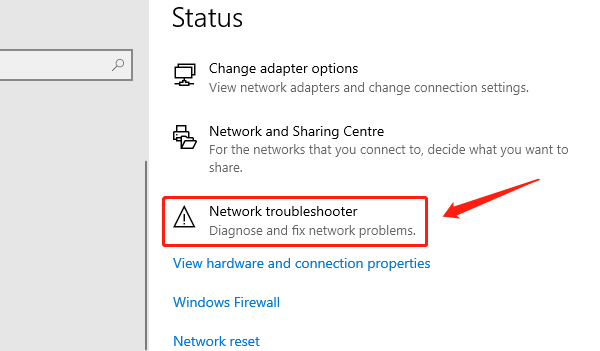
The troubleshooter will scan your system and attempt to fix any detected issues. If the tool cannot resolve the problem, it usually provides suggestions for the next steps.
7. Check Windows Firewall and Antivirus Software
Go to "Control Panel" > "System and Security" > "Windows Firewall", select "Turn Windows Firewall on or off", and temporarily disable the firewall to see if the network connection is restored.
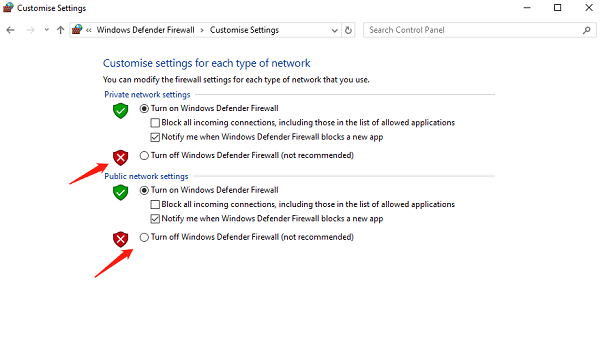
Open your antivirus software and check its network protection settings to ensure that no legitimate network activity is being blocked.
8. Check IP Address
Press the "Win + R" keys together, type "cmd", and open the Command Prompt.
In the Command Prompt window, type "ipconfig" and press "Enter". The screen will display your computer's current network configuration, including IP address, subnet mask, and default gateway.
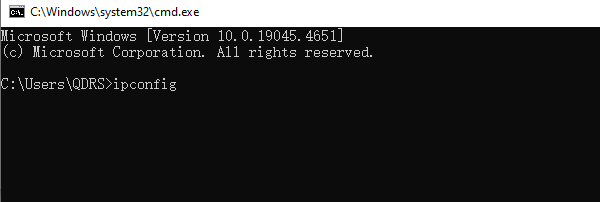
Ensure that the displayed IP address is correctly assigned to your computer, and check if the default gateway address matches the router's settings.
If the issue persists, try manually setting a static IP address to ensure the device can connect to the network properly.
Following these steps can resolve most Windows network issues. Keeping your system and drivers updated and regularly checking your network devices can prevent problems. Hope this guide helps you quickly restore your connection and avoid disruptions.
See also:
How to Quickly and Safely Update Your Graphics Drivers
7 Ways to Fix Dota 2 Crashing Issues