Screen flickering can cause eye strain, affect user experience, and in some cases, render a computer unusable. This article provides detailed steps to help you resolve this issue and restore normal functionality.
Way 1: Update Graphics Drivers
Outdated or corrupted display drivers are one of the common causes of screen flickering. Updating the display drivers can resolve this issue. We recommend using Driver Sentry to automatically detect and update drivers, saving time and avoiding the risk of downloading or installing incorrect drivers.
Click the download button to get the latest version of Driver Sentry. After installation, open the software and click "Scan".
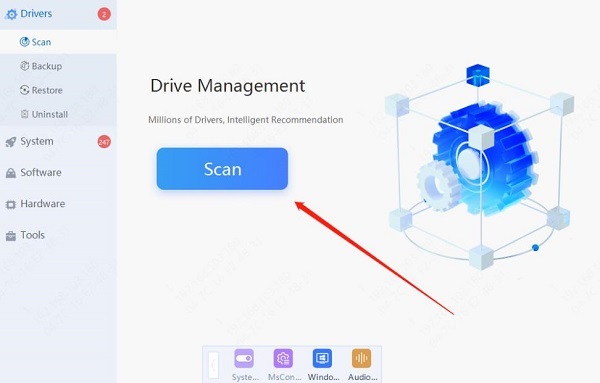
After the scan is complete, it will display which drivers are missing or need updating. Find the graphics driver in the results list and click the "Update" button.
Once the update is complete, restart your computer to ensure the updated driver is properly applied.
Way 2: Check Cable Connections
Ensure all cables between your monitor and computer (such as HDMI, DisplayPort, or VGA) are securely connected. If the connection is loose, reconnect the cables.
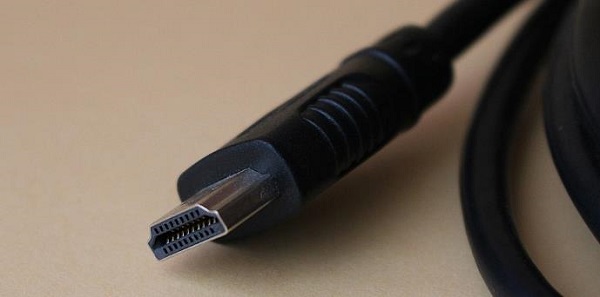
Inspect the cables for any visible physical damage, such as cracks or bends. If damage is found, replace the cables.
If possible, use a different cable or try using other ports on the monitor to rule out cable or port issues.
Way 3: Check Screen Refresh Rate Settings
Right-click on the desktop and select "Display settings".
Scroll down and click "Advanced display settings".
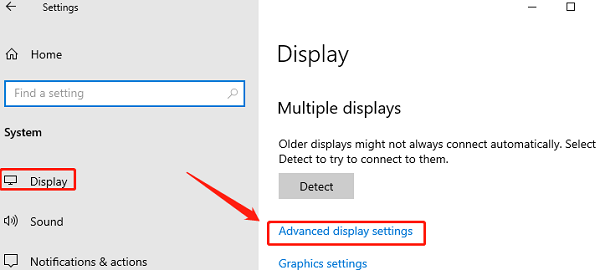
In the "Display adapter properties" window, select the "Monitor" tab.
Under the "Screen refresh rate" drop-down menu, select an appropriate refresh rate (usually 60Hz or higher).
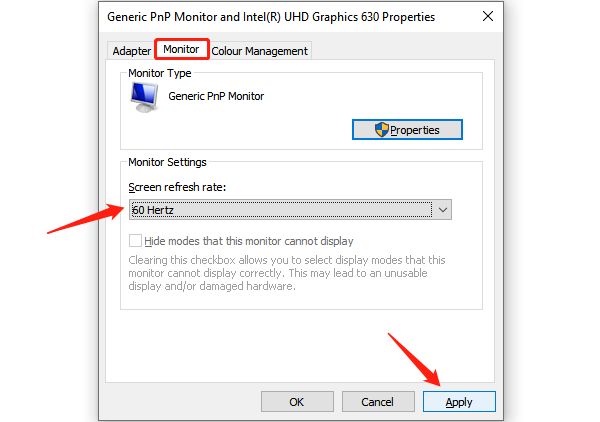
Click "Apply" to save the changes and check if the screen flickering has stopped.
Way 4: Disable Hardware Acceleration
In common applications (such as Google Chrome or Microsoft Edge), click the menu icon in the top right corner and select "Settings".
Scroll down to the "System" or "Advanced" section in the "Settings" menu.
Turn off the "Use graphics acceleration when available" option.
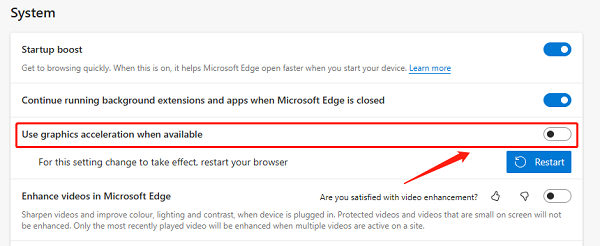
Restart the application and check if the screen flickering issue is resolved.
Way 5: Check for Incompatible Software
Press Win + R, type "msconfig", and press Enter.
In the "System Configuration" window, select the "Services" tab and check "Hide all Microsoft services".
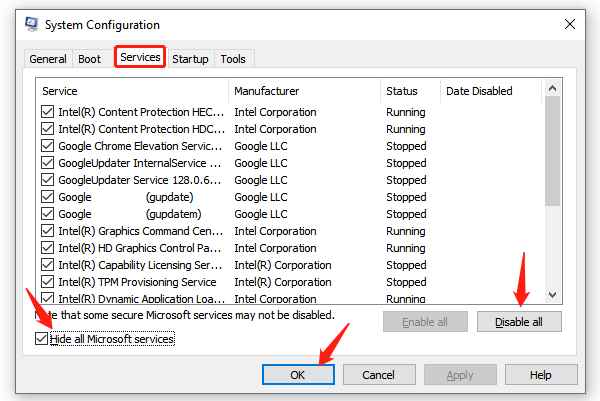
Click "Disable all", then go to the "Startup" tab and select "Open Task Manager".
In the Task Manager, disable all startup items.
Restart your computer. If the screen flickering stops, enable the services and startup items one by one to identify the problematic software.
Way 6: Update Windows 10
Click the "Start" button and select "Settings" > "Update & Security".
In the "Windows Update" section, click "Check for updates".
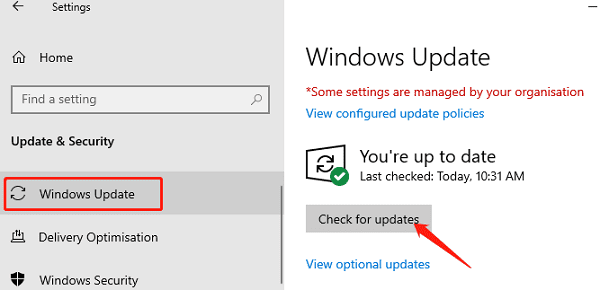
If updates are detected, click "Download and install". The system will automatically download and install updated drivers.
After installation is complete, restart your computer to apply the updates.
Way 7: Check for Hardware Faults
Try connecting your computer to another monitor to see if the screen flickering issue persists. If the issue disappears, the original monitor may be faulty.
Reinsert the graphics card into the motherboard slot to ensure it is securely installed. If a spare graphics card is available, replace it and test.
If the problem persists and you are unable to resolve it yourself, consider contacting a professional technician for further inspection and repair.
Screen flickering can be an annoying issue, but with the correct diagnostic steps and solutions, it can usually be easily fixed. Hope this guide helps you resolve the screen flickering issue on your Windows 10 computer, restoring normal work and entertainment experiences.
See also:
How to Easily Upgrade Your PC to Windows 11
7 Ways to Fix High Latency and Slow Speed on Your Computer