






A common issue with wireless keyboards is the touchpad not working properly or becoming unresponsive. This problem can be caused by driver issues, connection problems, or incorrect settings. This article provides several effective troubleshooting methods to help you fix the issue and restore your wireless keyboard touchpad to normal operation.
1. Update Keyboard Drivers
Sometimes, driver issues can cause the touchpad to malfunction. You can try updating the wireless keyboard’s drivers. It's recommended to use Driver Sentry to automatically detect and update drivers, saving time and avoiding the risk of downloading or installing the wrong drivers.
1). Click the download button to get the latest version of Driver Sentry. After installation, open the software and click "Scan".

2). After the scan is complete, it will show which drivers need to be installed or updated. Find the keyboard driver in the results list and click "Update".
3). After updating, it's recommended to restart your computer to ensure the new driver takes effect.
2. Check the Batteries
If your wireless keyboard uses replaceable batteries, remove and replace them with new ones, ensuring they are correctly installed.
If the keyboard has a built-in rechargeable battery, make sure it is fully charged.

Restart the keyboard and check if the touchpad is working properly.
3. Check Connection Issues
Make sure the wireless receiver is securely inserted into the USB port of your computer.
Try plugging the receiver into a different USB port to rule out port issues.

If the keyboard uses Bluetooth, ensure that both the keyboard and the computer's Bluetooth functions are turned on and properly paired.
4. Press the Fn + F8 Key Combination
Hold down the Fn key, then press the F8 key (or another key marked with a touchpad icon).
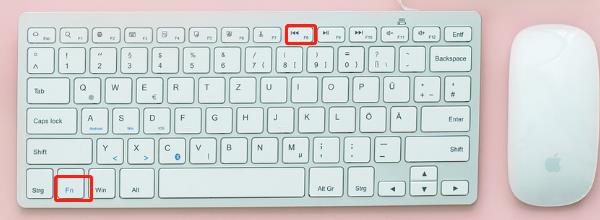
If the key combination is different on your keyboard, refer to the keyboard manual to find the correct combination.
5. Check Touchpad Settings
Open your computer's "Settings" or "Control Panel", and navigate to the "Devices" or "Mouse and Touchpad" options.
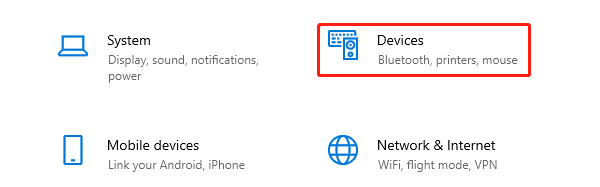
Make sure the touchpad is enabled and adjust the settings to ensure it works correctly.
6. Try Using the Keyboard on Another Device
Connect the keyboard to another computer, tablet, or smartphone to check if the touchpad works properly.
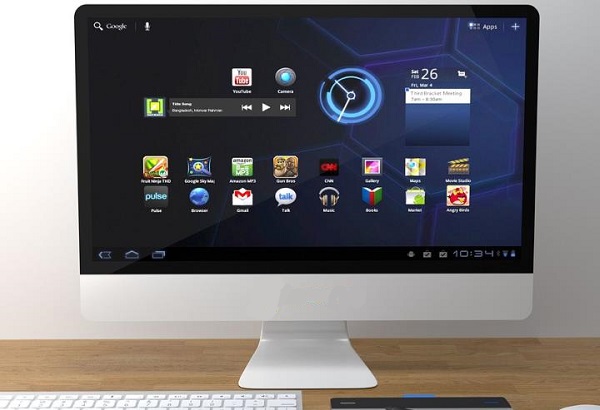
If it works on other devices, the issue may lie within your computer's settings or drivers.
7. Restore Factory Settings
1). Refer to the keyboard manual to find the method for restoring factory settings (this usually involves holding down a specific button or key combination).
2). Follow the instructions to reset the keyboard to its factory state.
3). Re-establish the connection between the keyboard and your computer, and check if the touchpad is functioning normally.
Trying the above methods should help fix your wireless keyboard touchpad issue. If the problem continues, consider reaching out to the device manufacturer's technical support for further help. I hope this guide helps restore your device's functionality.




