
Wireless network disconnections are a common problem for Windows users and can interrupt browsing, gaming, streaming, and daily tasks. Frequent drops or unstable connections are often caused by driver issues, network settings, router problems, or system configuration errors. In this guide, we'll provide effective solutions to troubleshoot wireless connection problems, restore stable Wi-Fi connectivity, and help prevent future network interruptions.
Restart Devices
Turn off your computer or other devices connected to the wireless network.
Restart your router by unplugging it from the power source, waiting 2-3 minutes, and plugging it back in.
Once the router has fully rebooted, turn your computer back on and try reconnecting to the Wi-Fi.
Reset Network Settings
Open Settings and click "Network & Internet".
From the left menu, select "Status" and click "Network reset".
Click "Reset now" to reset all network adapters and restore them to their default settings.
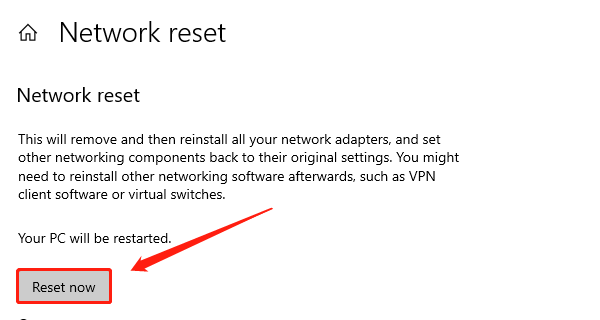
Restart your computer, reconnect to the Wi-Fi, and check if the disconnection issue is resolved.
Adjust Power Management Settings
Press Windows + X and select "Device Manager".
Expand "Network Adapters" in the Device Manager, right-click your wireless adapter, and select "Properties".
Go to the "Power Management" tab and uncheck "Allow the computer to turn off this device to save power".
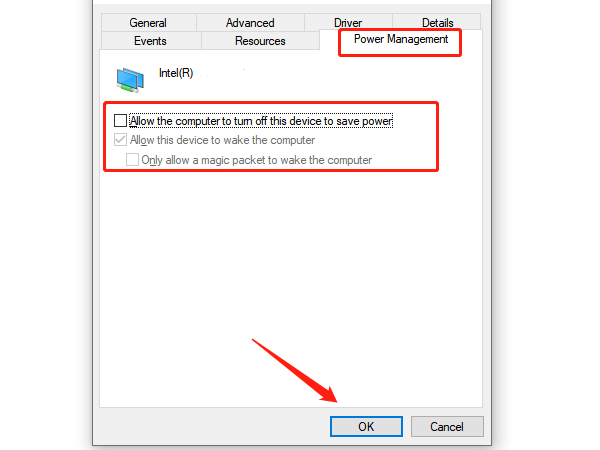
Click "OK" to save the changes and exit.
Restart your computer, reconnect to the Wi-Fi, and check if the network remains stable.
Disable IPv6 Protocol
Right-click the Network icon in the taskbar and select "Open Network & Internet settings".
Click "Change adapter options".
Right-click the currently connected wireless network and select "Properties".
In the properties window, locate "Internet Protocol Version 6 (TCP/IPv6)" and uncheck the box next to it.
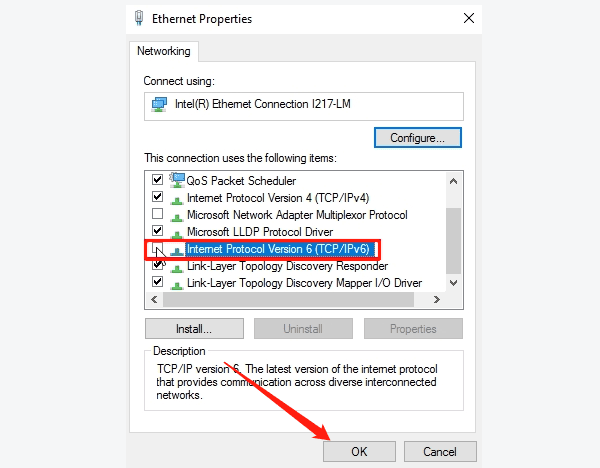
Click "OK" to save the changes and close the window.
Reconnect to the Wi-Fi and check if the network disconnection issue is resolved.
Update Drivers
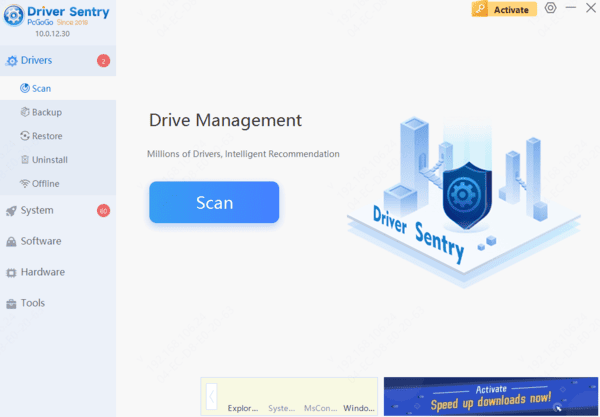
Outdated or corrupted network adapter drivers are among the most common causes of unstable Wi-Fi connections, slow speeds, and frequent disconnections on Windows PCs. Keeping your drivers updated can help improve network stability and ensure better hardware compatibility. Updating drivers manually can be time-consuming and may lead to installing incorrect versions. Using Driver Sentry can automatically detect your network adapter and install the correct drivers, helping you save time and avoid driver-related issues. In this guide, we'll explain how to update network adapter drivers and restore a more reliable wireless connection.
Run the Network Troubleshooter
Open Settings and click "Update & Security".
From the left menu, select "Troubleshoot" and then click "Additional troubleshooters".
Find "Network Adapter" and click "Run the troubleshooter".
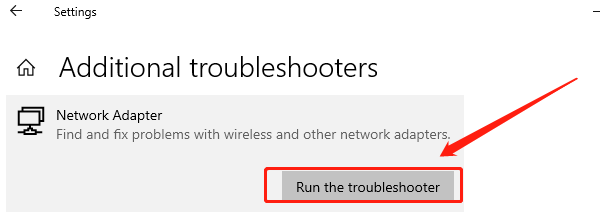
The system will automatically scan for and fix issues with your wireless network connection.
After the troubleshooting is complete, restart your computer and check if the problem is resolved.
By following these methods, you can effectively diagnose and fix wireless network disconnection issues. If the problem persists, consider contacting professional technical support for further assistance.