A game that ran perfectly yesterday may suddenly become slow, choppy, or almost unplayable today. Instead of maintaining a stable frame rate, you might experience random FPS drops, micro-stutters, freezing, or delayed responses during gameplay. These changes do not always mean your PC hardware is too weak. Driver problems, overheating, background processes, limited storage, Windows power settings, and recent system changes can all affect gaming performance. This article will help you track down what changed and walk through effective ways to fix sudden game lag on a Windows PC.
Common Causes of Game Slowdowns
1. Insufficient Hardware Performance
Your graphics card, processor, or memory may not meet the game's requirements, especially when running newer games on older systems.
2. Driver Issues
Outdated, incompatible, or improperly installed graphics drivers often lead to performance drops.
3. Resource-Hogging Background Programs
Running multiple programs simultaneously can consume CPU, memory, or GPU resources, leaving fewer for your game.
4. System Settings or Update Problems
Misconfigured settings, such as power-saving modes or resolution mismatches, can reduce performance. Certain system updates can also cause issues.
5. Insufficient Storage
Low disk space or aging hard drives can slow down game loading and performance.
6. Overheating
Excessive heat can trigger hardware protection mechanisms like throttling, reducing performance and frame rates.
Steps to Fix Game Slowdowns
Step 1: Check Hardware Compatibility
Verify Game Requirements
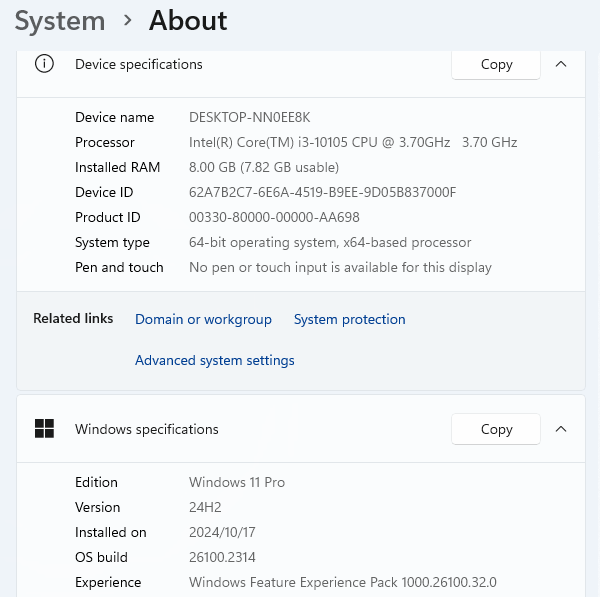
Look for the minimum and recommended system requirements on the game's official website or installation file. Compare them to your PC's specs (found under "This PC > Properties").
Upgrade Hardware
1. Graphics Card: For budget options, consider a mid-range GPU. For high-end gaming, look into the RTX series.
2. Memory: If your PC has less than 8GB RAM, upgrade to at least 16GB for smoother multitasking.
3. Storage: Switch from a traditional HDD to an SSD to improve load times and overall performance.
Step 2: Update or Repair Drivers
The state of your graphics card driver directly affects game performance. Here's how to update or repair your drivers:
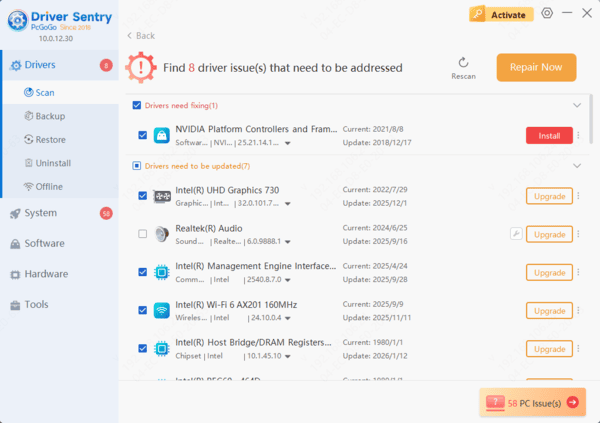
1. Download and install Driver Sentry. It will automatically scan your system for all hardware drivers and install stable, compatible versions, preventing performance issues caused by incorrect installations.
2. Once the software is open, click "Scan" to check the status of all your device drivers.
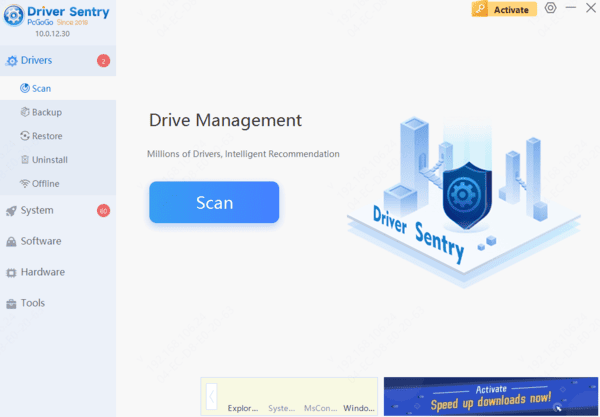
3. If it detects that your graphics driver needs updating, simply click the "Repair Now" button to update it.
Step 3: Close Background Programs
End Unnecessary Tasks
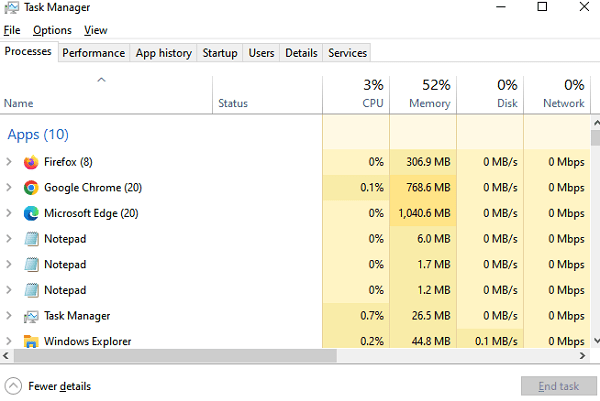
1. Press "Ctrl + Shift + Esc" to open Task Manager.
2. In the "Processes" tab, identify high-resource programs and right-click to "End Task".
Disable Startup Programs
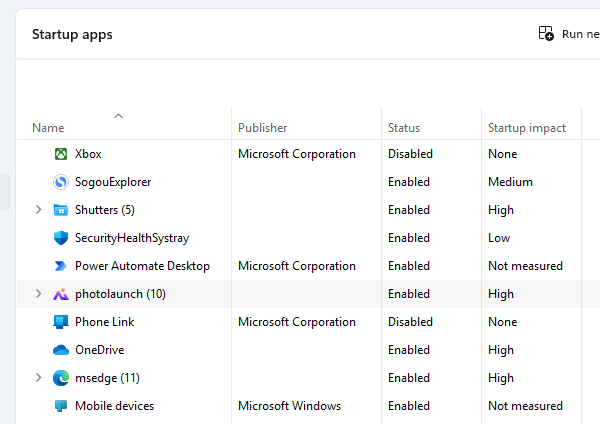
1. Press "Win + R", type "msconfig", and hit "Enter".
2. Go to the "Startup" tab and click "Open Task Manager". Disable programs unrelated to gaming. Restart your computer to apply the changes.
Step 4: Adjust Game and System Settings
Optimize In-Game Settings
1. Lower resource-intensive options like anti-aliasing, shadows, and lighting.
2. Set your resolution to match your screen, such as 1920×1080.
3. Use fullscreen mode to reduce window-related performance losses.
Enable High-Performance Mode
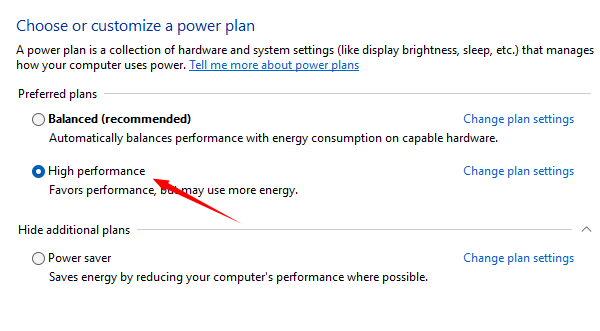
1. Open "Control Panel > System and Security > Power Options".
2. Under the preferred plan, select the "High Performance" mode.
Step 5: Free Up Disk Space
Clean Up Storage
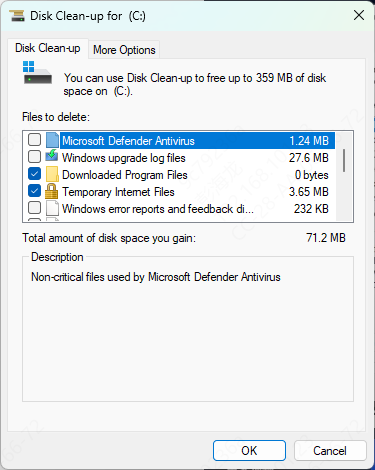
1. Press "Win + R", type "cleanmgr", and hit "Enter" to open "Disk Cleanup".
2. Select the disk you want to clean, check items like cached files and temporary files, and click "OK".
Optimize Your Drive (For HDDs) : Right-click the drive, go to "Properties > Tools > Optimize", and follow the instructions.
Step 6: Improve Cooling
Clean Dust: Use compressed air to clear dust from vents and fans. If unsure, consult a professional.
Use Cooling Accessories: Invest in a cooling pad for laptops or additional fans for desktop setups.
Tips to Prevent Future Slowdowns
Regularly check and update drivers using tools like Driver Sentry.
Keep your system and games updated for the latest compatibility and performance enhancements.
Clean dust and remove junk files regularly to maintain hardware efficiency.
Balance performance and visuals by adjusting game settings appropriately.