






A mouse that suddenly stops responding can interrupt everything from daily work to gaming sessions. The cursor may freeze completely, move with delays, or fail to respond to clicks, leaving many users unsure whether the problem comes from the mouse itself, Windows settings, or system drivers. In most cases, a frozen mouse is caused by connection problems, power management settings, outdated drivers, or temporary system conflicts. This guide explains several effective ways to restore mouse functionality, including checking hardware, refreshing device settings, updating drivers, and using Safe Mode to identify software-related problems.
Check Hardware Connections
If your mouse is still frozen, the issue may be hardware-related:
Wired Mouse:
Unplug the USB connection and plug it into a different port.
Check the USB cable for any visible damage.
Wireless Mouse:
Replace or recharge the batteries.
Ensure the wireless receiver is properly connected and not blocked by other devices.
Touchpad on Laptops:
Enable the touchpad using the function key (often Fn + F7/F9/F5 depending on your laptop).
Check BIOS settings to ensure the touchpad is enabled.
Restart or Reset Your Input Devices
Restart Your Laptop:
Sometimes a simple restart resolves temporary conflicts that cause mouse freezing.
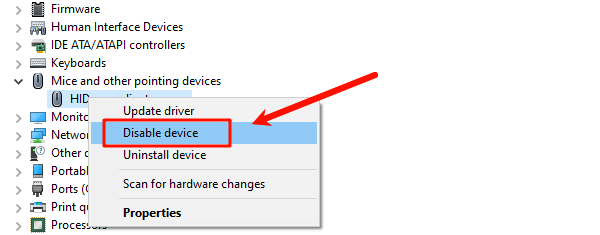
Disable and Enable Mouse Device:
Open Device Manager.
Expand "Mice and other pointing devices".
Right-click your mouse or touchpad and select "Disable device", then "Enable device".
Check for System Conflicts:
Close unnecessary programs running in the background that may interfere with the mouse driver.
Adjust Power Management Settings
Power-saving settings can sometimes cause a mouse to freeze:
Open Device Manager.
Right-click your mouse or touchpad and select "Properties".
Go to the "Power Management" tab.
Uncheck "Allow the computer to turn off this device to save power".
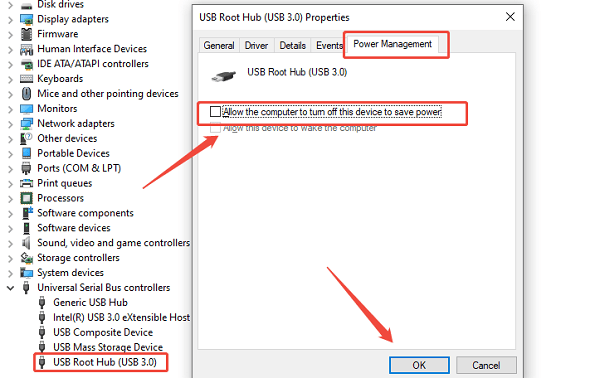
Click "OK" and restart your laptop.
Use Safe Mode to Test Mouse Functionality
Booting into Safe Mode can help identify if the freezing is caused by software conflicts:
Press Windows + R, type "msconfig", and press Enter.
Go to the Boot tab and select "Safe boot".
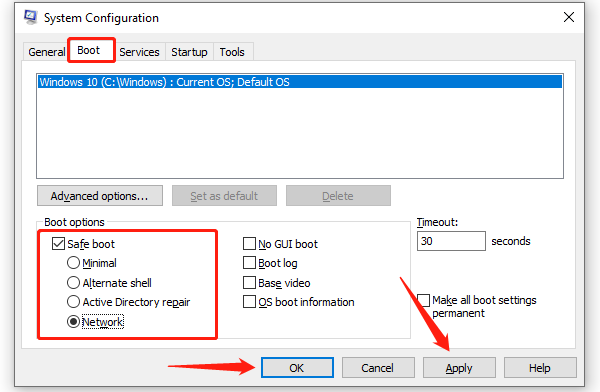
Restart your laptop.
Test your mouse in Safe Mode. If it works, the issue is likely software-related. Remove recently installed programs or updates causing the conflict.
Update Mouse Drivers
Outdated or corrupted drivers are one of the most common causes of a frozen mouse. Updating your drivers with Driver Sentry can quickly restore functionality.


Additional Tips
Keep Driver Sentry installed for automatic driver updates to prevent future freezing.
Clean your mouse sensor and laptop touchpad to remove dust or debris.
Update Windows to the latest version for improved hardware compatibility.
Consider replacing the mouse if hardware failure is detected.
Conclusion
A frozen mouse can disrupt productivity, but updating drivers with Driver Sentry is the most effective first step to resolve the issue. By following these methods (including checking hardware, restarting devices, adjusting power settings, and using Safe Mode) you can quickly unfreeze your mouse and maintain smooth, responsive input. Regular driver updates and system maintenance will help prevent future freezing issues.




