






Update your display driver to fix screen flickering, black screens, incorrect resolution, display lag, or an undetected monitor on Windows. This guide covers Device Manager updates, driver rollback, clean reinstallation, display settings, cable checks, and system file repairs.
Common Screen Issues Caused by Display Drivers
Screen flickering or flashing
Black screen after startup or login
Incorrect screen resolution
External monitor not detected
Display lag or tearing
Random freezes or crashes related to graphics
Additional Ways to Fix Screen Issues on Windows
If updating the display driver alone does not fully resolve the problem, try the following solutions.
Method 1: Update Display Driver
Device Manager
Press Windows + X and select Device Manager.
Expand "Display adapters", right-click your graphics card and select "Update driver".
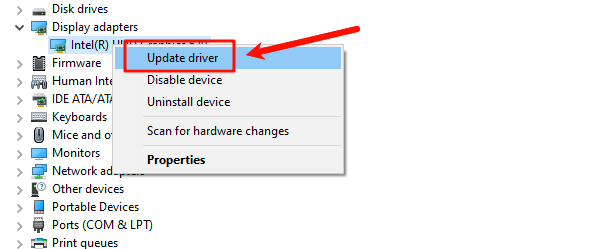
Choose "Search automatically for drivers".
Restart your PC after installation.
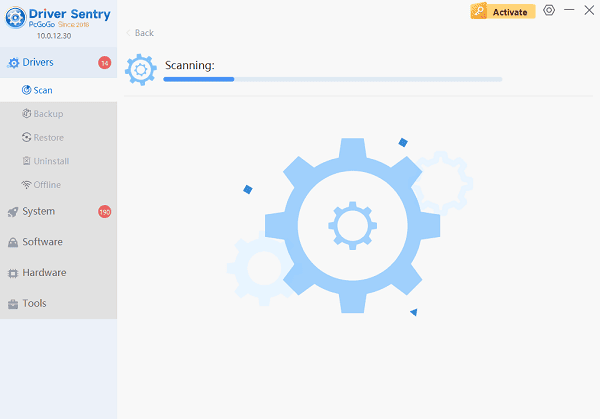
Update Display Drivers with Driver Sentry
Display problems are often resolved immediately after installing the correct graphics and chipset drivers. Driver Sentry automatically scans your system, identifies faulty or outdated drivers, and installs the latest compatible versions.
Method 2: Roll Back Display Driver
If the screen issue started after a recent update:
Open Device Manager.
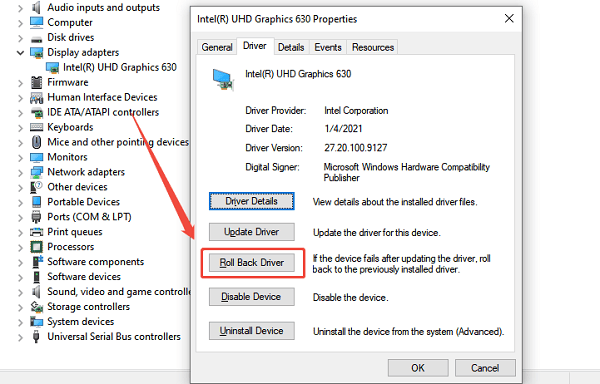
Expand "Display adapters", right-click your graphics card and select "Properties".
Go to the "Driver" tab and click "Roll Back Driver" if available.
Restart your computer.
Method 3: Adjust Display Settings
Right-click on the desktop and select "Display settings".
Set the resolution to the recommended value.
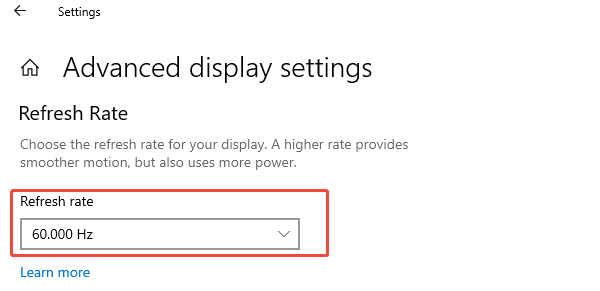
Scroll down and select "Advanced display settings".
Confirm the correct refresh rate is selected.
Method 4: Reinstall Display Driver Cleanly
Open Device Manager.
Right-click the display adapter and choose "Uninstall device".
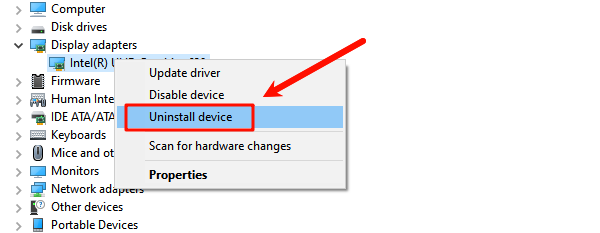
Check "Delete the driver software for this device" if available.
Restart Windows and use Driver Sentry to reinstall the correct driver.
Method 5: Check External Monitor and Cable Connections
Disconnect and reconnect the display cable (HDMI, DisplayPort, VGA).
Try a different cable or port.
Test the monitor on another PC to rule out hardware failure.
Method 6: Run Windows System File Check
Press Windows + S, search for Command Prompt.
Right-click and choose "Run as administrator".
Type "sfc /scannow" and press Enter.

Wait for the scan to complete and restart your PC.
Tips to Prevent Future Display Problems
Regularly update drivers using Driver Sentry.
Avoid installing beta or unsupported graphics drivers.
Keep Windows fully updated.
Use proper shutdown procedures to prevent driver corruption.
Create restore points before major system updates.
Conclusion
Updating the display driver is one of the most effective ways to fix screen issues on Windows. By first using Driver Sentry to ensure all display-related drivers are fully updated, and then applying additional troubleshooting methods such as adjusting display settings, rolling back drivers, or performing clean reinstalls, you can restore stable visuals and optimal performance. Regular driver maintenance helps prevent recurring display problems and ensures a smooth Windows experience.




