






Keeping your NVIDIA graphics driver updated is essential for maintaining gaming performance, system stability, and compatibility with the latest games and applications. Outdated, corrupted, or incompatible drivers can lead to issues such as screen flickering, low FPS, crashes, and failed driver installations. Regular driver updates help improve GPU performance, fix known issues, and ensure smoother graphics operation on Windows. In this guide, we'll explain the safest and most effective methods to update NVIDIA graphics drivers, starting with the easiest automated solution and covering additional manual options.
Update NVIDIA Graphics Driver via Device Manager
If you prefer a built-in Windows method, Device Manager can be used, although it may not always provide the latest driver version.
Press Windows + X and select Device Manager
Expand "Display adapters", right-click your NVIDIA graphics card and select "Update driver"
Choose "Search automatically for drivers"
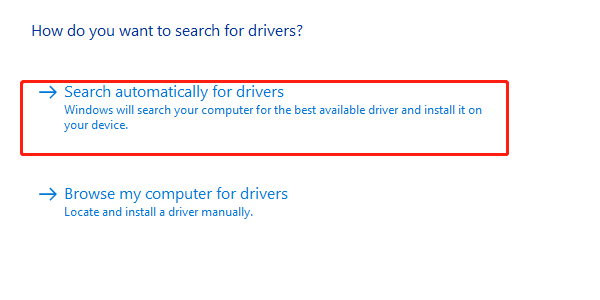
Follow the on-screen instructions and restart your PC if prompted.
This method is simple but may install an older or generic driver.
Download NVIDIA Drivers Manually from Official Website
Manual installation gives you full control but requires careful selection.
Go to the official NVIDIA driver download page
Select your GPU model, Windows version, and driver type
Download the latest Game Ready or Studio Driver

Run the installer and choose Custom Installation if available
Select Perform a clean installation to remove old driver files
Complete the setup and restart your computer
Manual updates are effective but can cause issues if the wrong driver is selected.
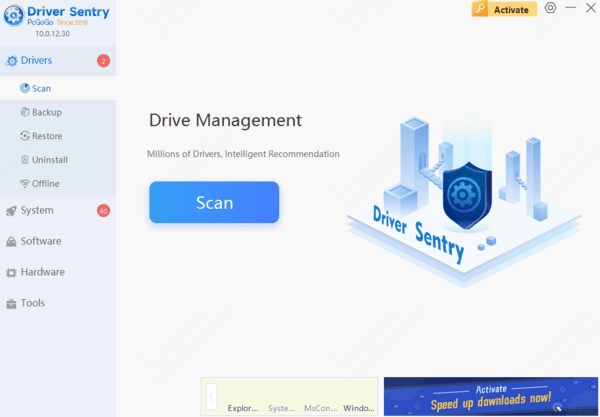
Update Graphics Drivers Safely Using Driver Sentry
Before trying manual updates, using a professional driver management tool is the fastest and safest way to ensure you install the correct NVIDIA driver for your system. Driver Sentry automatically detects your hardware and matches it with compatible, stable drivers.

Common Issues After Updating NVIDIA Graphics Drivers and Fixes
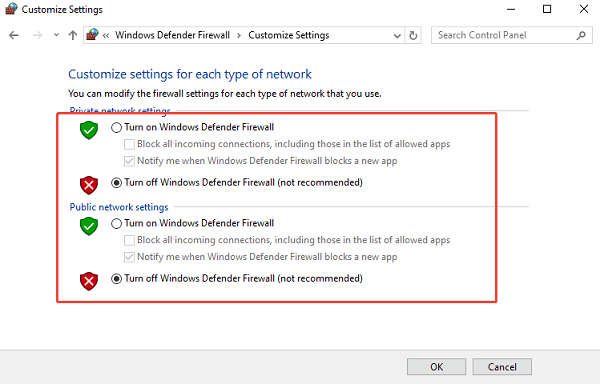
NVIDIA Driver Installation Failed:
Disable antivirus software or Windows Defender Firewall temporarily.
Use Driver Sentry to reinstall the correct driver automatically.
Ensure Windows is fully updated.
Black Screen After Driver Update:
Boot into Safe Mode
Roll back the driver in Device Manager
Reinstall a stable driver version using Driver Sentry
Low Performance or FPS Drops:
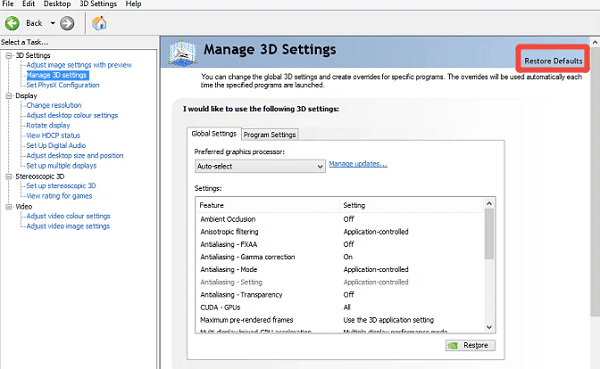
Open NVIDIA Control Panel and reset settings to default
Update chipset and motherboard drivers
Check Windows power settings and select High Performance mode
Best Practices for NVIDIA Driver Updates
Always create a system restore point before updating drivers
Avoid beta drivers unless required for specific software
Keep Windows updates enabled for better driver compatibility
Use a trusted driver update tool to reduce errors and conflicts
Conclusion
Updating your NVIDIA graphics driver is essential for optimal performance, system stability, and compatibility with modern software. While manual methods exist, using Driver Sentry provides a safer, faster, and more reliable solution by automatically detecting and installing the correct driver for your system. Whether you are troubleshooting issues or upgrading for better performance, following the steps in this guide will help ensure a smooth and error-free driver update experience.




