
In this guide, we'll explain how to update graphics drivers on Windows and provide several reliable methods to ensure your GPU runs smoothly and efficiently.
1. Check the current graphics driver version
Before updating the graphics card driver, it is very helpful to know the currently installed driver version. This helps to determine if the update is really needed, as well as can be used to verify that the new driver was successfully installed.
Press Win + X and select Device Manager.
Expand "Display adapters" in the Device Manager window to see your graphics card model.
Right-click on the video card model and select "Properties". In the "Driver" tab, you can view the version number and release date of the current driver.
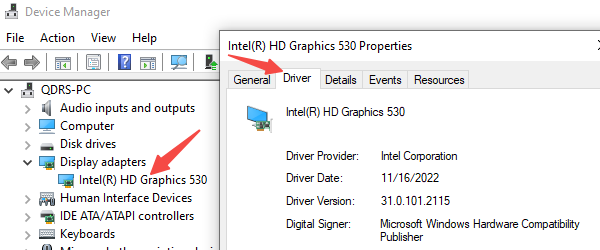
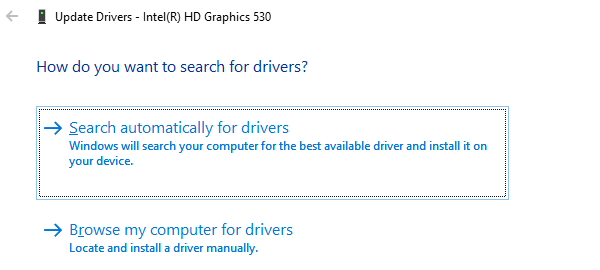
If the driver has an exclamation mark, it means it needs to be updated or reinstalled. Right-click on the Graphics Card tab and select "Update driver" from the pop-up menu.
Then select "Search automatically for drivers" and the system will try to find and install the available new version online.
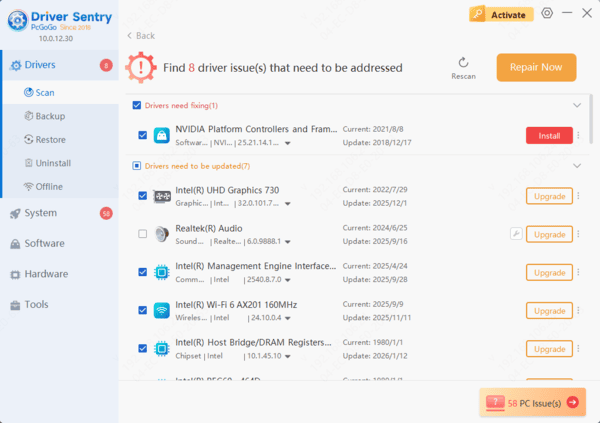
2. Automatically update graphics driver with Driver Sentry
Driver Sentry is a professional driver management and updating tool that can help users easily identify, download and install the latest graphics driver. It is a very convenient option for users who are not familiar with manual operation.
3. Manually download and install the latest graphics drivers
Alternatively, you can also choose to download and install the latest graphics driver manually. You can get the latest drivers from the official website of the graphics card manufacturer, but this method is a bit more complicated.
Visit the graphics card manufacturer's website, such as NVIDIA, AMD, or Intel, find the driver download portal, and enter your graphics card model number.
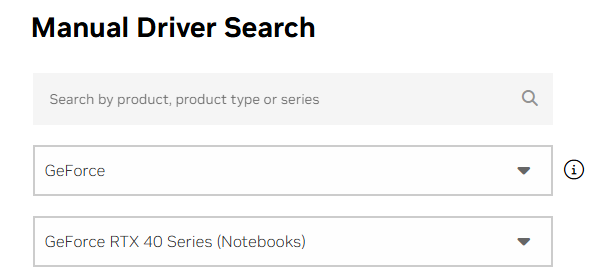
Select the operating system type, such as Windows 10 64-bit. Select the language version, usually Simplified Chinese.
Click the "Download" button to save it locally.
Double-click the downloaded installation file and follow the wizard prompts to install it.
Restart your computer for the new driver to take effect.
4. Checking Drivers via Windows Update
Windows comes with an update feature that can also help you get some graphics card driver updates, but this is usually not the latest version.
Press Win + I to open Settings, click "Update & Security", and then click "Check for Updates" button.
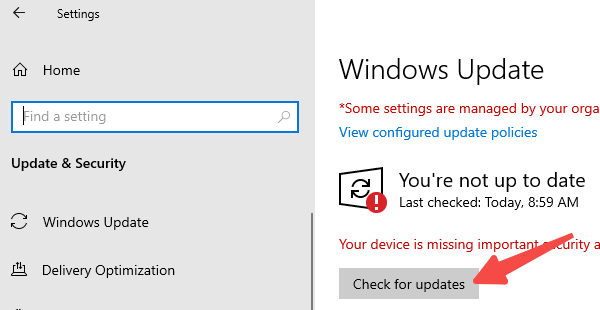
Windows will automatically download and install the graphics card driver update if it is available. Restart your computer when it's done.
With the above, I believe you have learned how to update your graphics card driver. Users are recommended to update the graphics card driver regularly to get the best performance and keep your computer in the best condition.
See also:
How to Fix Ethernet Not Working Issues
6 Ways to Fix a Non-Responsive Computer Keyboard