
If a new PC cannot connect to WiFi or the wireless option is missing after Windows installation, the most likely cause is a missing or uninstalled WiFi driver. Without the correct driver, Windows may not recognize the wireless adapter even when the hardware is already built into the computer. This guide explains how to install WiFi drivers on a new PC, including checking whether a wireless adapter is present, using Driver Sentry to detect missing drivers, installing drivers automatically through Windows, downloading the correct driver manually from the manufacturer, and confirming that the WiFi connection works properly afterward.
1. Confirm That the Wi-Fi Hardware is Installed
Before installing the Wi-Fi driver, you first need to confirm whether your new computer is equipped with Wi-Fi hardware. Most modern laptops and desktops already have built-in Wi-Fi adapters, but some low-cost desktops may require an external Wi-Fi adapter. You can check this by following these steps:
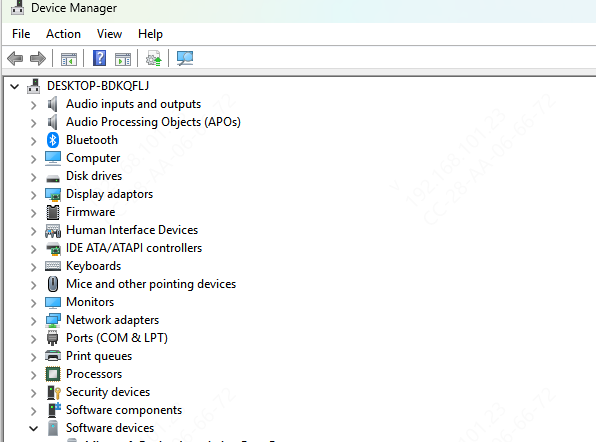
Press "Win+X" and select "Device Manager".
Expand the "Network Adapters" section to see if there are any Wi-Fi adapters listed (e.g. Intel, Realtek or Broadcom Wi-Fi adapters). If you see "Wireless Network Adapter" or a similar entry, the computer is equipped with Wi-Fi hardware.
If there is no entry for a Wi-Fi adapter, your computer may not have a built-in Wi-Fi module, or the module is disabled.
2. Install Drivers Using Driver Sentry
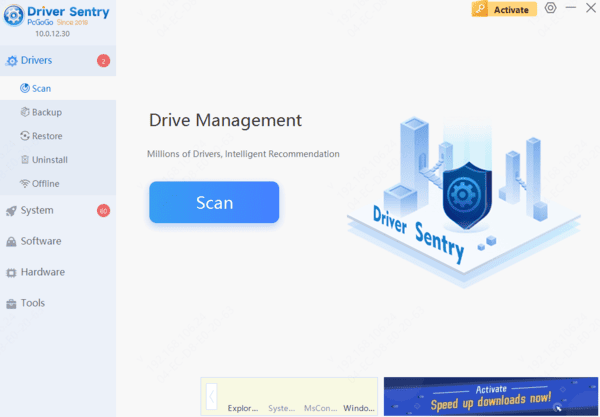
Driver Sentry is a popular driver update tool that automatically scans your computer and provides appropriate driver updates.
Download and install Driver Sentry and run the scan.
The software will automatically identify your computer's hardware model and provide relevant driver updates. Find your Wi-Fi driver and click the "Upgrade" button.
3. Automatic Installation of Wi-Fi Drivers
Most operating systems (e.g. Windows 10 and Windows 11) will try to automatically recognize and install the Wi-Fi driver after installation. Here are the steps to install the driver automatically:
If your computer has a wired network connection (via an Ethernet cable to your router), first connect to the network. This helps the operating system to download the required drivers from Windows Update.
After connecting to the network, Windows usually downloads and installs Wi-Fi drivers for your hardware automatically. You can check the progress of the installation in Device Manager.
If the system successfully installs the driver, you should be able to see the Wi-Fi icon and connect to the wireless network through it. If it didn't install automatically, the next step is to install the driver manually.
4. Manually Download the Wi-Fi Driver
If the system fails to install the driver automatically, you can manually download and install the driver from the Wi-Fi adapter manufacturer's official website.
In Device Manager, right-click the wireless device under Network Adapters and select Properties to view the device details (such as model number and hardware ID).
Download the appropriate driver from the manufacturer's official website according to the device model. Make sure to download the driver that matches your operating system version.
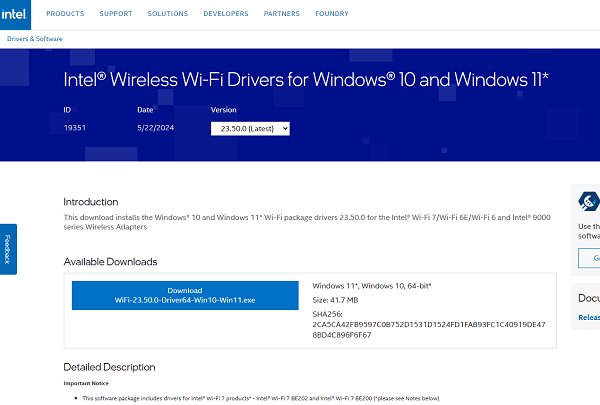
Once the download is complete, run the installation file and follow the instructions of the installation wizard. Most driver installation programs will automatically detect the hardware and install it.
Once the installation is complete, restart your computer and the Wi-Fi adapter should be recognized correctly and you can start connecting to the wireless network.
5. Confirm Wi-Fi Connection
After installing the driver, restart your computer and then follow the steps below to check the Wi-Fi connection:
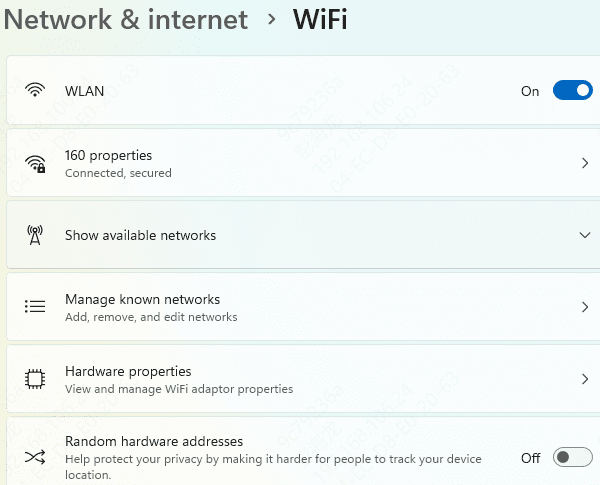
Click the Wi-Fi icon on the taskbar to view the list of available networks.
Select your wireless network and enter the password to connect.
If the Wi-Fi connection works, your computer should be able to access the Internet without any problems. If it still doesn't connect, try checking your router settings, restarting your network devices, or double-checking that the drivers are installed correctly.
Conclusion
Installing WiFi drivers on a new PC begins with confirming that a wireless adapter is installed and enabled. If Windows does not install the driver automatically, connect through Ethernet and check Windows Update, use Driver Sentry to detect the missing driver, or download the correct package from the computer or adapter manufacturer. After installation, restart the PC and test the wireless connection. If WiFi remains unavailable, verify the hardware, BIOS settings, router, and driver compatibility.