Article Introduction
key stopped working on keyboard,keys on keyboard stopped working,key stops working on keyboard​,keys stop working on keyboard​

Key Stopped Working on Keyboard? How to Fix It

Date: 01:36 AM, Dec 10, 2025 Editor: Seraphina

key-stopped-working-on-keyboard


When a key suddenly stops working on your keyboard, it can make typing difficult. The issue may be caused by driver failures, hardware damage, software conflicts, debris under the key, or incorrect keyboard settings.


This guide provides multiple proven solutions to help you restore your keyboard's functionality. Before trying any advanced fixes, start by updating your keyboard drivers. Using Driver Sentry ensures that outdated or corrupted drivers are replaced correctly.


Update Keyboard Drivers Using Driver Sentry


Faulty or outdated drivers are one of the most common reasons why certain keys stop responding. Driver Sentry automatically detects driver issues and applies the correct updates.


Download


Download and Install:


  • Click the "Download" button to download the software package.

  • Follow the on-screen instructions to complete the installation.


Run a full driver scan:


  • Open the program from your desktop shortcut or the Windows Start menu, click the "Scan" button.

perform-scan

  • Driver Sentry will analyze all hardware drivers, including USB controllers, HID devices, and system chipset drivers.


Update all relevant drivers:


  • Review the scan results. Identify any outdated, missing, or corrupted drivers, especially those related to USB input devices.

  • Click "Repair Now" button to download and install the recommended drivers automatically.

click-repair-now


Restart Your Computer:


  • Restart your computer to apply changes.

Driver Sentry often resolves key-not-working problems caused by corrupted or missing drivers.


Additional Solutions to Fix a Key That Stopped Working


If updating drivers does not completely solve the issue, proceed with the following troubleshooting methods.


1. Clean Under the Keycap


Dust, hair, or debris can block key movement.


Steps:


  • Turn off your laptop or unplug your external keyboard.

  • Use a soft brush or compressed air to clean around the problem key.

  • For mechanical or detachable keys, gently lift the keycap using a plastic tool.

  • Clean underneath and reattach the keycap securely.

clean-under-the-keycap

  • Test the key again.


2. Check for Physical Damage


A single key may fail due to a broken switch, worn-out membrane, or liquid spill.


How to inspect:


  • Look closely at the affected key for cracks or misalignment.

  • Try pressing the key from different angles.

  • If the key feels loose or sunken, the switch may require repair or replacement.

  • Consider replacing the keyboard if multiple keys no longer function.


3. Reset Keyboard Settings in Windows


Incorrect input settings may cause specific keys to stop responding.


Steps:


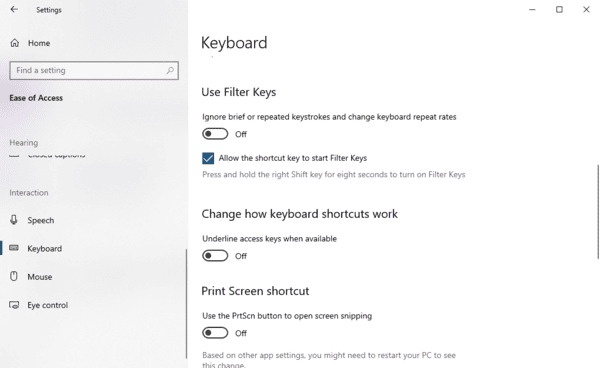
  • Open Settings.

  • Go to "Ease of Access", select "Keyboard".

  • Disable Sticky Keys, Filter Keys, and Toggle Keys.

reset-keyboard-settings

  • Restart your computer and test the keyboard.


4. Test the Keyboard in Safe Mode


Booting into Safe Mode helps determine if third-party software is interfering.


Steps:


  • Press Win + I to open Settings.

  • Go to "Update & Security" > "Recovery".

  • Under "Advanced start-up", select "Restart now".

select-restart-now

  • Choose "Troubleshoot" > "Advanced options" > "Startup Settings".

  • Click "Restart", then press 4 to enter Safe Mode.


If the key works in Safe Mode, software or driver conflicts are the cause.


5. Try a Different Port or Connection Type


For external keyboards:


  • Plug the keyboard into another USB port.

change-USB-port

  • Avoid using USB hubs.

  • Try connecting the keyboard to another PC to check if the issue persists.


For wireless keyboards:


  • Replace the batteries.

  • Re-pair the device using Bluetooth settings.

  • Move the receiver closer to the keyboard.


6. Reinstall Keyboard Drivers Manually


If you prefer manual troubleshooting:


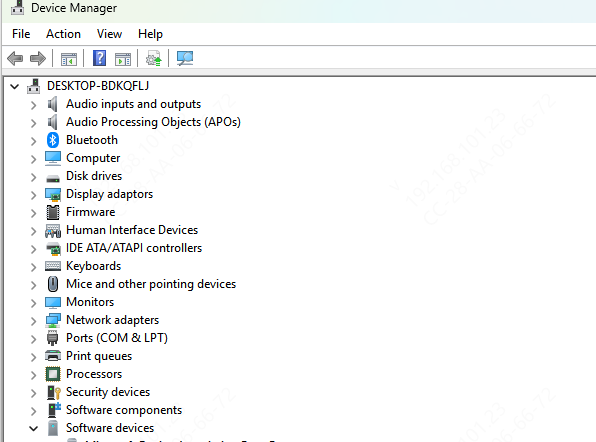
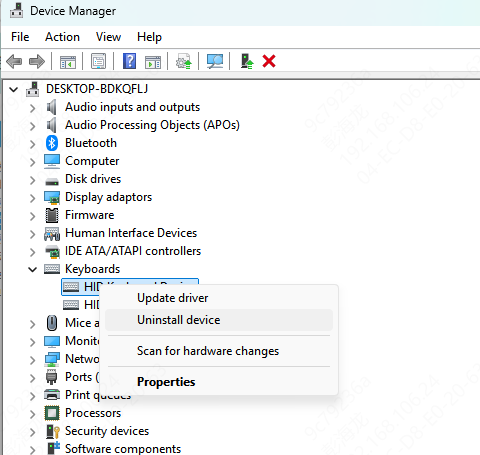
  • Press Win + X and choose Device Manager.

  • Expand Keyboards, right-click "HID-compliant keyboard", select "Uninstall device".

select-uninstall-device

  • Restart your computer to auto-reinstall the driver.


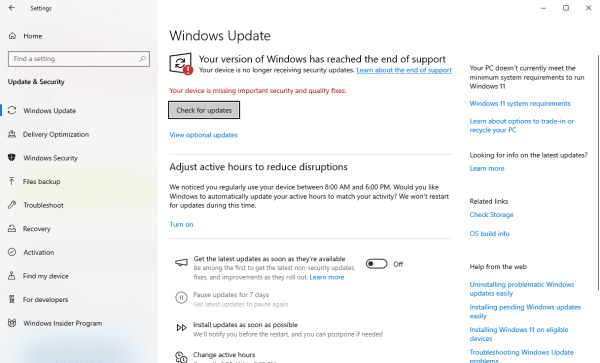
7. Perform a Windows Update


System updates often include keyboard-related patches.


Steps:


  • Open Settings.

  • Go to "Update & Security".

  • Click "Windows Update" > "Check for updates".

check-for-updates

  • Install all pending updates and restart your PC.


8. Replace the Keyboard if Necessary


If the issue is caused by physical malfunction or damage, replacement may be required.


For laptops:

  • You may need professional repair if the keyboard is integrated with the chassis.

For external keyboards:

  • Replace with a new unit if keys do not respond after troubleshooting.


Download


Conclusion


A key that stops working can result from driver issues, incorrect Windows settings, hardware failure, or debris. Starting with a complete driver update using Driver Sentry is the most effective first step. If the problem persists, continue with cleaning, checking for damage, resetting settings, and testing in Safe Mode. With the methods above, you should be able to identify and fix the issue quickly.

This website uses cookies to ensure you get the best experience on our website. Privacy Policy