






When your keyboard suddenly stops typing on Windows, it can interrupt important tasks, gaming sessions, and everyday computer use. Although a completely unresponsive keyboard may seem like a hardware failure, the problem is often caused by software-related issues such as outdated or corrupted keyboard drivers, incorrect Windows settings, USB connection problems, or conflicts with background applications. In many cases, you can restore normal keyboard function without replacing the device. This guide explains how to fix a keyboard not typing on Windows 10 and Windows 11 using effective troubleshooting methods. You will learn how to update keyboard drivers, check hardware connections, restart input services, adjust Windows keyboard settings, reinstall drivers, and resolve common software conflicts.
Common Causes of Keyboard Not Typing on Windows
Corrupted or outdated keyboard drivers
USB or wireless connection issues
Disabled keyboard settings in Windows
Incorrect language or input method settings
Interference from third-party software
Hardware failure or power issues
Fix 1: Check Keyboard Connection and Power
For wired keyboards:
Unplug the keyboard and reconnect it to a different USB port.
Avoid using USB hubs; connect directly to the PC.
Try the keyboard on another computer to rule out hardware failure.
For wireless keyboards:
Replace or recharge the batteries.
Re-pair the keyboard via Bluetooth settings.
Ensure the wireless receiver is firmly connected.
Fix 2: Restart Windows Keyboard Services
Press Win + R, type "services.msc", and press Enter.
Locate "Human Interface Device" Service, right-click it and select "Restart".
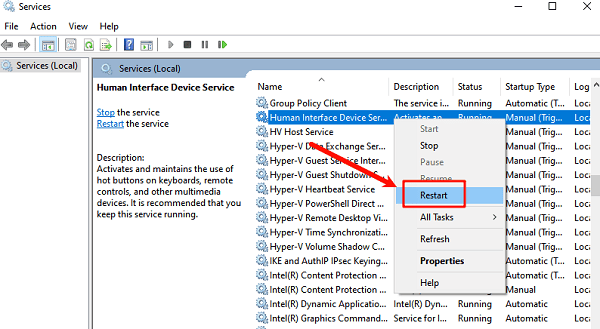
Set the Startup type to Automatic if it is not already.
Fix 3: Check Keyboard Settings in Windows
Open Settings.
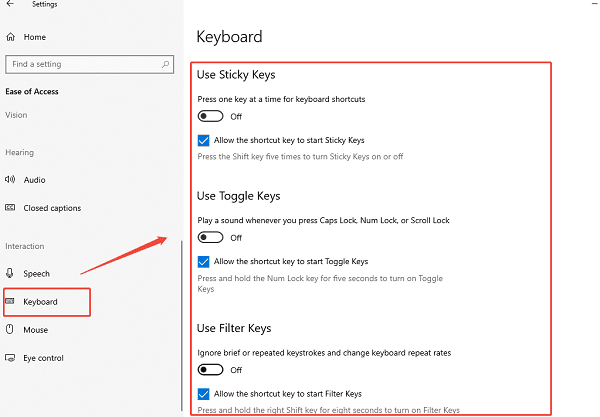
Go to Ease of Access > Keyboard.
Make sure Filter Keys, Sticky Keys, and Toggle Keys are turned off.
Test the keyboard again.
Fix 4: Verify Language and Input Method Settings
Open Settings > Time & Language > Language & Region.
Ensure the correct language and keyboard layout are selected.

Remove unused keyboard layouts to avoid conflicts.
Restart your PC after making changes.
Fix 5: Check Keyboard Driver
Use Device Manager
Right-click Start and select Device Manager.
Expand "Keyboards", right-click your keyboard device and choose "Uninstall device".
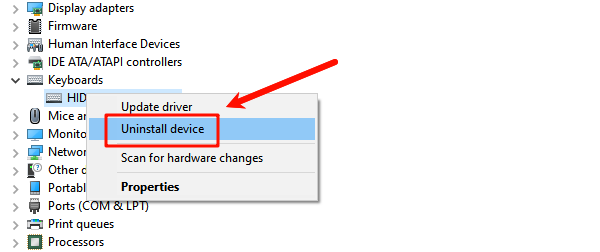
Restart your computer.
Windows will automatically reinstall the default keyboard driver.
Use Driver Sentry
Outdated, missing, or corrupted keyboard drivers are the most common reason a keyboard is not typing. Updating drivers should always be the first troubleshooting step.


Fix 6: Check for Windows Updates
Open Settings > Update & Security > Windows Update.
Click "Check for updates".
Install all available updates, including optional driver updates.
Restart your system.
Fix 7: Run Windows Troubleshooter
Go to Settings > Update & Security > Troubleshoot > Additional troubleshooters.
Run the Keyboard troubleshooter.
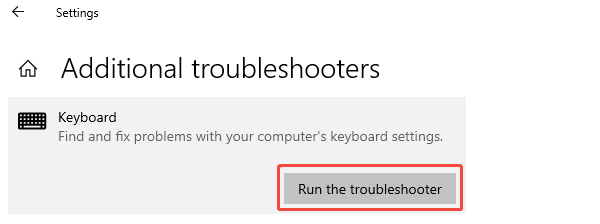
Apply any suggested fixes.
Fix 8: Test for Software Conflicts
Temporarily disable third-party utilities such as macro tools, key remappers, or overlay software.
Perform a clean boot to see if background applications are interfering.
If the keyboard works in Safe Mode, a startup program is likely causing the issue.
Conclusion
A keyboard not typing on Windows is usually caused by driver issues or incorrect system settings. Updating your keyboard drivers using Driver Sentry is the most effective first step, as it ensures proper compatibility and stability. If the problem persists, checking connections, system settings, services, and software conflicts can resolve most cases without replacing hardware. Keeping your drivers up to date is the key to preventing keyboard and other input device issues in the future.




