






If your keyboard spacebar stops responding, feels stuck, or only works intermittently, the problem may come from dust under the key, a damaged key mechanism, incorrect Windows accessibility settings, corrupted keyboard drivers, or failing hardware. Because both software and physical issues can cause the same symptom, troubleshooting should start with simple checks before moving to driver or hardware fixes. This guide explains several practical ways to fix a spacebar not working on Windows.
Common Causes of a Non-Working Spacebar
Before diving into fixes, let's identify why your spacebar not working keyboard issue occurs:
Physical debris or dirt under the key
Stuck or damaged key mechanism
Outdated or corrupted keyboard drivers
Software conflicts (keyboard settings, accessibility features)
Faulty keyboard hardware
Proven Fixes for a Non-Responsive Spacebar
1. Clean the Spacebar (Physical Fix)
Dust and debris can block the key's contact points.
Steps:
Turn off your PC/laptop.
Gently remove the spacebar keycap (use a plastic pry tool).
Clean underneath with compressed air or a soft brush.
Reattach the key and test.
Success Rate: ~70% (effective for mechanical keyboards)
2. Check for Software Conflicts
Sometimes, keyboard settings or third-party apps interfere.
Steps:
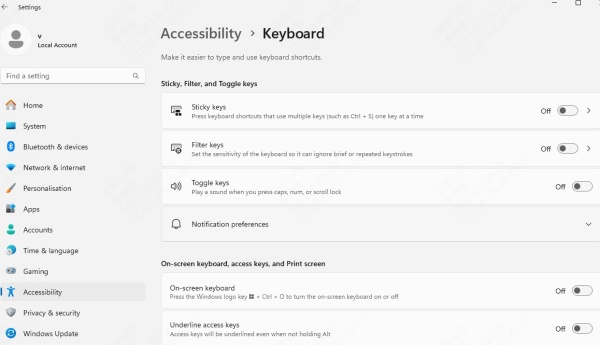
Open Settings > Ease of Access > Keyboard.
Disable Sticky Keys, Filter Keys, or Toggle Keys.
Restart your PC.
Success Rate: ~50% (common on Windows 10/11)
3. Update or Reinstall Keyboard Drivers
Outdated drivers often cause "spacebar keyboard not working" issues.
Manual Driver Update (Basic Fix)
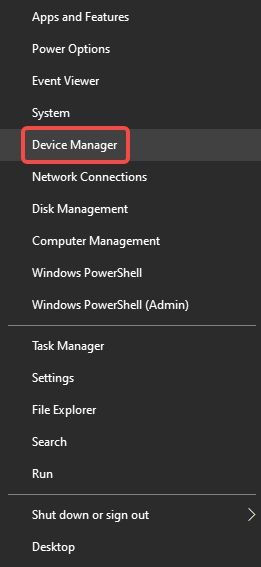
Press Win + X > Device Manager.
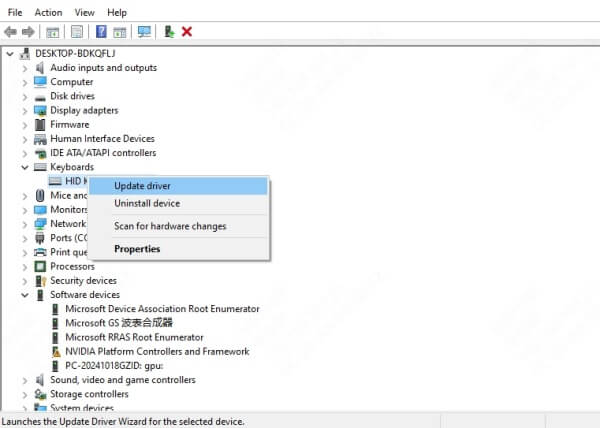
Expand Keyboards, right-click your keyboard, and select Update driver.
Restart your PC.
Automatic Driver Update (Best Fix – Use PcGoGo Driver Sentry)
Manually updating drivers can be tedious. Instead, use PcGoGo Driver Sentry—a powerful tool that scans, updates, and fixes outdated drivers in one click.
Why Use PcGoGo Driver Sentry?
✔ One-Click Driver Updates – No manual searching.
✔ Backup & Restore – Safely roll back faulty updates.
✔ Scheduled Scans – Keeps drivers optimized automatically.
✔ High Success Rate – Fixes 90%+ of driver-related keyboard issues.
How to Update Drivers with Driver Sentry:
Download & Install PcGoGo Driver Sentry.
Run a Scan – Detects outdated/corrupt drivers.
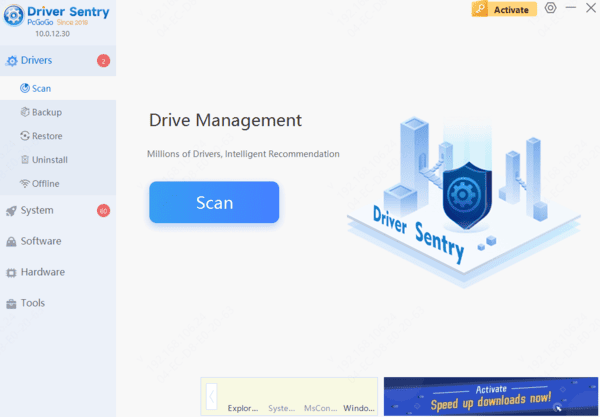
Click Update All – Installs the latest drivers automatically.
Restart Your PC – Ensures changes take effect.
Success Rate: ~90% (far more reliable than manual updates)
4. Test the Keyboard on Another Device
Connect the keyboard to another PC/laptop.
If the spacebar works, the issue is software-related (likely drivers).
If it still doesn't work, the keyboard may be faulty.
5. Replace the Keyboard (Last Resort)
If none of the above works, your keyboard's hardware may be damaged. Consider:
Getting a replacement keyboard (for external keyboards).
Contacting manufacturer support (for laptops under warranty).
Final Thoughts
A non-working spacebar can result from debris, accessibility settings, driver problems, or damaged keyboard hardware. Begin by cleaning the key carefully and disabling Sticky Keys or Filter Keys. If the issue continues, update or reinstall the keyboard driver through Device Manager or use PcGoGo Driver Sentry to check for driver-related problems. Testing the keyboard on another computer can help distinguish a Windows issue from hardware failure. Replace or professionally repair the keyboard if the spacebar remains unresponsive.




