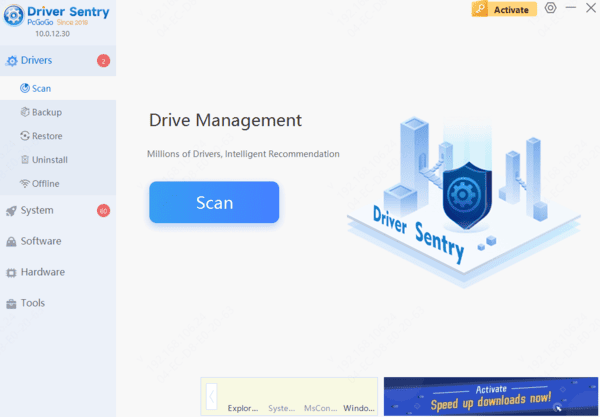
If your Dell laptop won't connect to Wi-Fi, it can disrupt work, online meetings, streaming, and everyday browsing. This common issue may be caused by network adapter problems, outdated drivers, incorrect settings, or router-related issues. In this guide, we'll walk you through effective solutions to fix a Dell laptop that can't connect to Wi-Fi and help restore a stable internet connection quickly.
Turn On the WLAN Feature
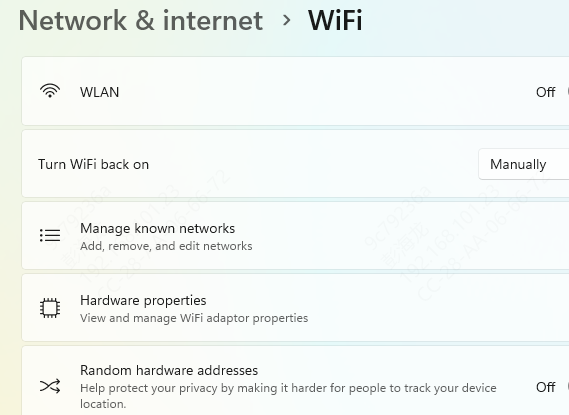
If your Dell laptop not connecting to WiFi happens, one possible reason is that the WLAN feature is turned off. You can enable it in two ways.
Configure Network Settings
If your laptop doesn't have a physical WiFi switch, you can enable the WLAN feature through the computer settings. Press the Windows logo key and the R key at the same time. This opens the Run dialog box. Type "control" and hit Enter.
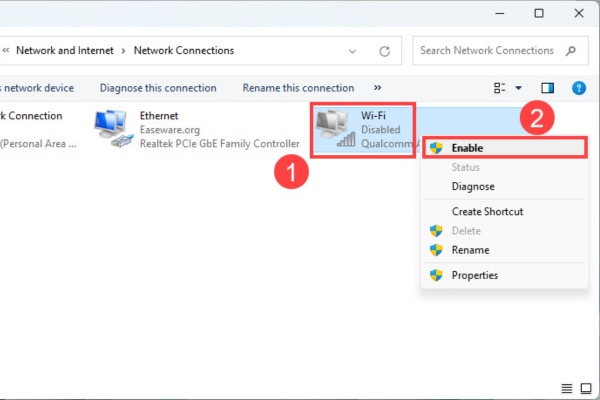
In the Control Panel, select "Network and Sharing Center". On the left-hand side, click "Change adapter settings". Find your WiFi connection (it might be named "WiFi" or "Wireless Network Connection"). Right-click on it and select "Enable". If it's already enabled, you'll see "Disable" as an option. In that case, you can try disabling and then re-enabling it. Restart your laptop and see if it can connect to the WiFi now.
Check the WLAN AutoConfig Service
The WLAN AutoConfig service is crucial for connecting to a wireless network. If it's not running, your Dell laptop not connecting to WiFi issue exists. Here's how to check and start it.
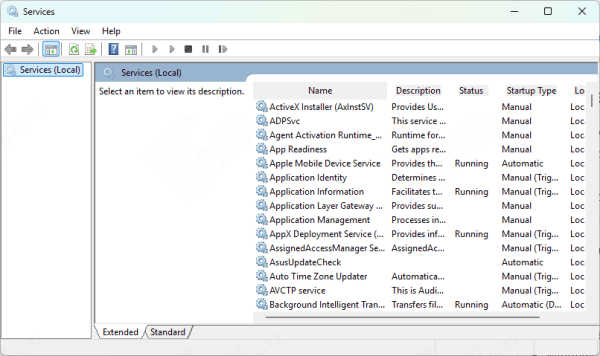
Hold down the Windows logo key and the R key simultaneously to bring up the Run dialog box. Type "services.msc" and click OK. Scroll down in the Services window and double-click on "WLAN AutoConfig".
In the properties window, make sure the "Startup type" is set to "Automatic" and the "Service status" is "Running". If not, change the settings, click "Apply", and then "OK". Try connecting your Dell laptop to WiFi again.
Update Wireless Network Adapter Driver
An outdated or missing wireless network adapter driver can be the reason your Dell laptop can't connect to WiFi. You can update the driver in two ways: manually or automatically.
Manual Update
You are able to access the website of the manufacturer of your network adapter. Search for the latest driver for your specific adapter model and download it. Then, install it on your laptop. But this method can be time-consuming and requires some technical know-how.
Automatic Update with PcGoGo Driver Sentry
If you don't want the hassle of manual updates, PcGoGo Driver Sentry is a great option. PcGoGo Driver Sentry can automatically detect your system and find the correct drivers for your wireless network adapter. It's simple to operate and spares you a great deal of time.