
A laptop that fails to connect to WiFi can be frustrating and disrupt your workflow. The causes may range from outdated network drivers, incorrect network settings, router issues, or hardware malfunctions. Before attempting manual fixes, it is highly recommended to update all network-related drivers using Driver Sentry.
Keeping drivers up to date ensures your laptop can communicate correctly with wireless networks and prevents software conflicts, also provides multiple methods to fix WiFi connection issues on laptops.
Update Network Drivers First with Driver Sentry
Outdated or corrupted network drivers are a common reason why laptops fail to connect to WiFi. Driver Sentry automatically detects all driver issues, downloads the latest versions, and ensures your network adapter functions properly.
Download and Install:
Use a temporary internet connection (Ethernet or a mobile phone USB tether) if your PC is completely offline.
Download and run the installer to follow the on-screen instructions. Select your preferred installation folder and complete the setup.
Run Scan:
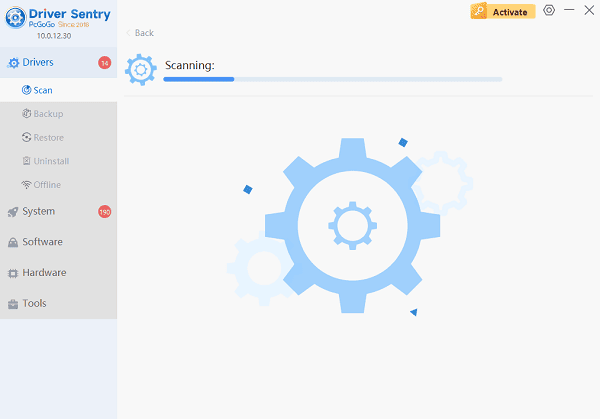
Open the application from the desktop shortcut or the Windows Start menu, click the "Scan" button.
Driver Sentry will analyze all hardware drivers, including network adapters, WiFi modules, and system chipset drivers.
Update All Drivers:
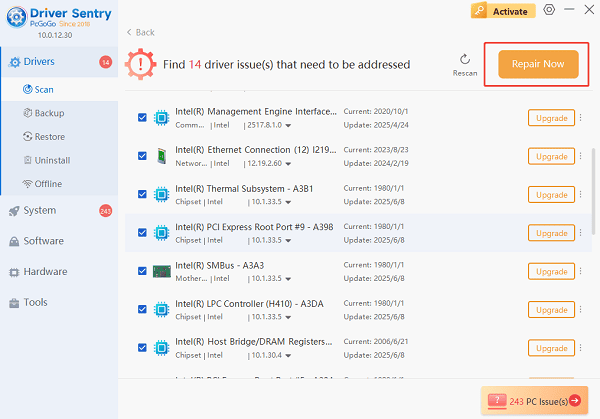
Identify any outdated drivers, paying attention to wireless network adapters and related devices.
Click the "Upgrade" or "Repair Now" button to download and install the recommended drivers automatically.
Restart Your Laptop:
Reboot the system to apply all driver updates correctly.
With updated drivers, your laptop is ready for further WiFi troubleshooting.
Causes of WiFi Connection Problems
Outdated or Corrupted Drivers: Network drivers may become outdated or corrupted after Windows updates or system changes.
Incorrect Network Settings: Misconfigured IP addresses, DNS, or WiFi profiles can prevent connections.
Router or ISP Issues: Network outages or router misconfigurations may block connectivity.
Hardware Problems: Faulty WiFi adapters or damaged antennas can disrupt wireless communication.
Firewall or Security Software: Overly restrictive security settings may block WiFi access.
How to Fix Laptop WiFi Issues
Method 1: Restart Network Components
Restart your laptop.
Power cycle your router by unplugging it for 30 seconds, then reconnecting.
Attempt to reconnect to your WiFi network.
Method 2: Use Windows Network Troubleshooter
Press Windows + I to open Settings.
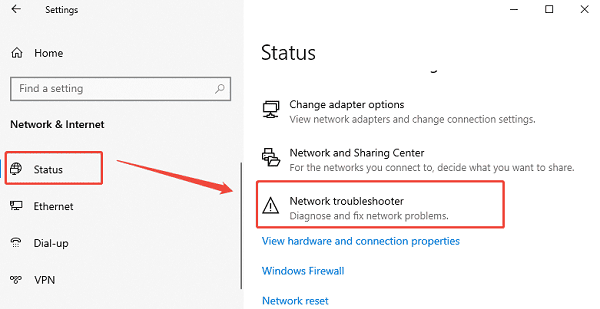
Go to "Network & Internet" > "Status".
Click "Network troubleshooter" and follow on-screen instructions.
Apply suggested fixes and test your connection.
Method 3: Reset Network Settings
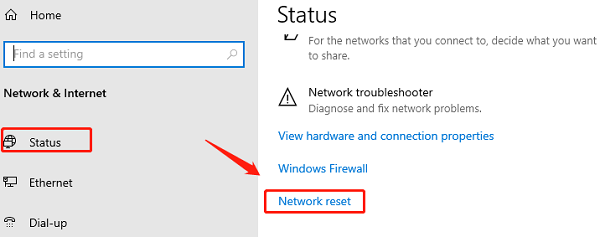
Open Settings > Network & Internet > Status.
Scroll down and click "Network reset".
Confirm the action and restart your laptop.
Reconnect to your WiFi network.
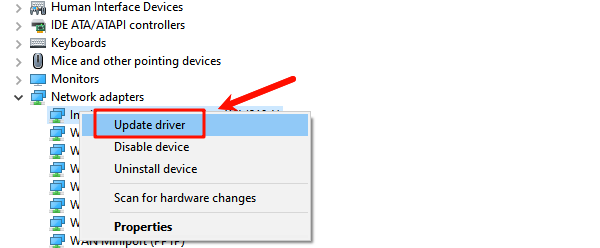
Method 4: Verify WiFi Adapter in Device Manager
Press Windows + X and select Device Manager.
Expand "Network adapters" and locate your WiFi adapter, right-click and select "Enable" if disabled.
If the adapter shows an error, select "Update driver" and use Driver Sentry to ensure it is current.
Method 5: Manually Set IP and DNS
Open Settings > Network & Internet > WiFi > Advanced network settings > IP settings.
Change to Manual and configure a valid IP address and DNS server (for example, Google's DNS: 8.8.8.8 and 8.8.4.4).
Save settings and reconnect to your network.
Method 6: Check Firewall and Antivirus
Temporarily disable your firewall or antivirus software.
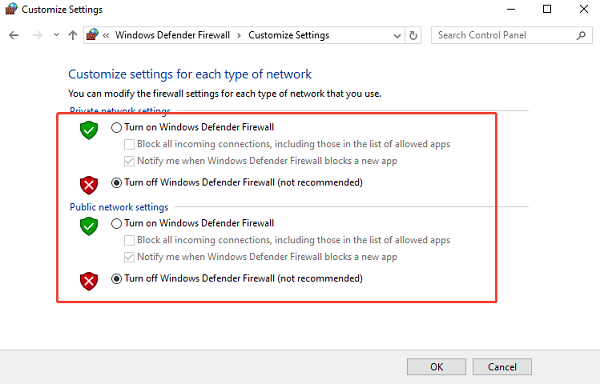
Test WiFi connectivity.
If successful, adjust firewall rules or security settings to allow network access.
Method 7: Test on Another Network
Connect your laptop to a different WiFi network.
If it connects, the issue may be with your original router or ISP.
Contact your Internet service provider if needed.
Tips for Maintaining Stable WiFi
Regularly update all drivers using Driver Sentry.
Keep your router firmware updated.
Avoid interference from nearby electronic devices or thick walls.
Create a network restore point before making major changes to network settings.
Replace faulty WiFi adapters or antennas if necessary.
Conclusion
A laptop not connecting to WiFi can result from outdated drivers, misconfigured settings, hardware issues, or router problems. By first updating all drivers with Driver Sentry and following multiple troubleshooting methods, you can restore wireless connectivity and improve network stability. Regular driver maintenance and network monitoring help prevent recurring WiFi problems.