
A laptop failing to detect WiFi networks on Windows is usually caused by wireless driver issues, disabled network services, incorrect system settings, or hardware conflicts. Fortunately, most cases can be resolved with the right troubleshooting steps. This guide starts with the most effective solution—updating WiFi drivers using Driver Sentry—and then covers several proven fixes to help you restore wireless connectivity and get your Windows laptop back online.
Update WiFi Drivers Using Driver Sentry
Outdated, missing, or incompatible wireless drivers are the most common reason a laptop cannot detect WiFi networks. Driver Sentry is designed to automatically detect network driver issues and install the correct versions for your Windows system.
Download and Install:
Use a temporary internet connection (Ethernet or a mobile phone USB tether) if your PC is completely offline.
Download and install the Driver Sentry application onto your Windows PC.
Run Scan:
Launch Driver Sentry from the desktop or Start Menu, click the "Scan" button.
The software will perform a deep analysis of your system, focusing on network and core system components.

Execute Update:
The results will show you a list of all drivers that need attention. Select the necessary drivers and click the "Upgrade" or "Repair Now" button.
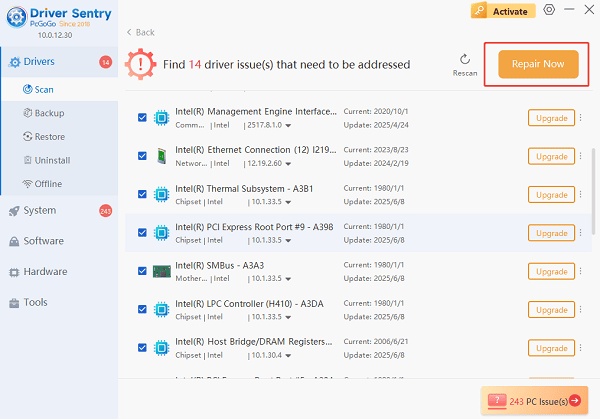
Driver Sentry will download the latest, certified versions specific to your WiFi adapter, crucial for reliable scanning and connection establishment.
Restart Your PC:
Do not close the program or interrupt the process during driver installation.
Reboot Windows to apply the updated WiFi driver fully.
After restarting, open network settings to check whether WiFi networks are now detected.
Common Reasons a Laptop Is Not Detecting WiFi
Wireless driver is outdated, corrupted, or missing
WiFi adapter is disabled in system settings
Airplane mode is enabled
Windows update caused driver conflicts
Network services are not running
BIOS or chipset issues
Hardware malfunction
Fix 1: Enable WiFi Adapter in Network Settings
Sometimes the WiFi adapter is disabled accidentally.
Press Windows + I to open Settings.
Go to Network & Internet.
Click "Change adapter options" under Advanced network settings section.
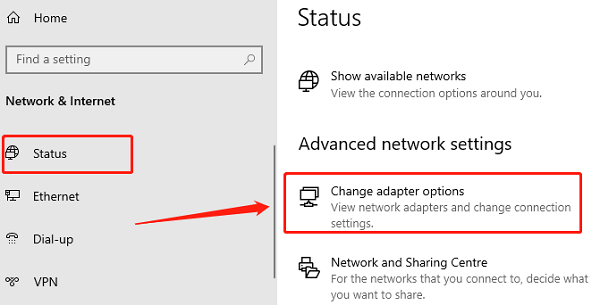
Right-click the WiFi adapter, select "Enable" if it is disabled.
Check whether available WiFi networks appear.
Fix 2: Check for Missing or Disabled WiFi Adapter
Press Windows + X and select Device Manager.
Expand "Network adapters", look for a wireless adapter.
If the adapter shows a down arrow, right-click and select "Enable device".
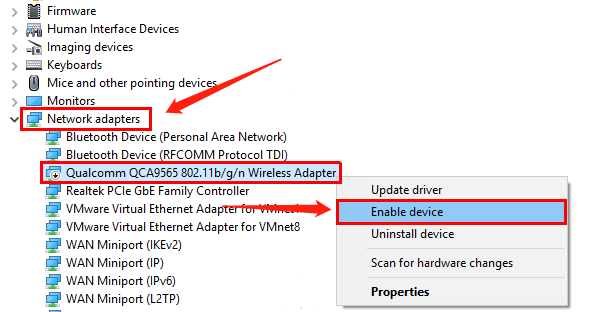
If the adapter is missing or shows a warning icon, update it using Driver Sentry.
Restart the system after making changes.
Fix 3: Turn Off Airplane Mode and Enable WiFi
Click the network icon in the taskbar.
Make sure Airplane mode is turned off.
Ensure WiFi is turned on.
Try reconnecting to available networks.
Fix 4: Restart Network Services
Network services control how Windows manages WiFi connections.
Press Windows + R, type "services.msc", and press Enter.
Locate "WLAN AutoConfig", right-click it and select "Restart".
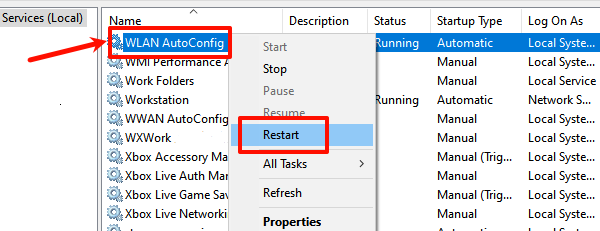
Ensure Startup type is set to Automatic.
This step often resolves WiFi detection issues immediately.
Fix 5: Reset Network Settings
If settings are corrupted, a network reset can help.
Open Settings.
Go to Network & Internet.
Click Network reset under Advanced network settings section.
Confirm "Reset now".
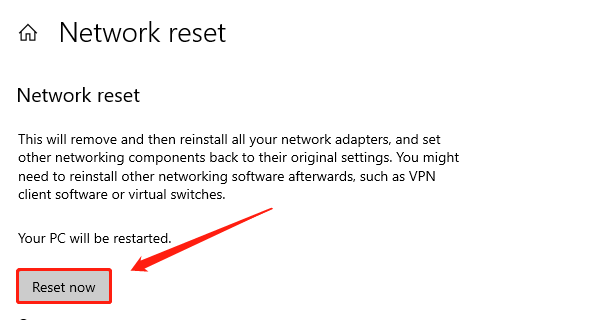
Restart your laptop.
Note that this will remove saved WiFi networks and VPNs.
Fix 6: Update Windows and System Components
Open Settings > Update & Security.
Go to Windows Update.
Click "Check for updates".
Install all available updates.
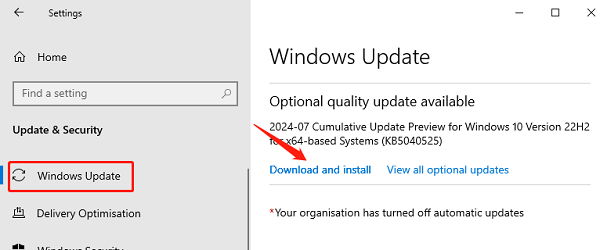
Restart your system.
Windows updates often include network-related fixes and compatibility improvements.
Fix 7: Check BIOS and Wireless Hardware Switch
Some laptops have BIOS-level or physical switches controlling WiFi.
Restart your laptop and enter BIOS or UEFI settings.
Ensure Wireless or WLAN is enabled.
Save changes and exit.
Also check for a physical WiFi key or function key combination on your keyboard.
Fix 8: Scan for System File Errors
Corrupted system files can block driver functionality.
Open Command Prompt as administrator
Run the following command: sfc /scannow.

Wait for the scan to complete.
Restart your laptop.
How to Prevent WiFi Detection Issues
Keep wireless drivers updated with Driver Sentry.
Avoid interrupting driver installations.
Install Windows updates regularly.
Do not mix generic and manufacturer drivers.
Restart your system after major updates.
Conclusion
A laptop not detecting WiFi on Windows is usually caused by driver-related issues, disabled adapters, or system configuration problems. Updating wireless drivers with Driver Sentry is the fastest and most reliable solution. Combined with network resets, service checks, and system updates, these fixes can restore WiFi detection and maintain a stable wireless connection on Windows.