Many laptop users encounter situations where the device shows a Wi-Fi connection but cannot access the internet. This issue can be caused by network configuration errors, outdated drivers, router problems, or system-related issues. In this guide, we'll explore the common causes of Wi-Fi connection problems and provide effective solutions to help you restore internet access and maintain a stable wireless connection.
1. Check if the Network is Functioning Properly
Sometimes, the problem lies not with your laptop but with the network itself. Here's what to check:
Restart the Router and Modem: Turn off the power, wait a few seconds, and turn it back on. This clears the router's temporary cache and resolves potential connection issues.
Test Other Devices: Use a smartphone or another laptop to connect to the same Wi-Fi. If other devices also cannot access the internet, the issue may be with your network provider.
2. Ensure Correct Network Settings
Incorrect network settings can also cause Wi-Fi issues. Follow these steps:
Check IP Address Settings:
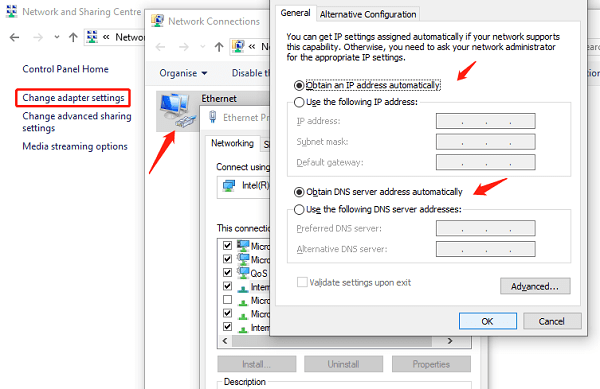
1. Go to the "Network and Sharing Center", find the connected Wi-Fi network, and click "Properties".
2. Make sure the TCP/IP settings are set to "Obtain an IP address automatically" and "Obtain DNS server address automatically".
Flush the DNS Cache:
1. Open the Command Prompt.
2. Type the command "ipconfig /flushdns" and press Enter.
This clears any problematic DNS cache that might be causing the issue.
3. Update or Repair Network Drivers
Issues with your network drivers can also lead to connection problems. Here's how to fix them:
Use Driver Sentry Software:
Download and install Driver Sentry, a tool that detects and fixes driver issues with one click. It can automatically download and install the latest network drivers, avoiding compatibility issues.
1. Open Driver Sentry and click "Scan" to check for driver issues.
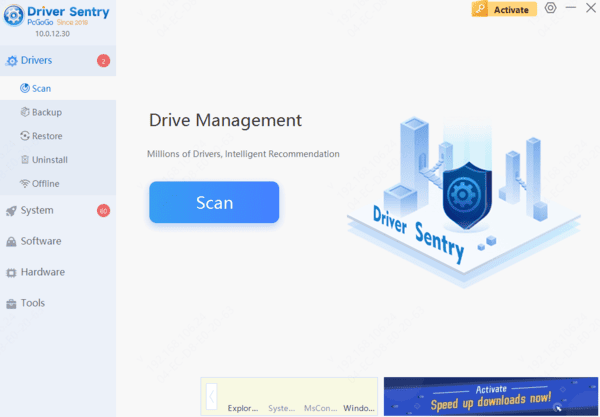
2. If outdated or damaged drivers are detected, the software will recommend updates. Click "Repair Now" to update them.
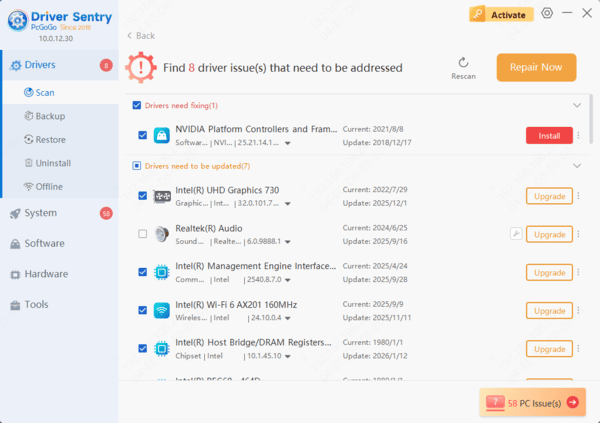
3. Restart your computer and see if the problem is resolved.
4. Disable Firewalls and Security Software
Sometimes, firewalls or security software mistakenly block your internet connection.
Temporarily Disable the Firewall:
1. Open the "Control Panel", go to "Windows Defender Firewall", and select "Turn off Firewall".
2. Test if the internet connection is restored.
Check Security Software:
If you have third-party antivirus software, temporarily disable it to see if it resolves the issue.
5. Reset Network Settings
If the above methods don't work, try resetting your network settings:
1. Open "Settings", navigate to "Network & Internet", and select "Network Reset".
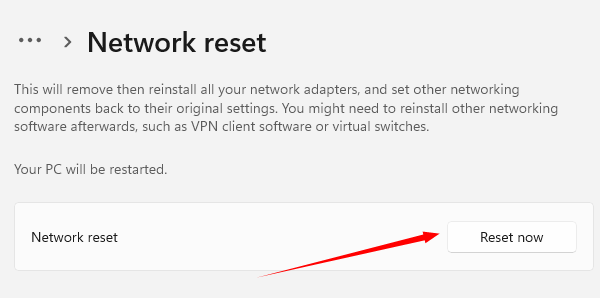
2. Reconnect to your Wi-Fi and re-enter the password after the reset.