
If you're struggling with Logitech G Hub not opening on Windows 11 or 10, you're not alone. Many users encounter this frustrating issue where the software fails to launch, freezes on startup, or crashes unexpectedly. This problem is often caused by corrupted installation files, outdated drivers, background process conflicts, or incorrect software configuration. In this guide, we'll explore proven solutions to fix why is Logitech G Hub not opening, along with practical tips to help you resolve the issue efficiently and restore normal functionality.
Why Is Logitech G Hub Not Opening? Common Causes
Before diving into fixes, let's explore why Logitech G Hub fails to open:
Corrupted installation files – A faulty update or incomplete install can break the software.
Outdated or faulty drivers – Incompatible or missing drivers prevent G Hub from functioning.
Background process conflicts – Antivirus or other apps may block G Hub.
Windows permission issues – Admin rights or UAC settings may interfere.
Windows version incompatibility – Some updates (especially Windows 11) disrupt G Hub.
Now, let's explore proven fixes with effectiveness ratings based on user reports.
How to Fix Logitech G Hub Not Opening
1. Restart Your PC and Logitech G Hub
If Logitech G Hub is not opening Windows 11 or 10, a simple restart can often resolve temporary glitches. Background processes or system conflicts may prevent the software from launching correctly. Restarting your PC clears cached errors and refreshes system resources, which can help G Hub start normally.
Steps restart Logitech G Hub:
Step 1. Close all Logitech G Hub processes via Task Manager (Ctrl + Shift + Esc).
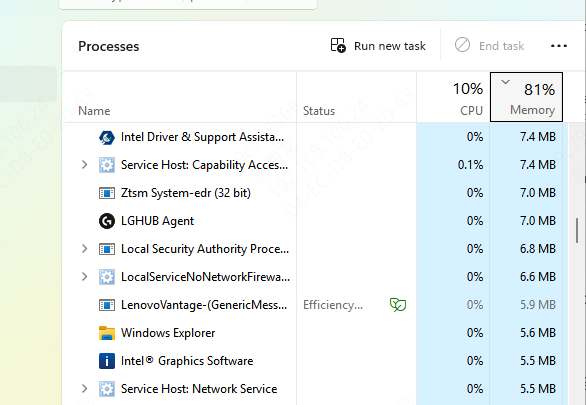
Step 2. Restart your computer.
Step 3. Try opening G Hub again.
Success Rate: ~30% (Effective for minor software hiccups)
2. Run Logitech G Hub as Administrator
Running Logitech G Hub as an administrator can bypass permission-related issues that prevent it from opening. Some users report that Windows blocks G Hub due to security restrictions, especially after updates. Granting admin privileges ensures the software has the necessary access to function properly.
Steps to run Logitech G Hub as administrator:
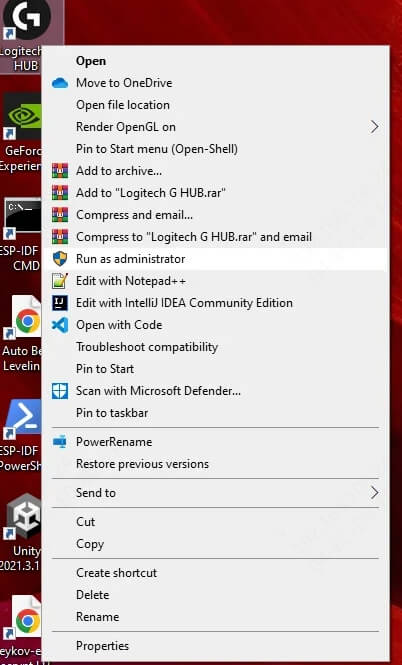
Step 1. Right-click the Logitech G Hub shortcut.
Step 2. Select Run this program as an administrator.
Success Rate: ~40% (Useful for permission-related failures)
3. Update or Reinstall Logitech G Hub
Corrupted installation files are a leading cause of Logitech G Hub not opening. If the software fails to load, a fresh install can replace damaged files. Additionally, updating to the latest version ensures compatibility with your OS.
Steps to Reinstall Logitech G Hub:
Step 1. Uninstall G Hub via Control Panel.
Step 2. Download the latest version from Logitech's official site.
Step 3. Install and restart your PC.
Success Rate: ~50% (Fixes most installation-related issues)
4. Update Drivers
Outdated or faulty drivers can prevent Logitech G Hub from opening on Windows 11/10. USB, motherboard, or chipset drivers may conflict with G Hub's functionality. Manually updating drivers is tedious, so using a driver updater tool like PcGoGo Driver Sentry automates the process.
Why Use PcGoGo Driver Sentry?
One-click driver updates (No manual searching).
Backup & restore functionality to avoid issues.
Offline driver installation for systems without internet.
Steps to Update Drivers with Driver Sentry:
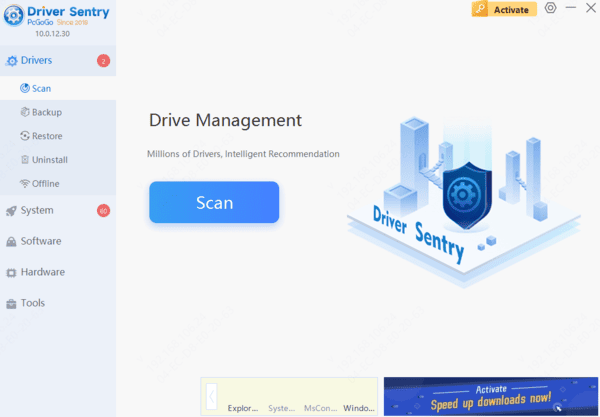
Step 1. Download and install PcGoGo Driver Sentry.
Step 2. Scan for outdated/missing drivers.
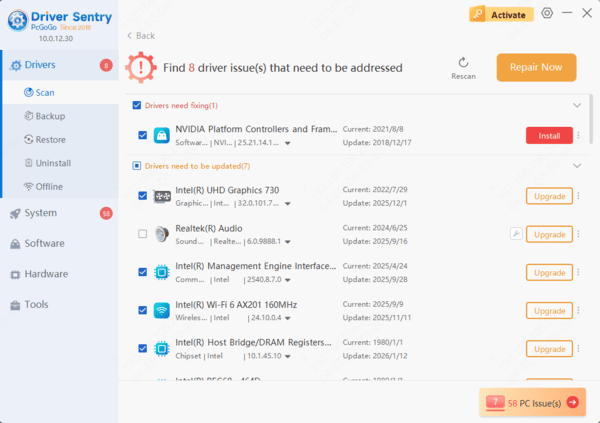
Step 3. Click Update next to relevant drivers (USB, chipset, etc.).
Step 4. Restart your PC and check if G Hub opens.
Success Rate: ~70% (Highly effective for driver-related problems)
5. End Conflicting Background Processes
Third-party apps like antivirus or RGB control software can interfere with Logitech G Hub. If the program freezes or doesn’t open, closing conflicting processes may help.
Steps end conflicting background processes:
Step 1. Open Task Manager (Ctrl + Shift + Esc).
Step 2. End tasks related to:
LGHUB.exe
Razer Synapse (if installed)
Corsair iCUE
Antivirus processes
Step 3. Try reopening G Hub.
Success Rate: ~35% (Useful if other RGB software is running)
6. Modify Windows Registry (Advanced Fix)
Registry errors can cause Logitech G Hub to fail on startup. Incorrect entries may prevent the app from launching. Warning: Editing the registry can be risky—back it up first.
Steps modify Windows Registry:
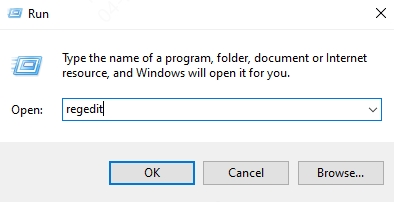
Step 1. Press Win + R, type regedit, and hit Enter.
Step 2. Navigate to: HKEY_LOCAL_MACHINE\SOFTWARE\Microsoft\Windows\CurrentVersion\Uninstall
Step 3. Look for Logitech G Hub, right-click, and Delete if corrupted.
Step 4. Reinstall G Hub.
Success Rate: ~60% (For persistent startup crashes)
7. Disable Fast Startup in Windows
Windows Fast Startup can cause software conflicts, leading to Logitech G Hub not opening. This feature hibernates some drivers, which may interfere with peripheral software like G Hub.
Steps disable fast startup:
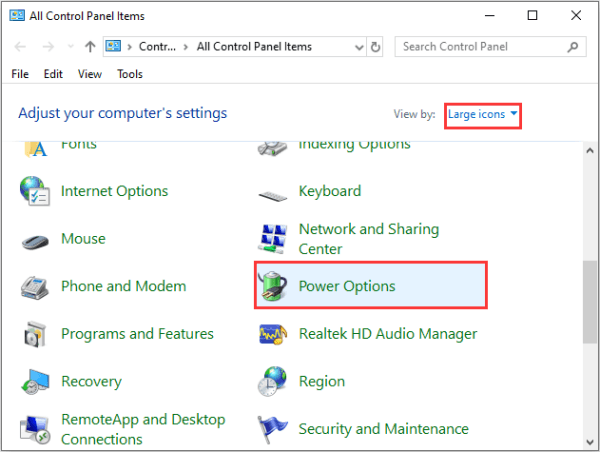
Step 1. Open Control Panel > Power Options.
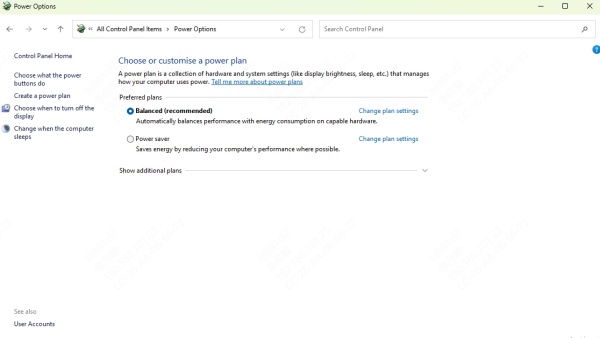
Step 2. Click Choose what the power buttons do.
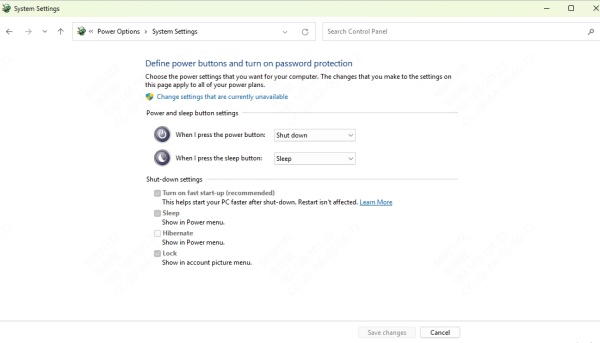
Step 3. Select Change settings that are currently unavailable.
Step 4. Uncheck Turn on fast startup and save changes.
Step 5. Restart your PC.
Success Rate: ~45% (Helps if G Hub fails after sleep mode)
Conclusion
If Logitech G Hub is not opening on Windows 11 or 10, try these solutions in order. Restarting, running as admin, and updating drivers have the highest success rates. For persistent issues, a clean reinstall or registry tweak may be necessary.
Pro Tip: Regularly update drivers with PcGoGo Driver Sentry to prevent future software conflicts.