






The Logitech K780 is a versatile wireless keyboard designed for users who switch between multiple devices, including Windows PCs, tablets, and smartphones. With Bluetooth connectivity, Easy-Switch buttons, and a comfortable full-size layout, it is widely used for both work and everyday tasks. However, like any wireless device, the K780 may sometimes stop responding, fail to connect, experience delayed typing, or disconnect randomly. Learn how to check batteries and Easy-Switch channels, reset Bluetooth pairing, troubleshoot the USB receiver, update supporting drivers, disable Filter Keys, reinstall Logitech software, and identify hardware faults in this guide.
Start With the Basics
Make sure the Logitech K780 keyboard is turned on. The power switch is on the side or back depending on the model version. If the keyboard does not show any LED activity, replace the batteries with a fresh set
Weak batteries can cause random disconnects, delayed typing, or pairing failures even if the keyboard still appears to power on
Check Whether the Problem Is Bluetooth or the Keyboard
If the keyboard works normally on another device, the keyboard hardware is probably fine and the issue is on your PC. If it fails everywhere, the problem is more likely related to the keyboard itself, its batteries, or its internal wireless module
You should also press the Easy-Switch buttons and confirm you are on the correct device channel. Many users think the keyboard is disconnected when it is actually trying to communicate with a different paired device
Re-Pair the Logitech K780 Keyboard
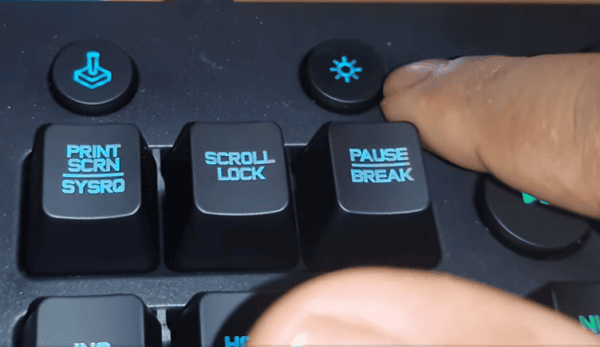
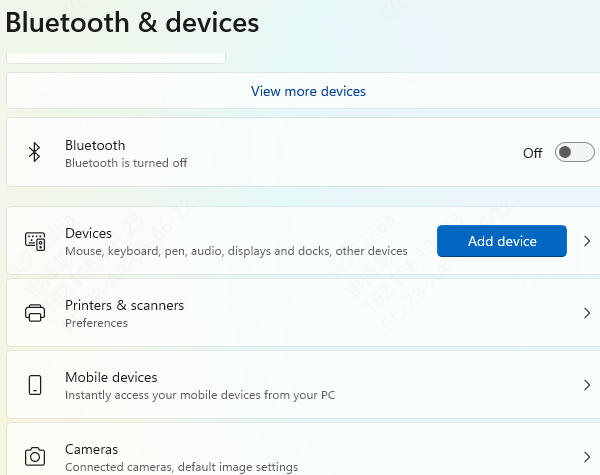
On Windows, open Settings, then Bluetooth and devices, remove the existing Logitech K780 entry if it appears, and pair it again. If the pairing request asks you to type a code, enter it on the K780 and press Enter on the keyboard itself
If the device pairs but still does not type, restart Bluetooth on the PC and repeat the process once more. Corrupted saved pairings can survive a simple reconnect, so removing the device first is important
Restart the Computer and Wireless Services
Restart your PC completely instead of using sleep or hibernate. If Bluetooth is involved, turn Bluetooth off, wait a few seconds, and turn it back on after the restart
This clears temporary communication faults between Windows and the Logitech K780 keyboard
Update Bluetooth, USB, and Chipset Drivers
If your Logitech K780 keyboard keeps disconnecting, is not detected, or works only after repeated reconnect attempts, outdated drivers are a likely cause. Bluetooth drivers, USB controller drivers, and chipset drivers all affect wireless keyboard stability.
You can update these drivers manually through Device Manager and your PC manufacturer's support page.

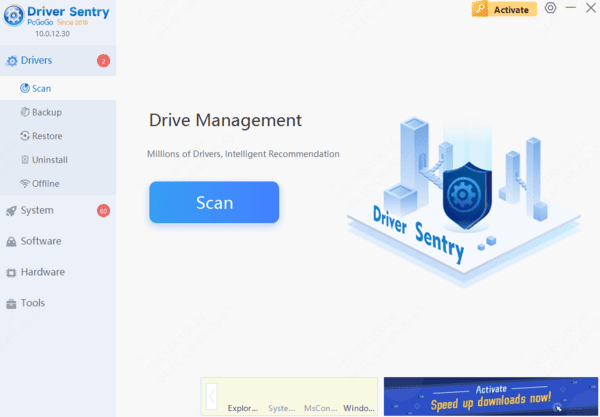
If you want a quicker method, a driver updater such as Driver Sentry can scan the system and identify outdated or damaged Bluetooth, USB, and chipset drivers automatically. This is often the most useful step when the keyboard issue started after a Windows update, a system restore, or a long period without driver maintenance.
Check Windows Keyboard Settings
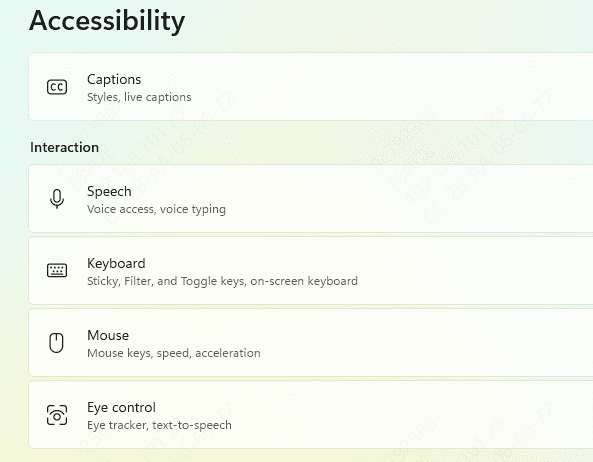
Open Windows Settings and review keyboard accessibility options. Filter Keys can make the keyboard seem slow, unresponsive, or unable to register short keystrokes. Turn this feature off if it is enabled
It is also worth checking whether another input utility or remapping tool is interfering with the keyboard. If the problem started after installing keyboard customization software, temporarily disable it and test again
Reconnect the USB Receiver Properly
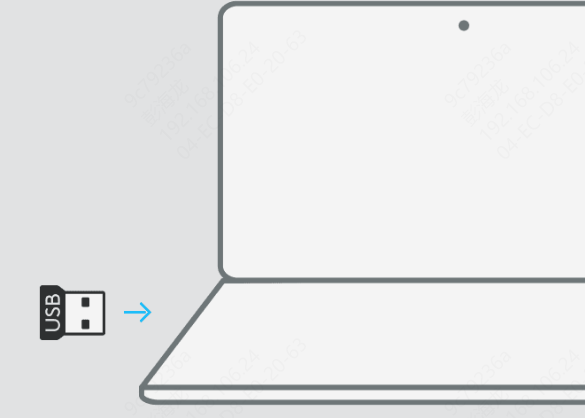
Plug the receiver directly into the computer and avoid crowded USB hubs. Wireless input devices work best when the receiver is not blocked by metal surfaces, monitors, or other dense electronics. If your PC is under a desk or behind a monitor stand, moving the receiver to a more open position can improve signal quality
If the receiver is not detected at all, test it in another USB port and then on another computer. If the receiver works elsewhere, the issue is likely the original computer's USB configuration or driver stack
Reset the Logitech K780 Keyboard
Turn off the Logitech K780 keyboard. Remove the batteries and leave the keyboard powered off for about 30 seconds. Reinsert fresh batteries, turn the keyboard back on, and then pair it again from scratch.
Reinstall Logitech Software
If the keyboard connects but special features do not work correctly, or if device switching behaves abnormally, reinstalling Logitech Options or Logitech Options+ may help
Uninstall the current Logitech software, restart the PC, and install the latest version. After installation, reconnect the Logitech K780 keyboard and test device recognition again. This can resolve software-level conflicts without changing your hardware setup

Signs of a Hardware Problem
Not every Logitech K780 keyboard issue is caused by software. If the keyboard does not power on with new batteries, cannot enter pairing mode, or fails on every device you test, the keyboard may have a hardware fault
You may also be dealing with a hardware issue if certain keys never respond, the keyboard disconnects even at close range with fresh batteries, or the LED indicators behave abnormally all the time
Final Thoughts
When a Logitech K780 keyboard is not working, the fix is usually straightforward once you identify whether the problem is power, pairing, receiver detection, driver stability, or Windows settings. Start with batteries, the correct Easy-Switch channel, and a fresh connection. Then move on to Bluetooth re-pairing, USB port checks, and driver updates for Bluetooth, USB, and chipset devices.
For many users, the biggest improvement comes from updating system drivers and removing old pairing records before reconnecting the keyboard. Once those issues are cleared, the Logitech K780 keyboard usually returns to stable, reliable performance.




