
Many Windows users encounter the Memory Management BSOD (Blue Screen of Death) error, which can cause sudden system crashes, restarts, and interruptions during daily use. This issue is often related to faulty memory modules, corrupted system files, driver problems, or hardware conflicts. In this guide, we'll provide effective troubleshooting solutions to help you fix the Memory Management BSOD error, restore system stability, and prevent future crashes.
Restart Your Computer
Press Ctrl + Alt + Del to open the "Task Manager" interface.
If the computer is frozen, press and hold the power button for 5-10 seconds to force a shutdown.
Wait a few minutes, then restart the computer to check if the BSOD error persists.
Run the Memory Diagnostic Tool
Press Win + R, type "mdsched.exe", and press Enter.
In the popup window, choose "Restart now and check for problems" or "Check for problems the next time I start my computer".
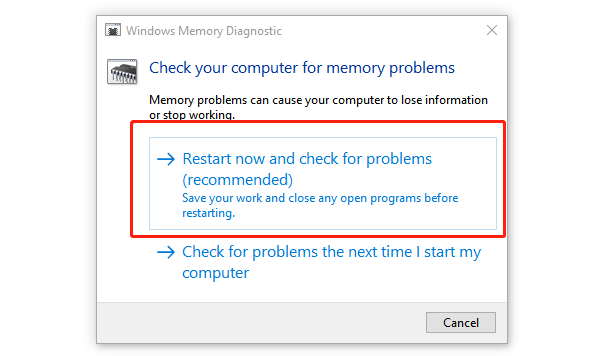
The system will reboot and automatically run the memory diagnostic tool.
After the check, the system will boot to the desktop and display the results. If results are not shown, you can find them in the Event Viewer.
Update Drivers
Outdated or corrupted drivers can also trigger the "Memory Management" BSOD. Updating your device drivers ensures compatibility with the Windows system. Using Driver Sentry for automatic detection and updates is recommended to save time and avoid downloading or installing incorrect drivers.
Check System Files
Press Win + S, search for "Command Prompt" (Admin), and open it.
Enter the following command and press Enter: sfc /scannow
Wait for the scan to complete (this may take several minutes). The system will automatically fix any detected issues.
Restart the computer and check if the issue is resolved.
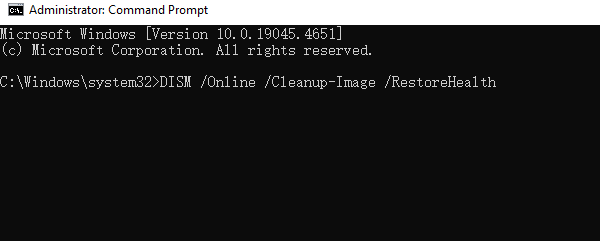
If the problem persists, run the following command to repair the system image: DISM /Online /Cleanup-Image /RestoreHealth
Scan for Viruses
Press Win + I to open Settings, then go to "Update & Security" > "Windows Security".
Click "Virus & Threat Protection", then select "Quick Scan" or "Full Scan".
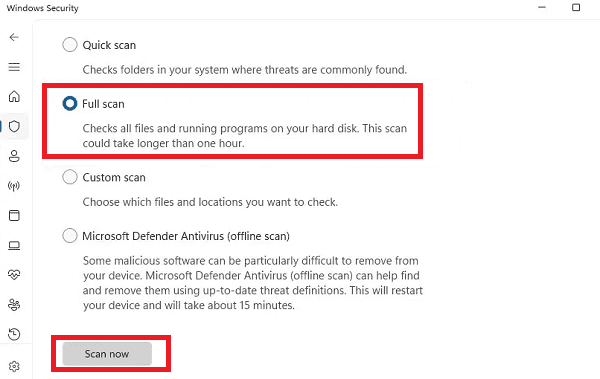
Wait for the scan to complete. If threats are detected, follow the prompts to delete or quarantine them.
Restart your computer and check if the BSOD error persists.
Check Hardware Issues
Check RAM:
Turn off the computer and disconnect the power.
Open the case, remove the RAM, and clean the gold contacts to remove dust. Then, reseat the RAM in the slot.
If there are multiple RAM sticks, test them one by one to identify faulty RAM.
Check Hard Drive Health:
Press Win + S, search for "Command Prompt" (Admin), and open it.
Enter the following command to check the disk: chkdsk /f /r
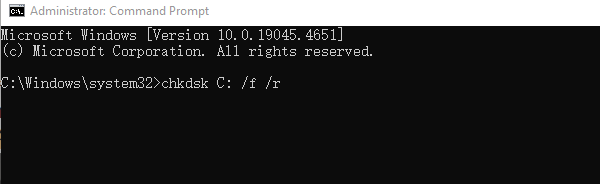
If prompted to restart, type "Y" to confirm and reboot the computer.
Test Hardware Components:
Use hardware diagnostic tools to further examine RAM and hard drive health. If hardware faults are confirmed, replace the defective components.
Follow these steps to resolve the Memory Management BSOD issue. If it persists, seek professional technical support for further assistance.