The "Monitor connected but no signal" issue is a common problem that can prevent your display from working properly. It may occur due to loose connections, incorrect input settings, outdated graphics drivers, hardware issues, or problems with the monitor itself. In this guide, we'll provide effective troubleshooting methods to help you fix the no signal error, restore your monitor's functionality, and get your display working normally again.
Check the Monitor Connection
Ensure that the cable connecting the monitor to the computer is not loose or damaged.
If the cable is damaged or not functioning correctly, try replacing it with a new one.
If your computer has multiple ports (such as HDMI, VGA, or DisplayPort), try connecting the monitor to a different port.
Check Display Settings
Right-click on the empty space on your desktop and select "Display Settings".
In the display settings page, check if your computer recognizes your monitor.
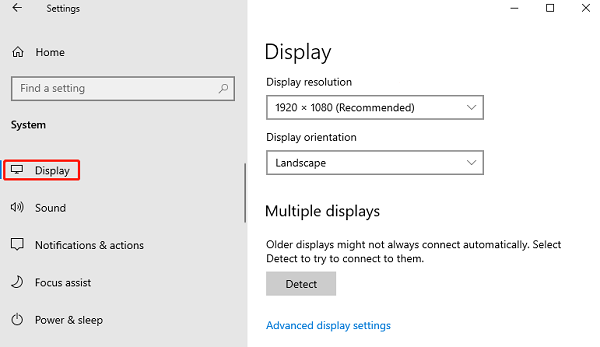
If the monitor is not recognized, click the "Detect" button to attempt to detect the connected monitor.
If you are using multiple monitors, ensure the correct display mode is set (e.g., extended mode or mirrored mode).
Make sure the monitor's resolution is set within the supported range for the display.
Check Power Management Settings
Press Windows + X and select "Device Manager".
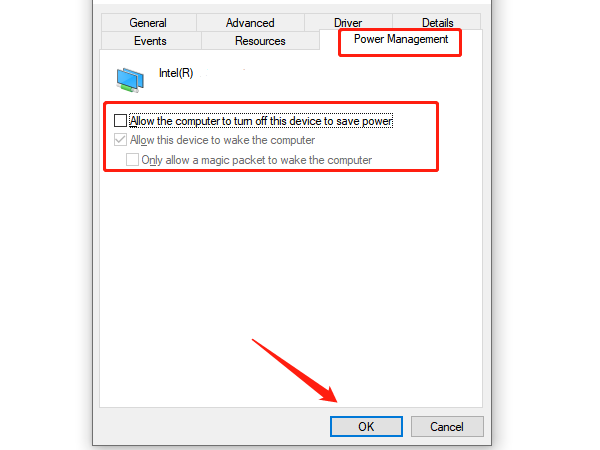
Expand the "Display Adapters" section, right-click the graphics driver, and select "Properties".
In the "Power Management" tab, uncheck "Allow the computer to turn off this device to save power".
Press Windows + I to open the "Settings" window, select "System" > "Power & Sleep", and ensure the computer doesn't automatically enter sleep mode when not in use.
If you're using an external monitor, try disabling the power-saving mode for the display adapter.
Check for Graphics Driver Updates
Outdated or corrupted graphics drivers can cause the "monitor connected but no signal" issue. Updating the driver in time is an effective way to resolve this problem. We recommend using Driver Sentry to automatically detect and update drivers, saving you time and avoiding the risk of downloading or installing incorrect drivers.

Restore System Settings
Press Windows + I to open the "Settings" window.
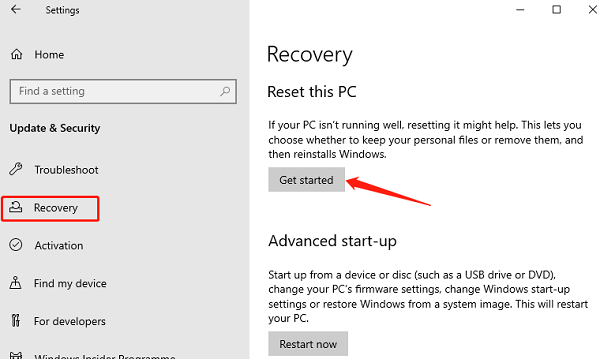
Select "Update & Security" > "Recovery".
Under "Reset this PC", click the "Get Started" button and choose whether to keep your personal files or remove everything.