






If your computer mouse suddenly stops working, freezes, disappears, or responds only intermittently, the problem may come from either the hardware or Windows itself. Loose USB connections, weak wireless signals, low battery power, damaged drivers, incorrect mouse settings, or conflicts with third-party software can all cause similar symptoms. This guide explains several practical ways to troubleshoot a non-working mouse.
1. Hardware Failure
One of the most direct reasons is that the mouse itself has a hardware failure. After a long period of use, the internal sensors, buttons, scroll wheel and other components of the mouse may be damaged. If there is obvious physical damage to the mouse, such as broken cables, stuck buttons, etc., it may be the root cause of the mouse not working properly.
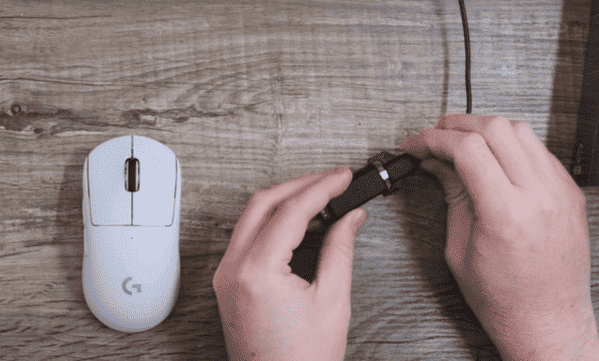
First check the mouse for obvious damages such as broken cables, loose plugs, stuck buttons, etc. If a hardware failure is found, it is best to replace the mouse. If it is a wireless mouse, check if the battery is charged, and replace or charge the battery if necessary.
2. Interface Problems
The mouse is usually connected to the computer through the USB interface. Sometimes, the mouse does not work may be due to poor contact or damage to the USB interface. Especially if the USB port on your laptop or desktop computer is frequently plugged and unplugged, the USB port may not be recognized or work properly due to poor contact with the mouse.
Try plugging the mouse into another USB port on your computer to see if it works properly. If the mouse still does not work after replacing the port, it is recommended to restart the computer and check if the operating system recognizes the mouse device. If the problem persists, the USB port may have a hardware failure that requires repair or replacement.
3. Driver Problems
The operating system and the mouse need to communicate with each other through the driver. If the mouse driver is faulty or incompatible with the operating system, the mouse may not work properly. We recommend using Driver Sentry for automatic driver updates, saving time and avoiding the risk of downloading or installing incorrect drivers.

4. Problems With Operating System Settings
Sometimes the mouse does not work may not be a hardware failure, but a problem with the operating system settings. For example, the operating system may have accidentally disabled the mouse, or set certain features to limit the operation of the mouse.
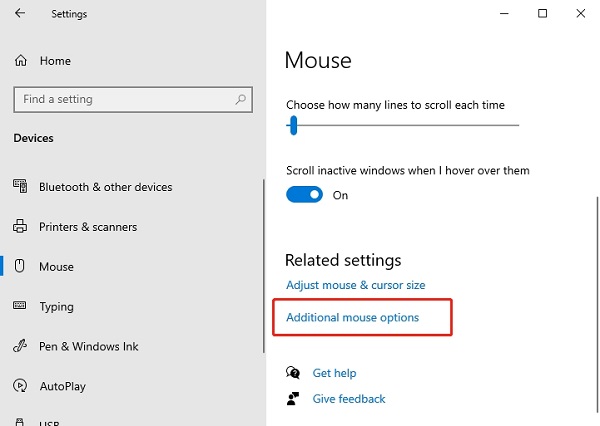
Check your mouse settings in the Control Panel or Settings to make sure you have not disabled the mouse or adjusted parameters such as sensitivity.
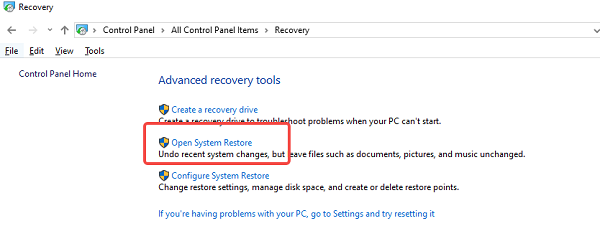
If the mouse problem cannot be solved by adjusting the settings, you can consider restoring the default settings of the operating system. In Windows, you can use "System Recovery" to restore to the previous working state.
5. Interference of External Factors
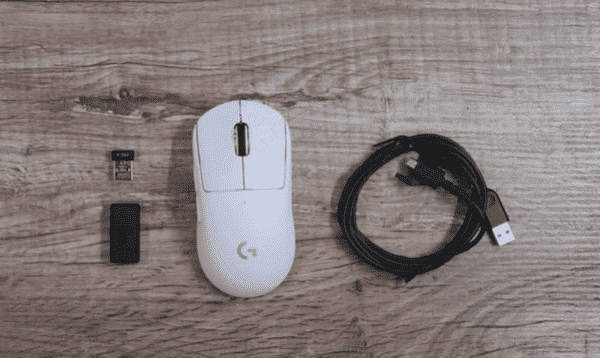
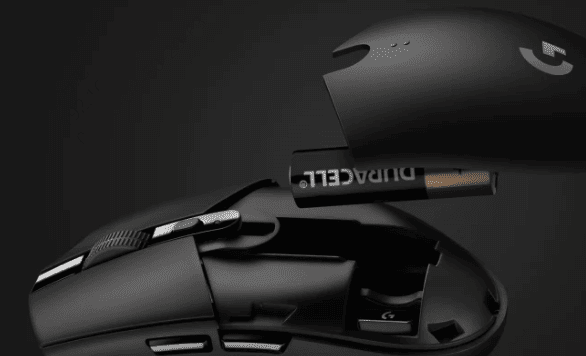
For wireless mice, signal interference or low battery is also a common problem. Wireless mouse relies on the wireless receiver to communicate with the computer, if the wireless signal is interfered, the mouse may lose response. In addition, batteries that have been in use for an extended period of time may be low, causing the mouse to become unresponsive or malfunction altogether.
Make sure there are no obstacles between the wireless mouse's receiver and the mouse, and that the receiver is plugged into the correct USB port. If you are using a wireless mouse with the 2.4GHz band, avoid plugging the receiver too far away or close to other electronic devices.
Check the battery level of the mouse, if the battery is low, please replace or charge it in time.
6. Operating System or Application Conflict
Sometimes, the malfunction of the mouse is not a hardware or setup problem, but due to the conflict between the operating system and some applications. For example, some third-party software may interfere with the normal use of the mouse, especially if a lot of plug-ins or customized settings are installed.
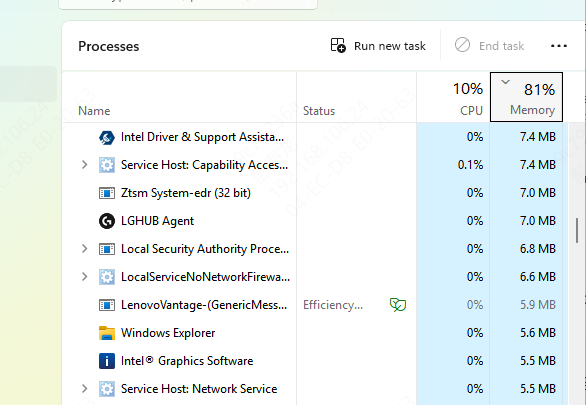
You can try to close unnecessary programs, especially some applications that may affect the mouse, such as mouse enhancement tools and peripheral management software.
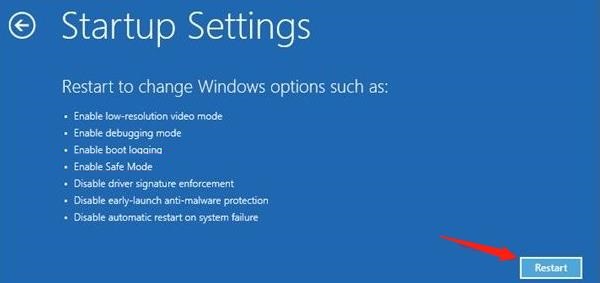
If the problem still can't be solved, try to enter the system's Safe Mode to check if some programs are causing the conflict. The system will load the most basic drivers and services in safe mode, which can help confirm whether the problem is caused by third-party software.
Frequently Asked Questions
Why does my mouse light up but not move?
The mouse may be receiving power while its sensor or driver is not working. Clean the sensor, try another USB port, reinstall the mouse driver, and test the mouse on another computer.
How can I use Windows when my mouse is not working?
Use the Tab and arrow keys to navigate, Enter to select an option, and Alt + F4 to close windows. Press Win + X to access important Windows tools.
Why does my mouse work in Safe Mode but not normally?
This usually indicates a conflict with third-party software, peripheral utilities, or startup services. Disable recently installed programs and unnecessary startup items to identify the cause.
Conclusion
When a computer mouse stops working, begin with simple hardware checks such as reconnecting the cable or receiver, replacing the battery, cleaning the sensor, and trying another USB port. If the mouse works on another computer, inspect Windows mouse settings and reinstall or update the relevant mouse, USB, Bluetooth, and chipset drivers manually or with Driver Sentry. For wireless models, reduce nearby interference and keep the receiver close to the mouse. If the device works only in Safe Mode, remove or disable conflicting peripheral software and startup programs.




