A computer that suddenly has no sound can disrupt work, entertainment, and online communication. Audio problems may be caused by muted settings, loose connections, disabled audio devices, outdated or corrupted drivers, or Windows service issues. In this guide, we'll walk you through step-by-step solutions to restore audio on your Windows PC, starting with updating your audio drivers—the most common cause of sound-related issues.
Check Audio Driver Issue
Outdated, corrupted, or incompatible audio drivers are the single most frequent cause of sound failure on Windows PCs.
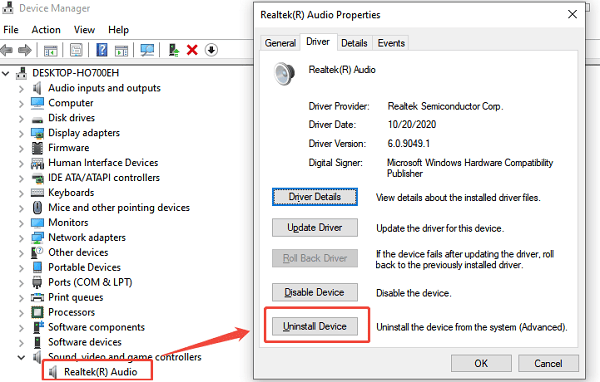
Method 1: Roll Back or Reinstall the Audio Driver
If the sound failure occurred immediately after a Windows update, the new driver may be the source of the problem.
Press Windows Key + X and select "Device Manager".
Expand the "Sound, video and game controllers" category.
Right-click on your audio device (e.g., Realtek Audio) and select "Properties".
Go to the "Driver" tab.
Roll Back: If the "Roll Back Driver" button is available, click it. This reverts to the previous working driver.
Reinstall: If the button is unavailable, select "Uninstall device". Check the box to "Attempt to remove the driver software for this device", and then restart your PC. Windows will automatically attempt to reinstall a basic functional driver upon reboot.
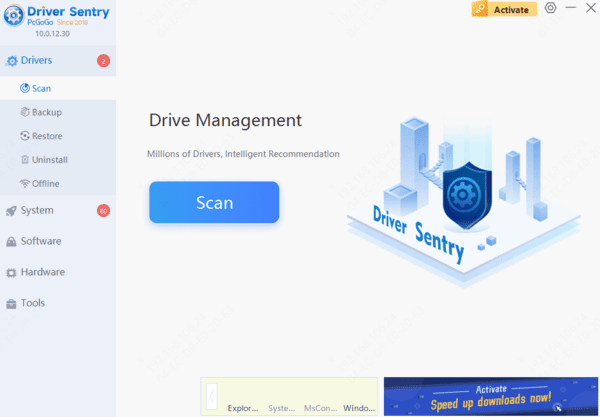
Method 2: Automated Driver Update with Driver Sentry
Manually troubleshooting and updating integrated audio drivers (like Realtek, Intel HD Audio, or Creative) can be complex and requires navigating the Device Manager. A specialized utility automates this process, ensuring all necessary audio and system drivers are perfectly stable.

Connection and System Checks
These steps rule out basic mistakes and ensure Windows audio services are running correctly.
Method 1: Check Connections and Volume Mixer
Simple physical disconnections and muted software settings are common culprits.
Physical Connections: Ensure speakers or headphones are securely plugged into the correct green audio jack (for desktop PCs) or the correct port (for laptops). If using USB or HDMI audio, try a different port.
Volume Mixer: Right-click the Speaker icon in the taskbar and select "Open Volume Mixer". Ensure that the main volume slider, as well as the volume sliders for all applications, are turned up and not muted.
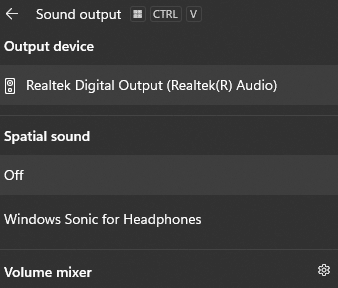
Check Playback Device: Right-click the Speaker icon and select "Sounds". In the "Playback" tab, ensure your active speaker/headphone device is set as the "Default Device" and is not disabled.
Method 2: Ensure Windows Audio Services Are Running
Critical Windows services must be active for any sound output.
Press Windows Key + R, type "services.msc", and press Enter.
In the Services window, scroll down and find the "Windows Audio" service.
Right-click the service and select "Properties".
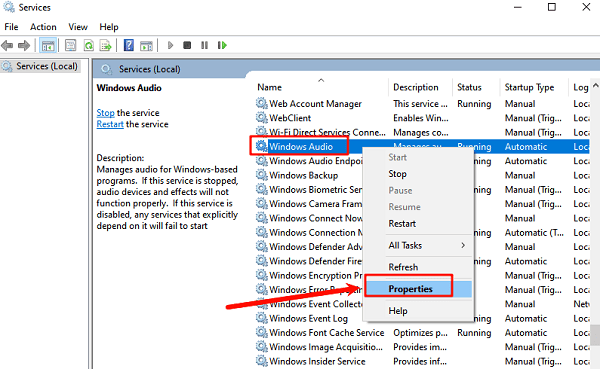
Ensure the Startup Type is set to "Automatic".
If the service is not running, click the "Start" button under the Service status. Repeat this process for the "Windows Audio Endpoint Builder" service.
Advanced Troubleshooting
If the above methods fail, the issue may require more specialized system checks.
Disable Audio Enhancements
Some audio driver enhancements can conflict with Windows, causing sound to drop out entirely.
Right-click the Speaker icon in the taskbar and select "Sounds".
In the "Playback" tab, right-click your default speaker/headphone device and select "Properties".
Go to the "Enhancements" or "Advanced" tab.
Check the box that says "Disable all sound effects" or try changing the Default Format to a lower quality setting (e.g., 16 bit, 44100 Hz).
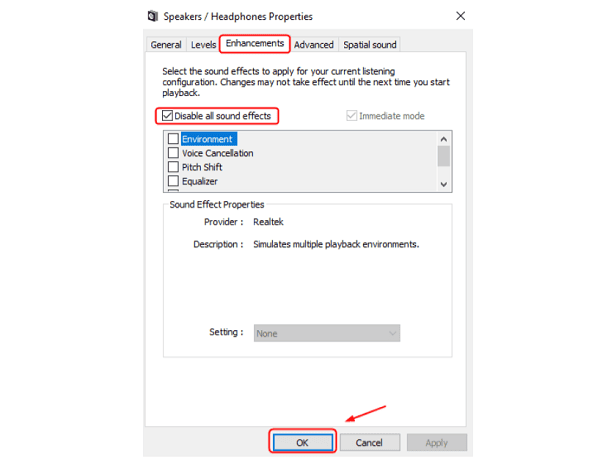
Click "Apply" and test the sound.
Loss of sound on a computer is a frustrating but usually fixable issue rooted in driver or configuration errors. The most effective way to address the problem is to update drivers with Driver Sentry.
By systematically checking your Volume Mixer, physical connections, and the status of the Windows Audio services, you can quickly isolate the fault and restore full sound output to your system.