






The ntkrnlmp.exe BSOD error can cause sudden crashes, unexpected restarts, and system instability on Windows. Although ntkrnlmp.exe is a core Windows kernel file, it is usually not the actual cause of the problem. These blue screen errors are more commonly triggered by faulty or incompatible drivers, unstable overclocking, memory problems, corrupted system files, third-party software conflicts, or outdated BIOS firmware. This guide covers several practical ways to fix ntkrnlmp.exe BSOD errors.
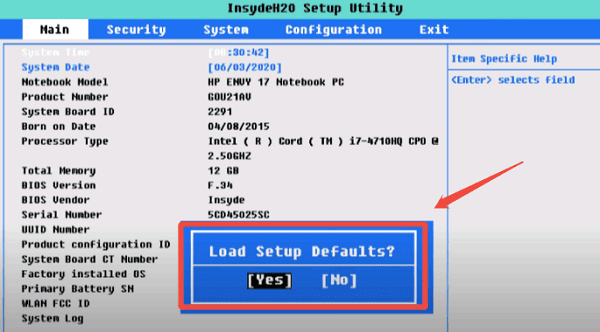
Disable Overclocking in BIOS
CPU and RAM overclocking pushes hardware beyond its rated specifications. Under sustained load, this causes memory addressing errors and voltage instability, both of which produce kernel-level crashes. If you have enabled XMP, DOCP, or any manual CPU frequency adjustments, this is a high-probability cause
Restart your PC and press the BIOS entry key during POST, typically F2, Del, or F10. Locate settings labeled Overclocking, CPU Ratio, XMP, or DOCP and disable them. Use the Load Optimized Defaults option if available. Save and exit, then test the system under the same conditions that were triggering the BSOD
Run Windows Memory Diagnostic
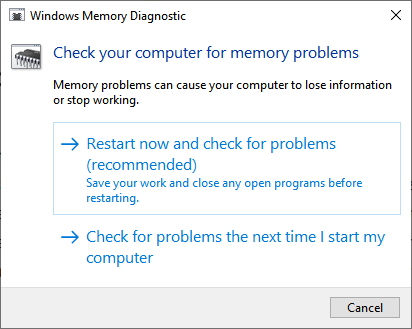
Faulty RAM causes data corruption at the point where Windows or a driver writes to a failing memory cell, resulting in an unpredictable kernel crash. Press Windows + R, type mdsched.exe, and press Enter
Select Restart now and check for problems. Windows will restart, run a full memory test, and display results after rebooting. If errors are found, reseat your RAM modules and test each stick individually by removing one at a time to isolate the failing module
Run SFC and DISM to Repair System Files
Corrupted Windows system files can cause kernel components to fail during operation.
Open Command Prompt as Administrator and run:
sfc /scannow
Let it complete without interruption. If it reports that it could not fix all errors, follow up with DISM. Run these commands in sequence:
DISM /Online /Cleanup-Image /ScanHealth
DISM /Online /Cleanup-Image /RestoreHealth
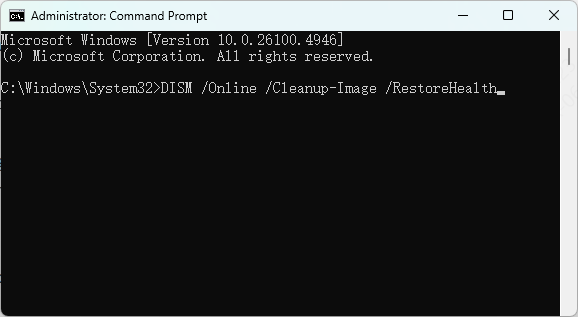
DISM requires an active internet connection to download clean replacement files from Windows Update. Restart after completion and run sfc /scannow again to confirm the repairs were applied.
Perform a Clean Boot
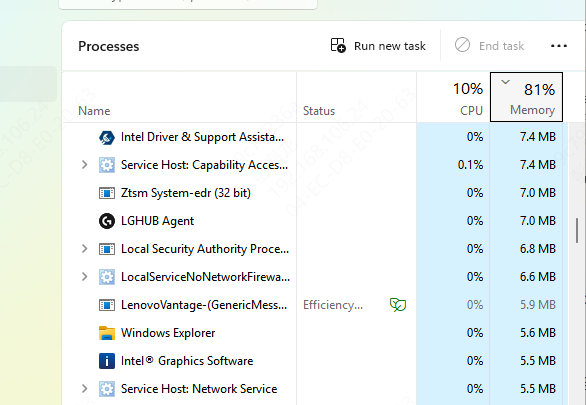
Third-party services and startup programs can load kernel-mode components that conflict with Windows. Press Windows + R, type msconfig, and press Enter. Go to the Services tab, check Hide all Microsoft services, and click Disable all
Open Task Manager from the Startup tab and disable all startup items. Restart and test. If the BSOD is gone, re-enable services in small groups until the crash returns to identify the conflicting program
Update Drivers
Outdated, corrupted, or incompatible kernel-mode drivers are the most common cause of ntkrnlmp.exe BSODs. Graphics drivers, chipset drivers, storage controllers, and network adapters all run at the kernel level, and any one of them can destabilize the system if incompatible with the current Windows version.
Driver Sentry automates the process of detecting and updating problematic drivers. Download and install it, open the program, and click Scan. It will identify outdated, missing, or faulty drivers across your system
Click Repair Now to apply the updates automatically. Restart your PC after all drivers are updated and monitor whether the BSOD recurs. If the crash was driver-related, this step alone resolves it in the majority of cases

Update BIOS or UEFI Firmware
Outdated BIOS firmware can cause compatibility conflicts with newer Windows builds. Visit your motherboard or laptop manufacturer's support page, find your specific model, and download the latest firmware
Follow the manufacturer's instructions precisely. Ensure the system is on reliable power throughout the update process
Reset or Reinstall Windows
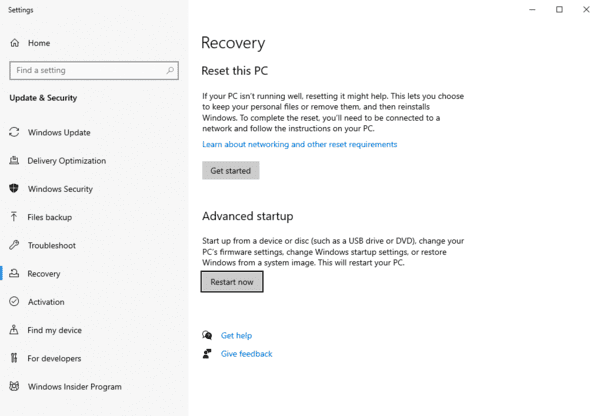
If none of the above methods have resolved the issue, the Windows installation may have damage that repair tools cannot address. Go to Settings, Update and Security, Recovery, and click Get started under Reset this PC
Choose Keep my files to preserve personal data while reinstalling Windows. For a fully clean installation, use a bootable Windows USB created from the official Microsoft Media Creation Tool
Frequently Asked Questions
Is ntkrnlmp.exe itself causing the blue screen?
Usually not. It is a core Windows kernel component that may appear in crash reports when another driver, unstable hardware setting, or memory problem causes the failure.
How can I identify the driver behind an ntkrnlmp.exe BSOD?
Check the dump files in C:\Windows\Minidump using a crash-analysis tool. Repeated references to the same graphics, network, storage, or chipset driver can help identify the source.
Can faulty RAM cause ntkrnlmp.exe crashes?
Yes. Defective RAM, unstable XMP or DOCP settings, and incorrect memory voltages can cause kernel crashes. Disable memory overclocking and test each RAM module separately.
Should I replace ntkrnlmp.exe manually?
No. Do not download the file from third-party DLL websites. Use SFC and DISM to repair protected Windows files safely.
Conclusion
ntkrnlmp.exe BSODs are almost always caused by something running in kernel space rather than the kernel file itself. Start with driver updates using Driver Sentry since driver conflicts account for the majority of these crashes. If the BSOD persists, work through memory testing, system file repair, and clean boot to isolate the remaining causes. Most cases are resolved well before reaching a Windows reset, but that option is available as a reliable last resort if the system has deeper corruption.




