


PlayStation Remote Play allows you to stream games from your PS5 or PS4 to a compatible Windows PC. Instead of playing directly on your television, you can access your console remotely and continue gaming from another supported device.
However, the experience is not always trouble-free. You may encounter connection errors, failed sign-ins, black screens, controller recognition problems, or frequent disconnections.
This guide explains how to identify the cause and fix common PS Remote Play problems without making unnecessary changes to your system.
Fix 1: Enable Remote Play on Your PS5 or PS4
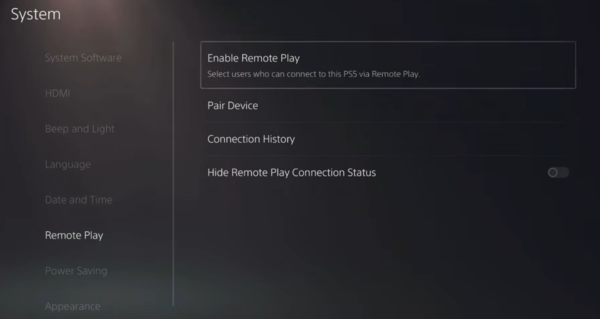
On PS5
Turn on your PS5.
Open Settings.
Select System.
Choose Remote Play.
Enable Remote Play.
On PS4
Open Settings.
Select Remote Play Connection Settings.
Turn on Enable Remote Play.
Fix 2: Configure Rest Mode Settings
For PS5
Open Settings > System.
Select Power Saving.
Open Features Available in Rest Mode.
Enable Stay Connected to the Internet.
Enable Enable Turning On PS5 from Network.
For PS4
Open Settings.
Select Power Save Settings.
Choose Set Features Available in Rest Mode.
Enable Stay Connected to the Internet.
Enable Enable Turning On PS4 from Network.
Fix 3: Improve Your Internet Connection
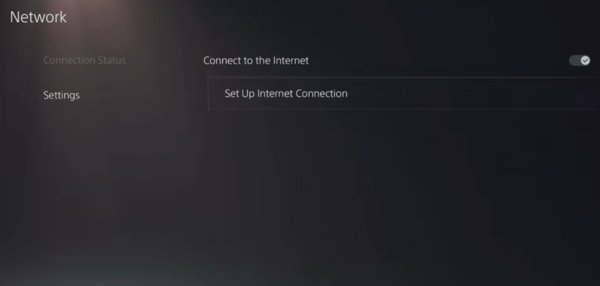
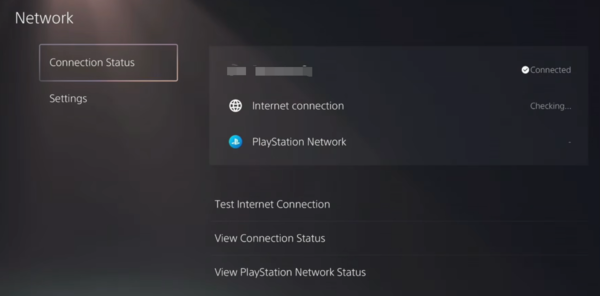
On PS5, navigate to Settings > Network > Connection Status > Test Internet Connection.
On PS4, open Settings > Network > Test Internet Connection.
If possible, connect your PlayStation console to the router using an Ethernet cable.
For wireless devices, use a stable 5 GHz Wi-Fi connection when supported.
You should also pause unnecessary downloads, video streaming, and cloud backups while using Remote Play.
Fix 4: Update the Remote Play App and Console Software
On PS5, check Settings > System > System Software for update options.
On PS4, open Settings > System Software Update.
Next, update the PS Remote Play application on your computer or mobile device.
Fix 5: Check PlayStation Account and Sign-In Problems
First, check the official PlayStation Network service status page.
Next, confirm that the Remote Play application uses the same PlayStation account associated with your console.
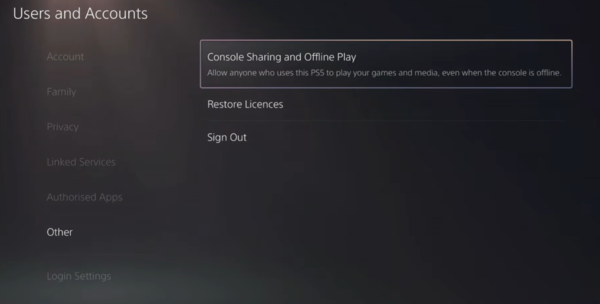
Sign out of PS Remote Play and sign in again.
Complete any required account verification steps.
Fix 6: Check Firewall, Router, and NAT Settings
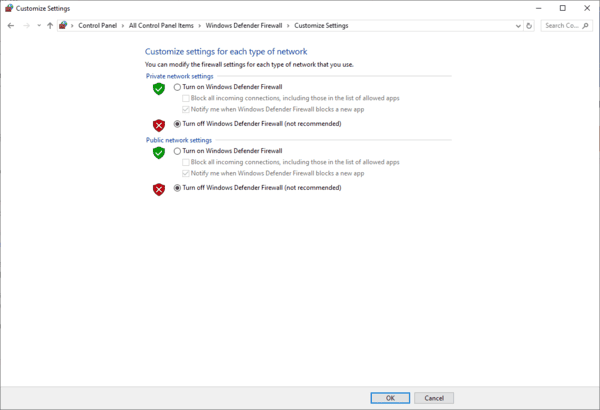
Open Windows Security.
Select Firewall & network protection.
Click Allow an app through firewall.
Look for PS Remote Play.
Fix 7: Update Windows Network and Graphics Drivers
If PS Remote Play is not working on a Windows PC, outdated or corrupted device drivers may contribute to certain problems.
For example, an unstable Wi-Fi or Ethernet driver can interrupt network connectivity.
Graphics driver problems may also contribute to a blank Remote Play window or video display failures.
Option A: Check Drivers with Driver Sentry
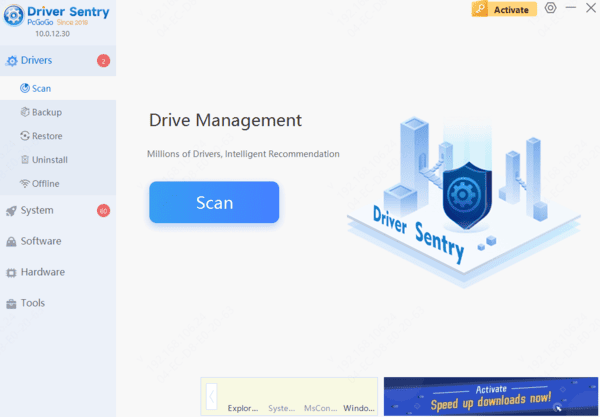
Driver Sentry provides an additional way to identify supported outdated, missing, or problematic Windows drivers.
Download Driver Sentry.
Install and launch the software.
Click Scan to check your computer.
Review detected network and graphics driver issues.
Install an appropriate compatible driver update if available.
Restart Windows and test PS Remote Play again.
Option B: Update Drivers Manually
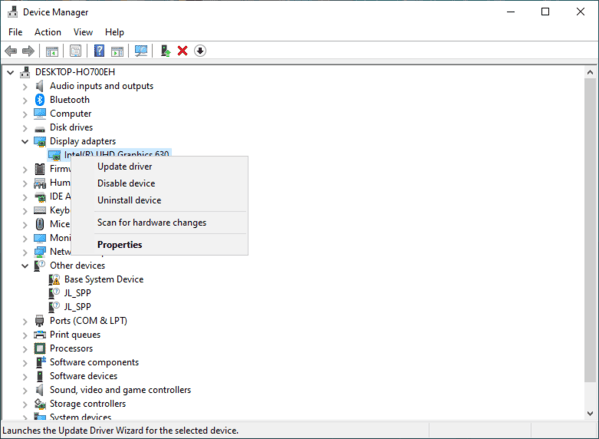
Right-click the Start button.
Select Device Manager.
Expand Network adapters or Display adapters.
Identify the device you want to check.
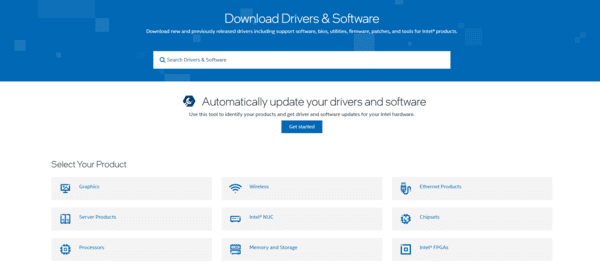
Visit the PC or hardware manufacturer's official support website.
Download and install a compatible driver.
Restart Windows.
Fix 8: Reconnect Your Controller
First, confirm that your controller is compatible with your device and the PS Remote Play application.
On a Windows PC, try connecting a supported DualSense or DUALSHOCK 4 controller using a compatible USB cable.
If the controller is not detected, disconnect and reconnect it.
Try another USB port or cable if necessary.
By identifying whether the problem affects console discovery, video streaming, sign-in, or controller input, you can choose a more effective solution and restore your Remote Play experience.